TE20 Videoconferencing Endpoint
Huawei Proprietary and Confidential
Copyright © Huawei Technologies Co., Ltd.
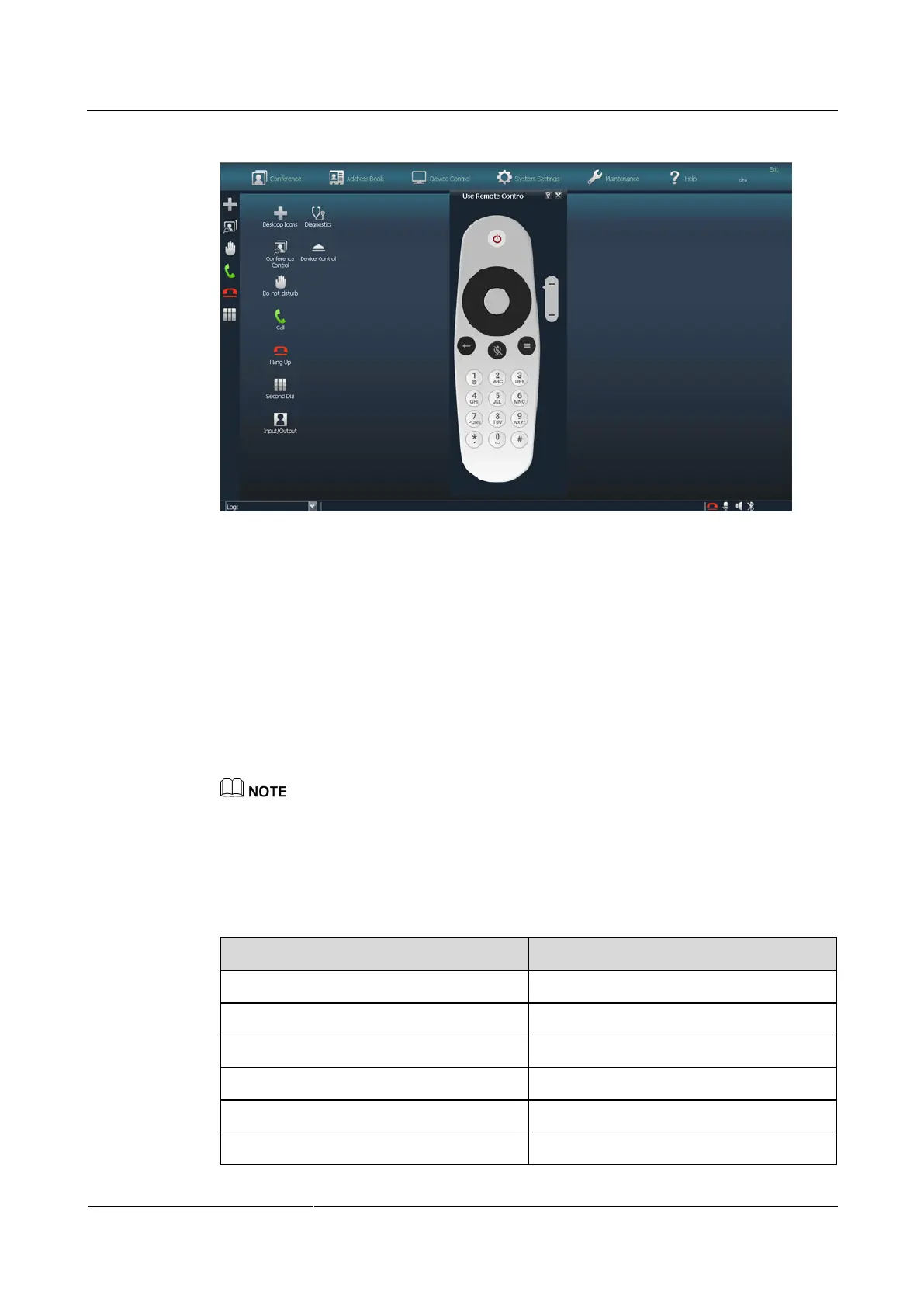
Figure 2-3 Simulated remote control
2.1.6 Using a Keyboard or Mouse
You can connect a wired or wireless keyboard or mouse to your endpoint through the USB
port. Then you can use it to operate your device just like a remote control.
Using a Keyboard
You will see the screen shown in Figure 2-2 after connecting your endpoint to a wired or
wireless keyboard.
Table 2-1 shows the remote control buttons and the keyboard buttons with the same functions.
You can use the keyboard button combinations of the Android operating system to operate the
remote control UI. If you want to know functions of these button combinations, visit the Android
website.
The TE20 remote control UI provides a soft keyboard, which is available even though a physical
keyboard is connected.
Table 2-1 Remote control buttons and corresponding keyboard buttons
Delete or Backspace button
Plus (+) button on the numeric keypad
Minus (-) button on the numeric keypad


 To Next Page