TE20 Videoconferencing Endpoint
Huawei Proprietary and Confidential
Copyright © Huawei Technologies Co., Ltd.
Letter, number, and symbol buttons
Letter, number, and symbol buttons
Using a Mouse
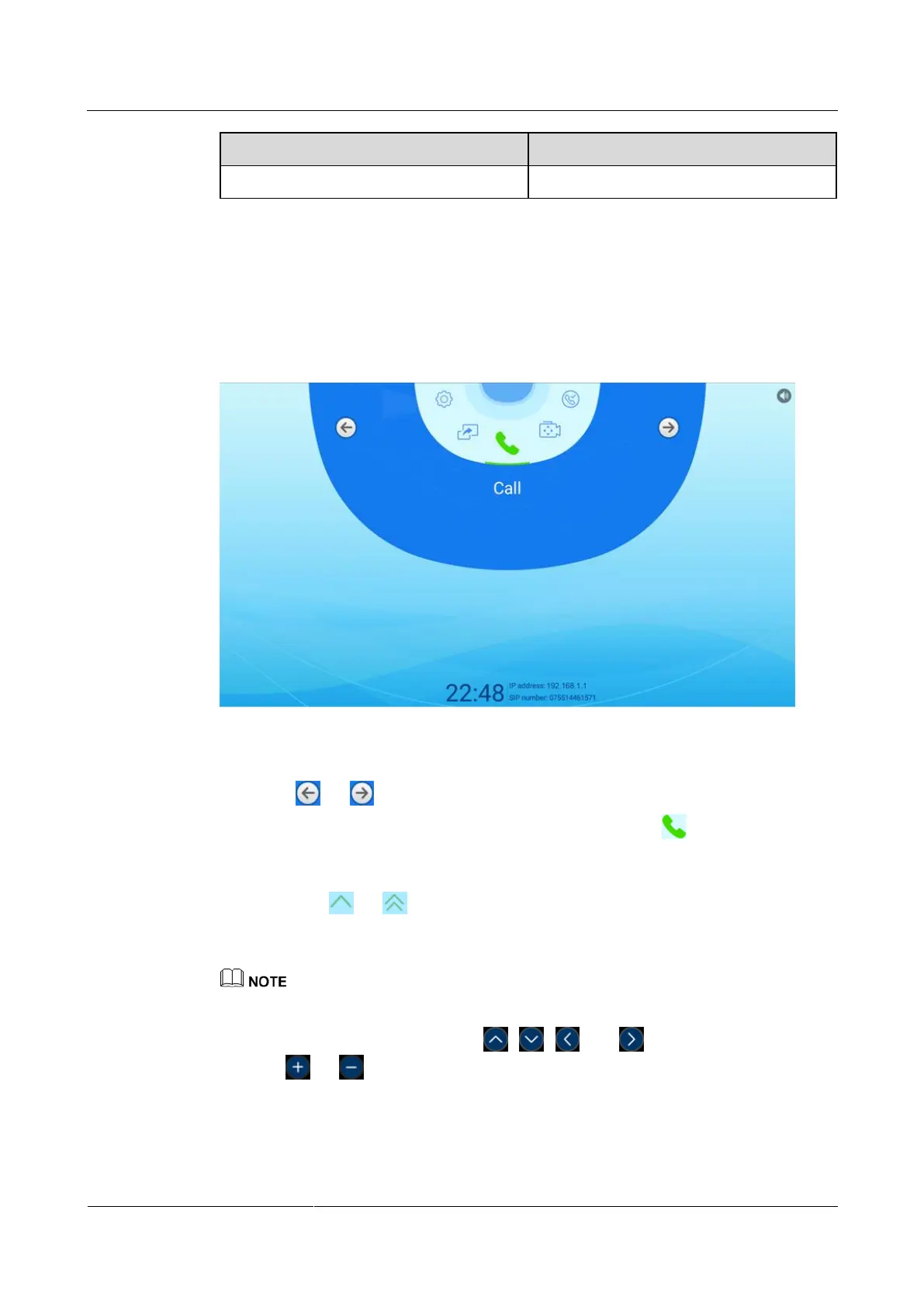
You will see the screen shown in Figure 2-4 after connecting your endpoint to a wired or
wireless mouse.
Figure 2-4 Main menu screen (a mouse connected)
You can use the mouse as follows:
Click or to navigate to a menu item.
Click a menu item to access its screen. For example, click the icon to access the
Call screen.
Then you can perform the following operations:
− Click or to go back to the previous screen.
− Click the text box to invoke the soft keyboard. Then use the soft keyboard to enter
letters, numbers, or symbols.
If a wireless keyboard and mouse suite is connected, you can also use the physical keyboard to enter
what you want after a click on the text box.
− On the Camera screen, click , , , and to rotate the camera or click
or to adjust the focal length.


 To Next Page