83
CHAPTER 8
Browsing Your PDM Records
Your PDM records are displayed on:
• Notications & Alarms screens
• Insulin & BG History screens, which show insulin, blood glucose,
carbohydrate and Pod events
e PDM can store 90 days of history records. Once the memory is full, new
records begin to replace the oldest records. You can browse but not edit the
information in your records.
Note: e data stored in the PDM is preserved if the PDM battery runs out. You
may need to reset the date and time, but PDM records are unaected.
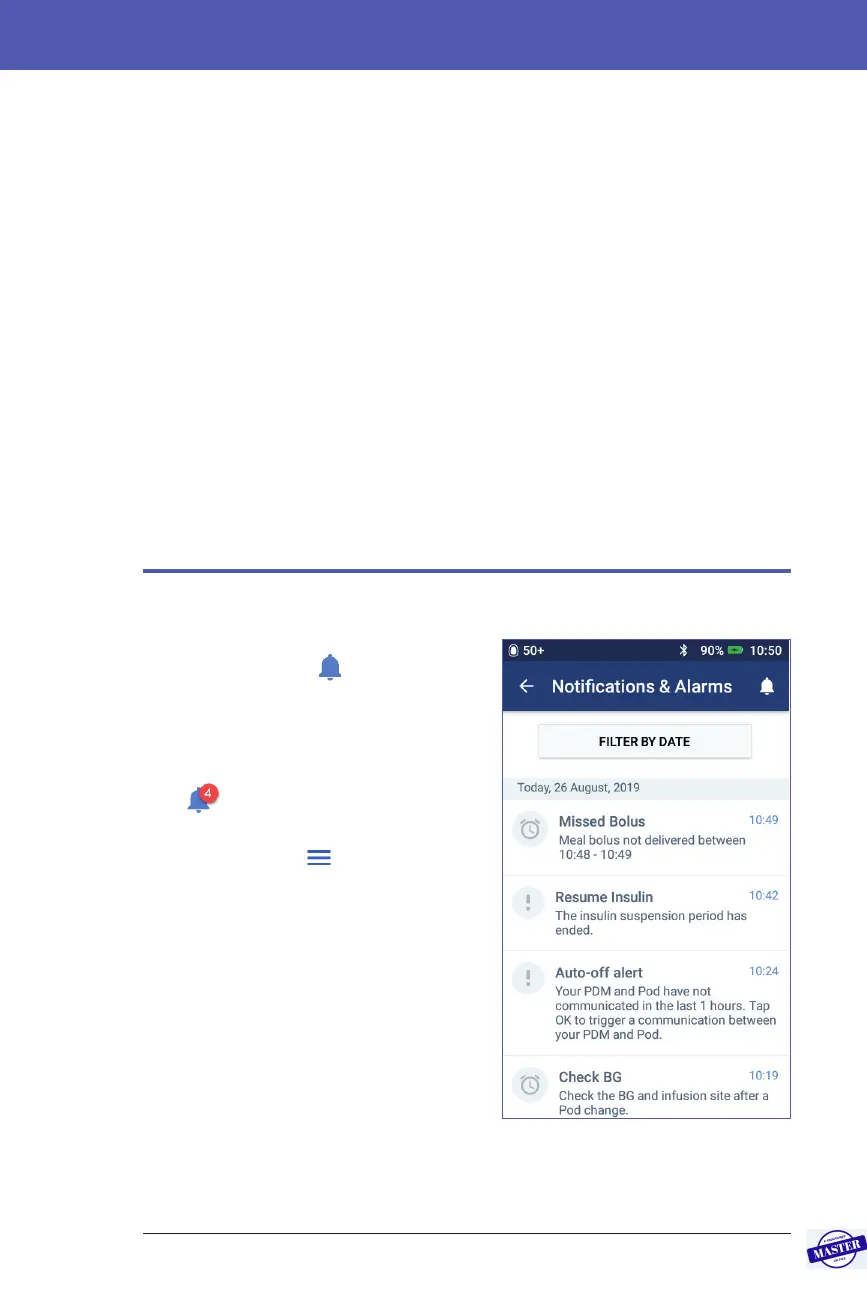
Notications & Alarms Screens
To review past alarms and notications:
1. Tap the bell icon ( ) found in the
upper right of many screens.
If you have new notications, the
number of new notications appears
in a red circle next to the bell icon
(
).
Note: Alternatively, navigate
to: Menu icon (
) > History :
Notications & Alarms.
Messages from today are displayed
rst, followed by messages from
previous days.
2. Swipe up to see additional messages.
3. To display a specic date range, tap
FILTER BY DATE.
a. Tap the starting date on the
calendar. Tap the “<” arrow to view
an earlier month.
b. Tap END at the top of the screen.
Effective Date: 27SEP2019, ECO-000240



 To Next Page