Managing Programs and Presets 7
76
7 Managing Programs and Presets
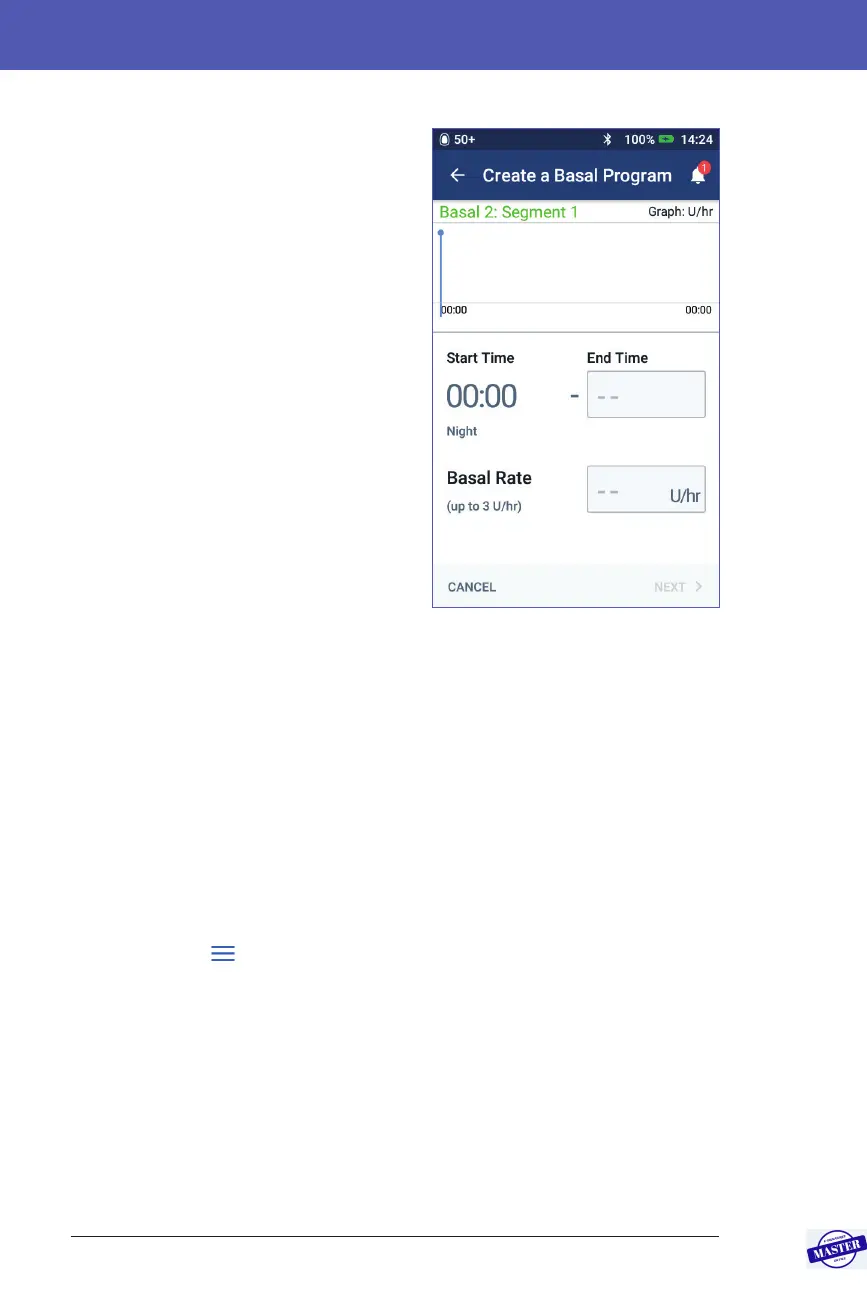
6. Dene the basal segments one at a
time. For each segment:
a. Tap the End Time eld and select
the end time for the segment.
b. Tap the Basal Rate eld and select
the desired basal rate for the
segment.
c. Tap NEXT.
d. Repeat these steps until your nal
segment ends at midnight.
7. When your Basal Program covers 24
hours, tap CONTINUE.
8. A screen appears showing the full
Basal Program as a graph and as a list.
Review the Basal Program to be sure
all the values are correct.
Tip: Double-tap the graph to see an
expanded view of the Basal Program.
Swipe horizontally to view basal rates for later or earlier times.
To edit any of the segments in the Basal Program, see steps 7-9 under “Edit or
rename a Basal Program” on page 77.
9. Tap SAVE to store the new Basal Program.
10. If you have an active Pod and you want to use the new Basal Program now,
tap ACTIVATE to start using the new Basal Program. If you do not want to use
the new Basal Program now, tap NOT NOW.
Review all Basal Programs
1. Navigate to the list of Basal Programs:
Menu icon (
) > Basal Programs
2. A graph of the current Basal Program is shown at the top of the screen (see
“Basal tab / Temp Basal tab” on page 13 for details about the graph).
3. Swipe to scroll up or down if the list of Basal Programs is long.
4. Tap on the name of a non-active Basal Program to see its graph and basal
rates. Tap outside the graph to close that graph.
Effective Date: 27SEP2019, ECO-000240



 To Next Page