11
Omnipod DASH™ Insulin Management System 11 Omnipod DASH™ Insulin Management System
using your PDM, do not turn the power o. e PDM can sound an alarm only
when powered on.
Forgotten your PIN?
You can use the last four digits of the PDM’s serial number as an alternative PIN:
1. Find the serial number next to the icon on the back of your PDM.
2. Note the last four digits of the serial number.
3. Enter those four digits on the PIN screen and tap the tick symbol.
If you have problems with your PIN, call Customer Care.
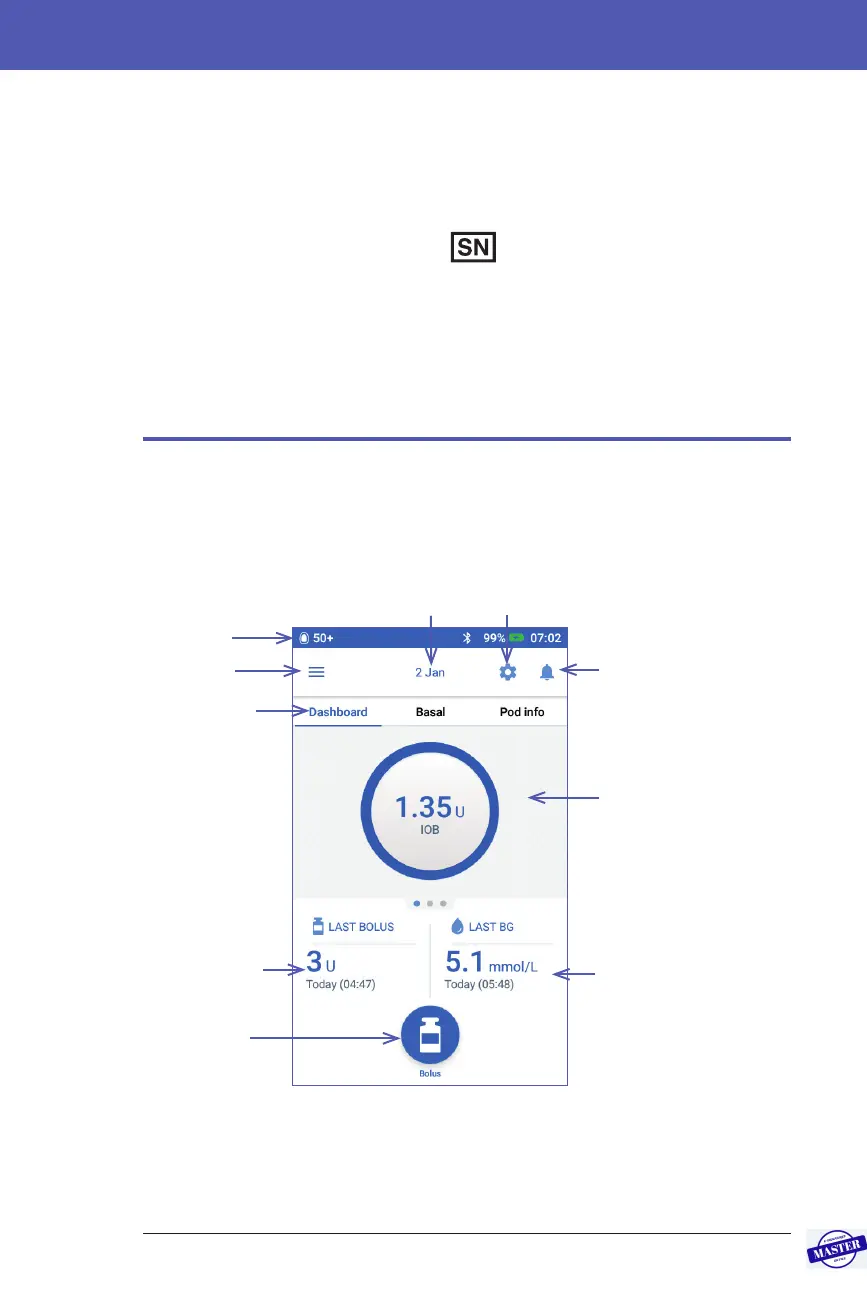
The PDM’s Home Screen
e Home screen provides information about recent boluses, blood glucose
values, the active basal rate and the active Pod. It also provides access to the PDM
functions, alarm information and settings. e Home screen also has a Bolus
button to give quick access to the bolus screen.
Value and time of most
recent blood glucose
reading
Tab area
The Dashboard tab is
visible in this image.
Notications & Alarms
icon
Bolus button
Amount and time
of the most
recent bolus
Tab labels: The
name of the
visible tab is blue
and underlined.
Menu icon
Status bar
Settings icon
Today’s date
Effective Date: 27SEP2019, ECO-000240



 To Next Page