Delivering a Bolus of Insulin 5
66
5 Delivering a Bolus of Insulin
Altering aBolus in Progress
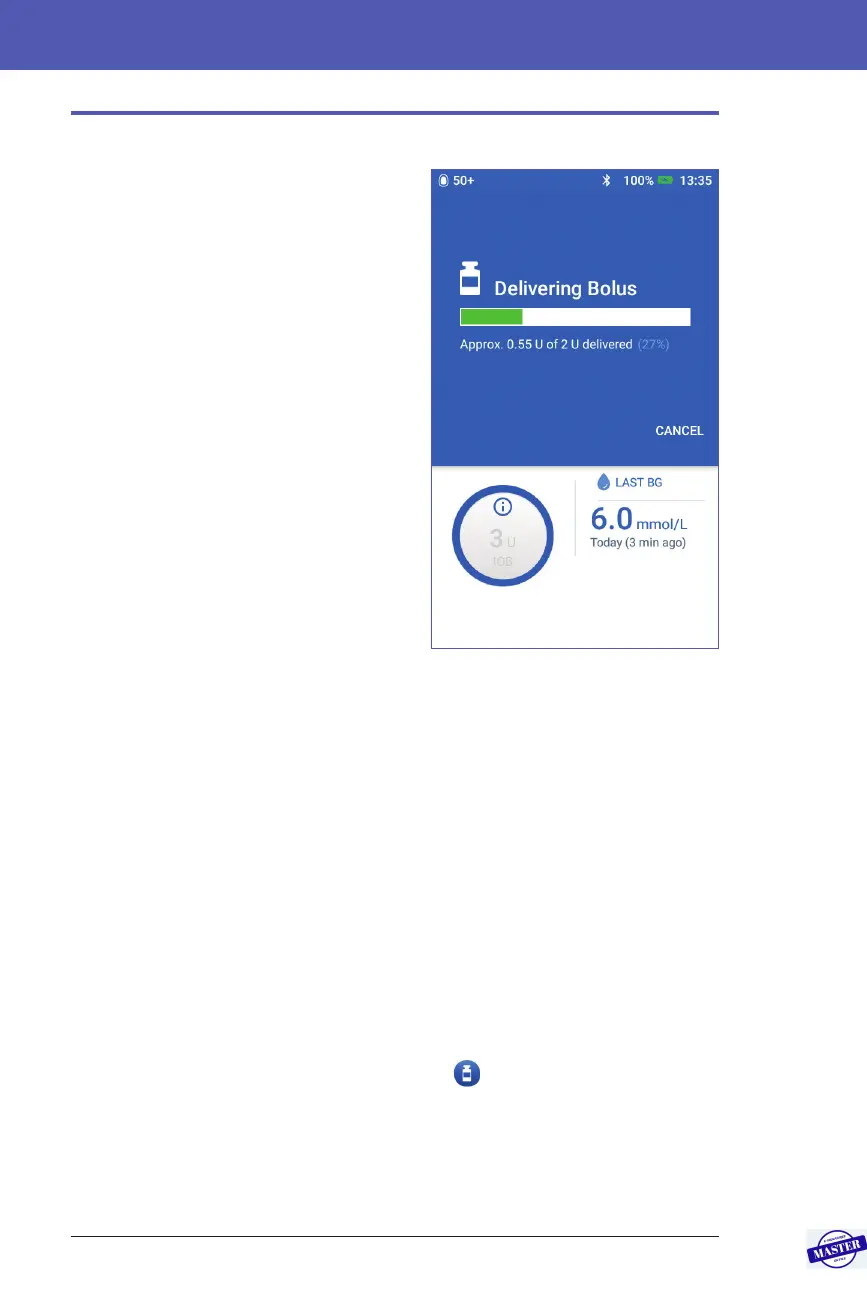
When an immediate bolus is in progress,
you must cancel it before performing any
other action.
During an extended bolus, you can:
• Cancel the bolus.
• Deliver a new immediate bolus
and continue the extended bolus in
progress.
• Replace the bolus in progress with
another bolus.
If you get a communication error message
when cancelling a bolus, see “Error when
cancelling a bolus” on page 121.
Cancel a bolus
To cancel an immediate or extended bolus:
1. On the Home screen (immediate
bolus) or the Home screen’s
Dashboard tab (extended bolus), tap CANCEL.
2. Tap YES to conrm cancelling the bolus. e Pod beeps to conrm that the
bolus is cancelled.
Deliver a new bolus during an extended bolus
To deliver an immediate bolus while an extended bolus is in progress:
1. On the Home screen, tap the Bolus button.
2. Enter the carbs and blood glucose information. en tap CONFIRM.
3. Tap START.
e new bolus is delivered, and the extended bolus continues.
Replace an extended bolus
To replace an extended bolus in progress with a new extended bolus, you must
cancel the ongoing bolus rst.
1. On the Home screen, tap the Bolus button ( ).
2. Enter the amount of the new bolus (see “Bolusing with the Bolus Calculator”
on page 57 or “Manually Calculated Bolus” on page 63).
3. Tap EXTEND BOLUS. A screen appears telling you that an extended bolus is
already active.
Effective Date: 27SEP2019, ECO-000240



 To Next Page