Omnipod DASH™ Insulin Management System 1
12
1 Omnipod DASH™ Insulin Management System
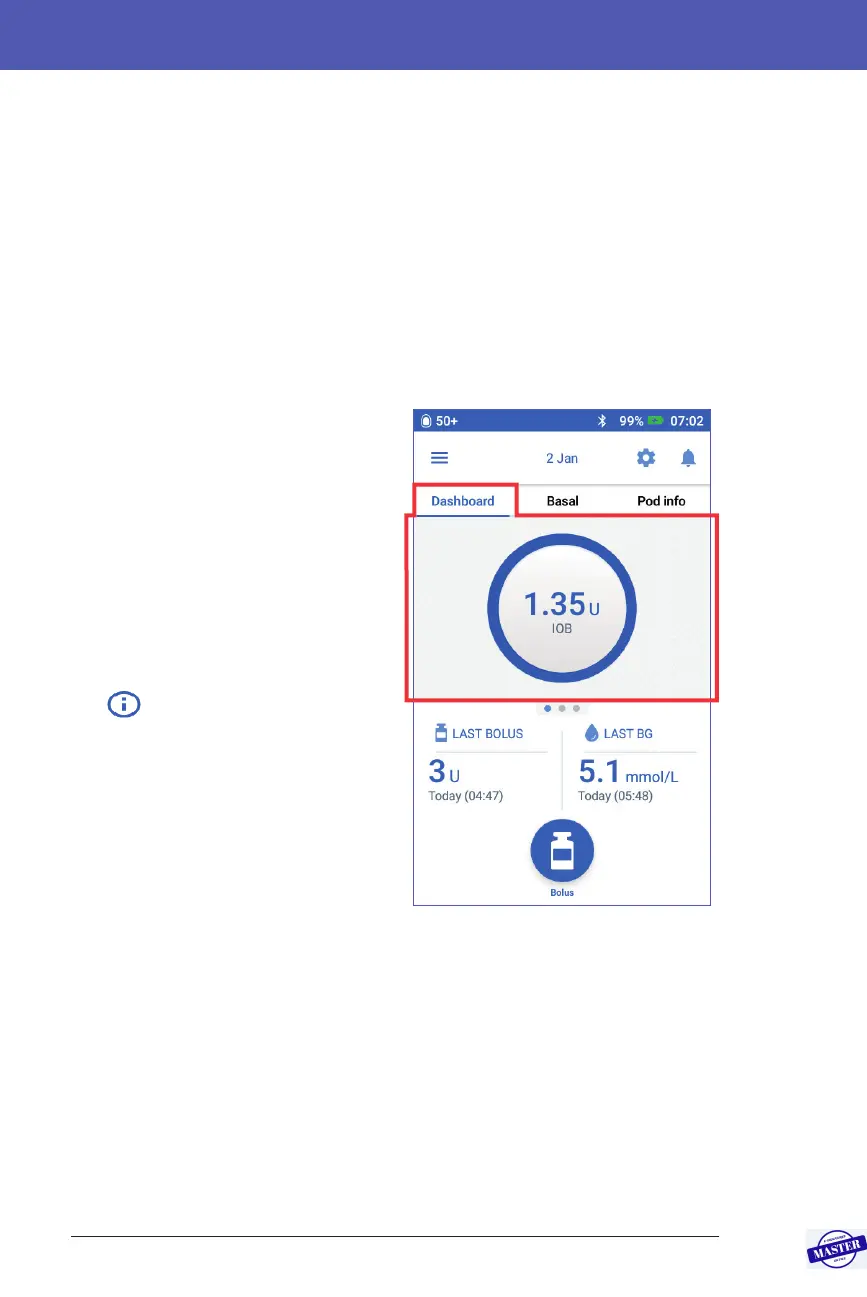
e tab area of the Home screen can display bolus information on the Dashboard,
basal information or Pod information. To change which information is displayed:
• Tap Dashboard, Basal or Pod Info to display each tab.
• Swipe right or swipe le in the middle section to move between the tabs.
Note: If an immediate bolus is running, a bolus progress bar is shown
ontheHome screen, and the Bolus button and three tabs are not visible
(see“Immediate bolus progress” onpage65). A button to cancel the bolus
isvisible.
Dashboard tab
e Dashboard tab is available if the
Bolus Calculator is on and is usually not
available if the Bolus Calculator is o.
When the Bolus Calculator is on
When the Bolus Calculator is on,
the Dashboard tab displays:
• IOB (insulin on board),
when IOB is available.
• IOB is not available, when the
Bolus Calculator is disabled. Tap the
icon for a list of reasons for the
Bolus Calculator to be disabled.
A progress bar appears when a bolus is
in progress (see “Tracking the Progress
of a Bolus” on page 65).
When the Bolus Calculator is o
When the Bolus Calculator is o, there
are usually only two tabs: Basal and Pod
Info. e Dashboard tab displays only
when an extended bolus is running
(see “Tracking the Progress of a Bolus”
on page 65).
Effective Date: 27SEP2019, ECO-000240



 To Next Page