79
Managing Programs and Presets 77 Managing Programs and Presets
Temp basal presets
If there is a temp basal that you use oen, you can create a “Temp basal preset” for
rapid activation in the future. To activate a temp basal preset, see page 71. To turn
on or o the ability to activate temp basals, or to change between specifying the
temp basal as a percentage or in U/hr, see page 105. You can create up to 12 temp
basal presets.
Create a new temp basal preset
To create a new temp basal preset:
1. Navigate to the Temp Basal Presets screen:
Menu icon (
) > Temp Basal Presets
2. Tap CREATE NEW.
Note: If you already have 12 temp basal presets, CREATE NEW does not
appear. If necessary, you can delete an existing preset.
3. Optional: Tap the Preset Name eld and enter a descriptive name for your
preset. e default name for the preset is “Temp Basal Presets” followed by a
number.
4. Optional: Tap a tag to appear next to the name of the new preset. Tap a second
time to deselect the tag. If you do not select a tag, a default tag is used.
5. Tap NEXT.
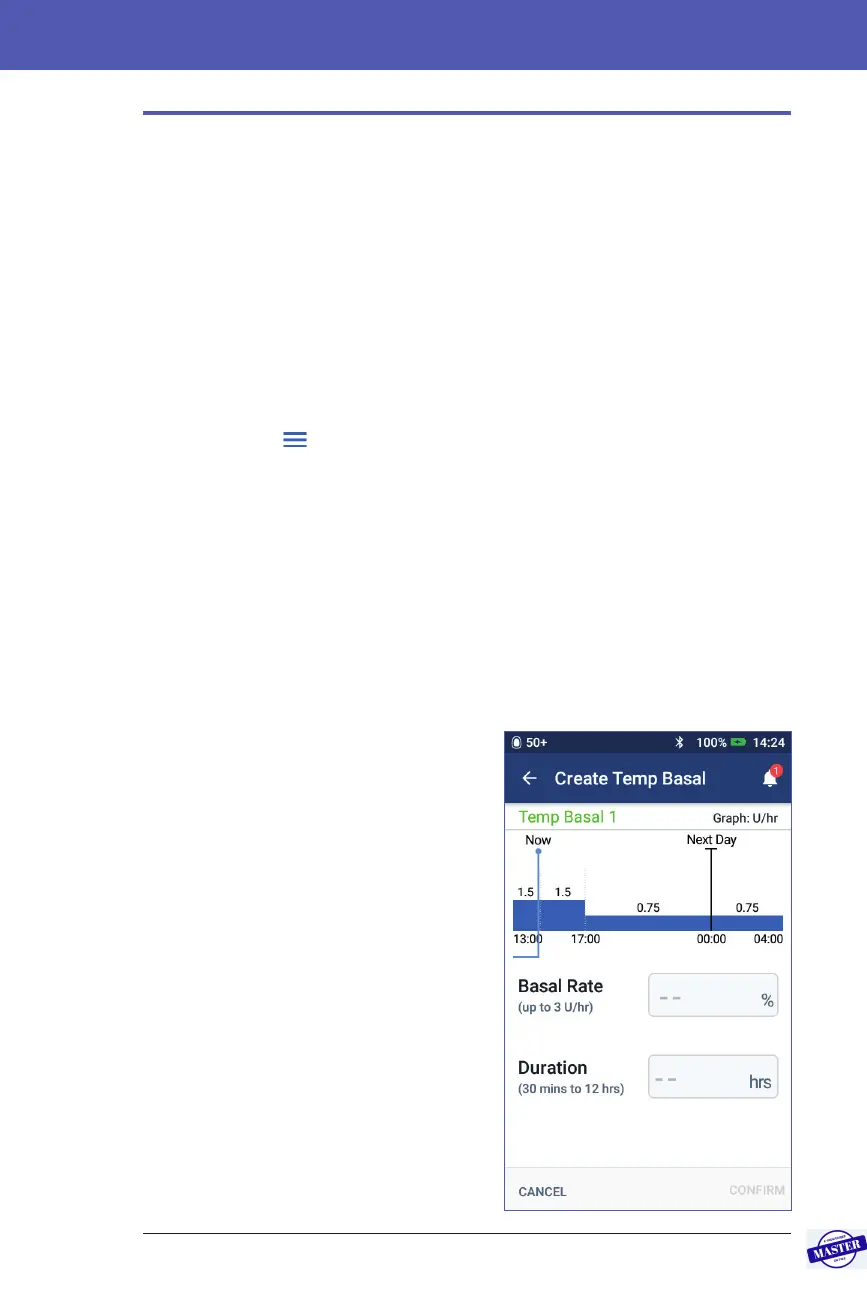
6. Tap the Basal Rate eld and scroll to
the desired value.
7. Tap the Duration eld and enter a
duration for the preset. e temporary
change to the Basal Program is shown
on the graph.
Note: You will be able to modify the
duration of a temp basal preset when
you activate it.
8. Tap CONFIRM.
9. Tap SAVE to save this as a temp basal
preset.
10. If you would like to start this temp
basal now, tap ACTIVATE. Otherwise,
tap NOT NOW. is choice does
not appear if a temp basal is already
running.
Effective Date: 27SEP2019, ECO-000240



 To Next Page