17
Omnipod DASH™ Insulin Management System 11 Omnipod DASH™ Insulin Management System
The Home Page’s Menu
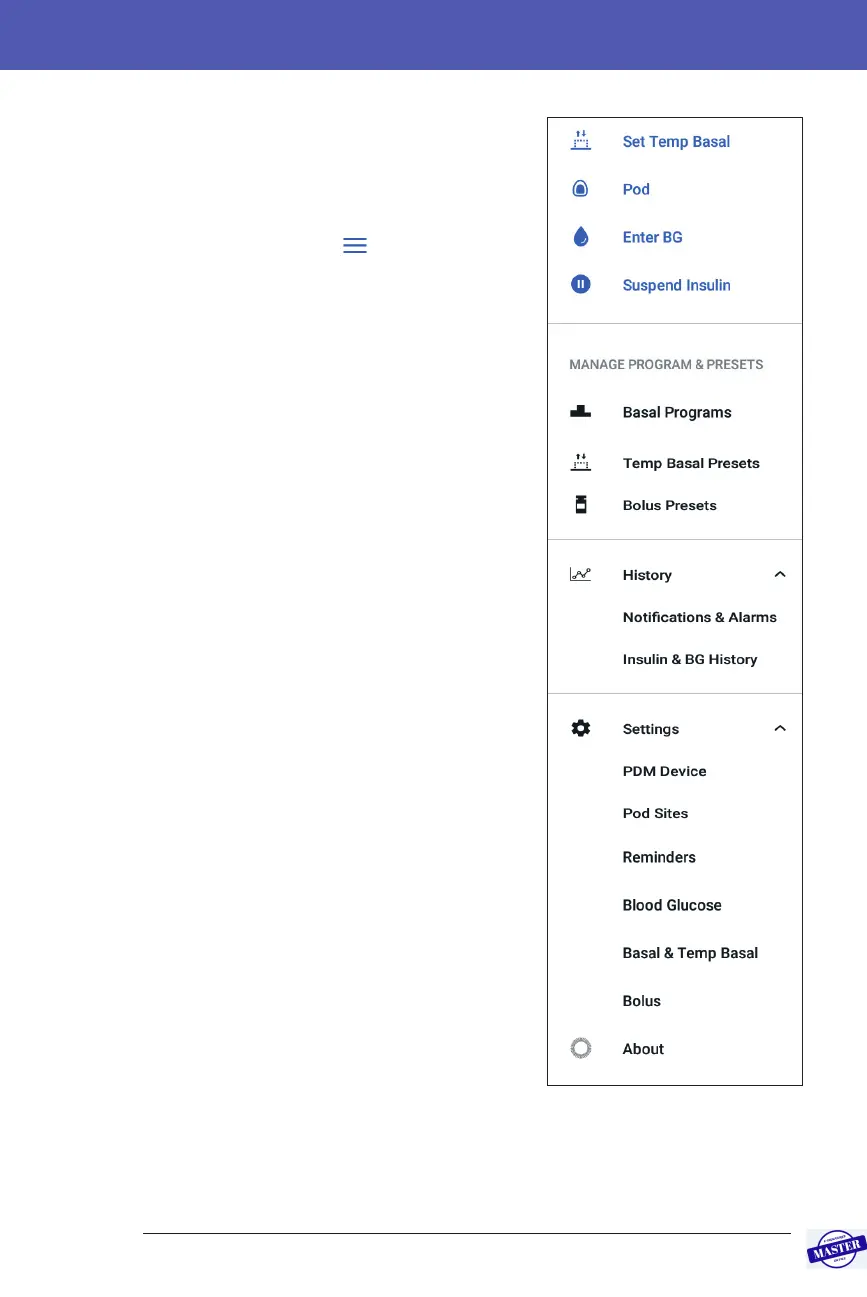
e Menu on the Home page lets you access
most of the PDM’s functions. To display the
Menu:
• Tap the Menu icon ( ) in the upper le
corner of the Home screen.
• Place your nger on the far le of the PDM
and swipe right across the screen. Swipe le
to hide the Menu.
Tap an option on the Menu to bring up the
related screen.
Tip: e Menu extends beyond the bottom of
the screen. Swipe up or down to see all parts of
the Menu.
Frequent tasks
e rst section of the Menu gives access to
frequent tasks: activating a temp basal, changing
your Pod, entering a blood glucose reading and
suspending or resuming insulin.
Special situations:
• Set Temp Basal is greyed-out if there is no
active Pod, insulin is suspended or a temp
basal is already running.
• Set Temp Basal does not appear if the temp
basal setting is turned o.
• Suspend Insulin changes to Resume
Insulin if insulin delivery is suspended.
• Suspend Insulin is greyed-out if there is no
active Pod.
Manage Programs & Presets
e next section allows you to create or
activate Basal Programs, temp basal presets
and bolus presets (see “Managing Programs
and Presets” on page 75).
Special situations:
• Temp Basal Presets is only visible if the temp basal setting is on.
• Bolus Presets is only visible if the Bolus Calculator setting is o.
Effective Date: 27SEP2019, ECO-000240



 To Next Page