Initial PDM Setup 2
24
2 Initial PDM Setup
Note: You must enter at least one character.
Tip: Including a contact phone number in the message could help in recovering
a misplaced PDM.
8. Tap CONTINUE.
A screen appears showing several background images.
9. Swipe right or le to see more images. Tap on your preferred image, then tap
CONTINUE.
Note: When you wake up your PDM, you
will see your personalised screen message
and background image. Always conrm
that the PDM is yours before using it.
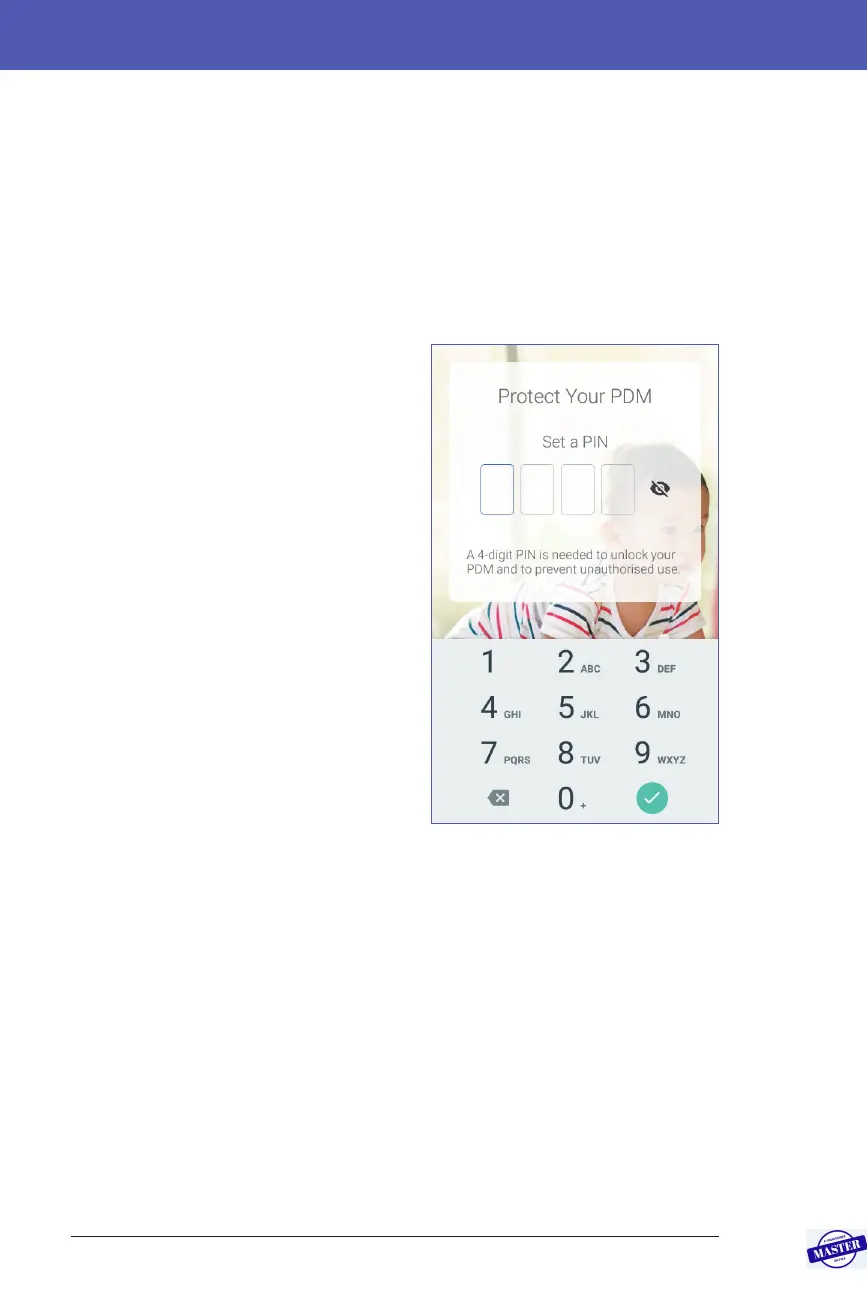
Enter a PIN
To protect against unintentional screen
touches, you must create a 4-digit personal
identication number or PIN.
1. Choose four numbers to be your PIN.
You will use this PIN number every
time you wake up your PDM. You
may want to record the PIN in a safe
place.
Tip: To keep the PIN visible, tap the
eye icon located to the right of the PIN
entry elds. To hide the number, tap the
eye icon again.
2. On the number pad, tap each number
of your PIN. en tap the tick symbol.
3. Enter the same four numbers again to conrm your PIN. Tap the tick symbol.
If the second PIN entry does not match the rst, you must repeat the above steps.
Effective Date: 27SEP2019, ECO-000240



 To Next Page