71
Modifying Basal Insulin Delivery 66 Modifying Basal Insulin Delivery
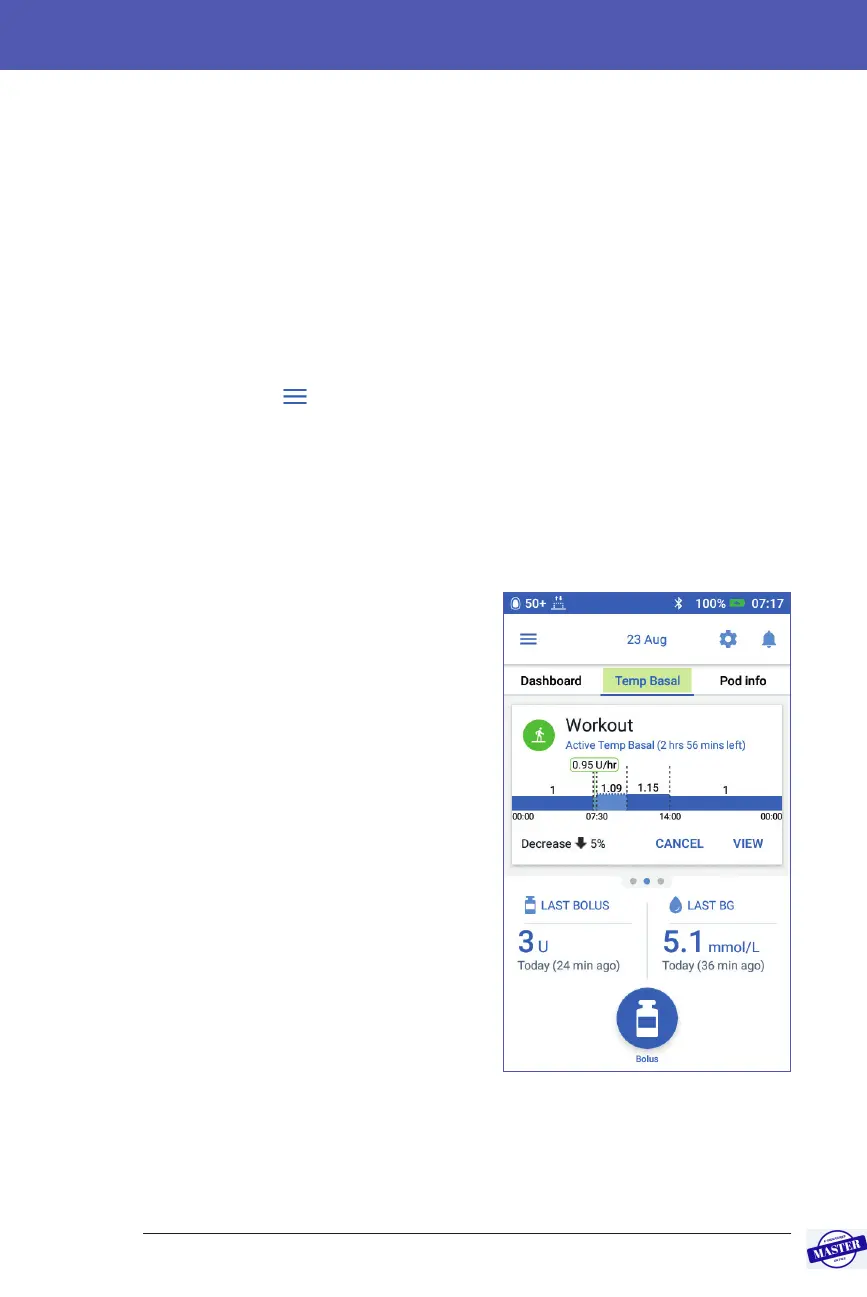
Aer activation, the Home screen’s Basal tab, renamed Temp Basal, indicates that
the temp basal is running and how much time remains. At the end of the temp
basal time period, the Pod automatically resumes the active Basal Program.
Activate a temp basal preset
A temp basal preset stores the details of a temp basal that you use frequently.
To create or modify a temp basal preset, see “Temp basal presets” on page 79.
To activate a temp basal preset:
1. Navigate to:
Menu icon (
) > Temp Basal Presets
2. Swipe to scroll up or down, and tap the temp basal preset that you want to
activate.
3. To change the duration of the temp basal, tap EDIT.
4. To activate the temp basal, tap ACTIVATE and then tap ACTIVATE again.
Cancel a temp basal
A temp basal stops automatically at the end
of its time period and the last active Basal
Program resumes. To cancel a temp basal
before the end of its time period:
1. Navigate to the Home screen’s Temp
Basal tab.
2. Tap CANCEL.
3. Tap YES to conrm cancellation. e
PDM cancels the temp basal and
restarts the active Basal Program.
Effective Date: 27SEP2019, ECO-000240



 To Next Page