7
Omnipod DASH™ Insulin Management System 11 Omnipod DASH™ Insulin Management System
Selecting, Adding andDeleting Items
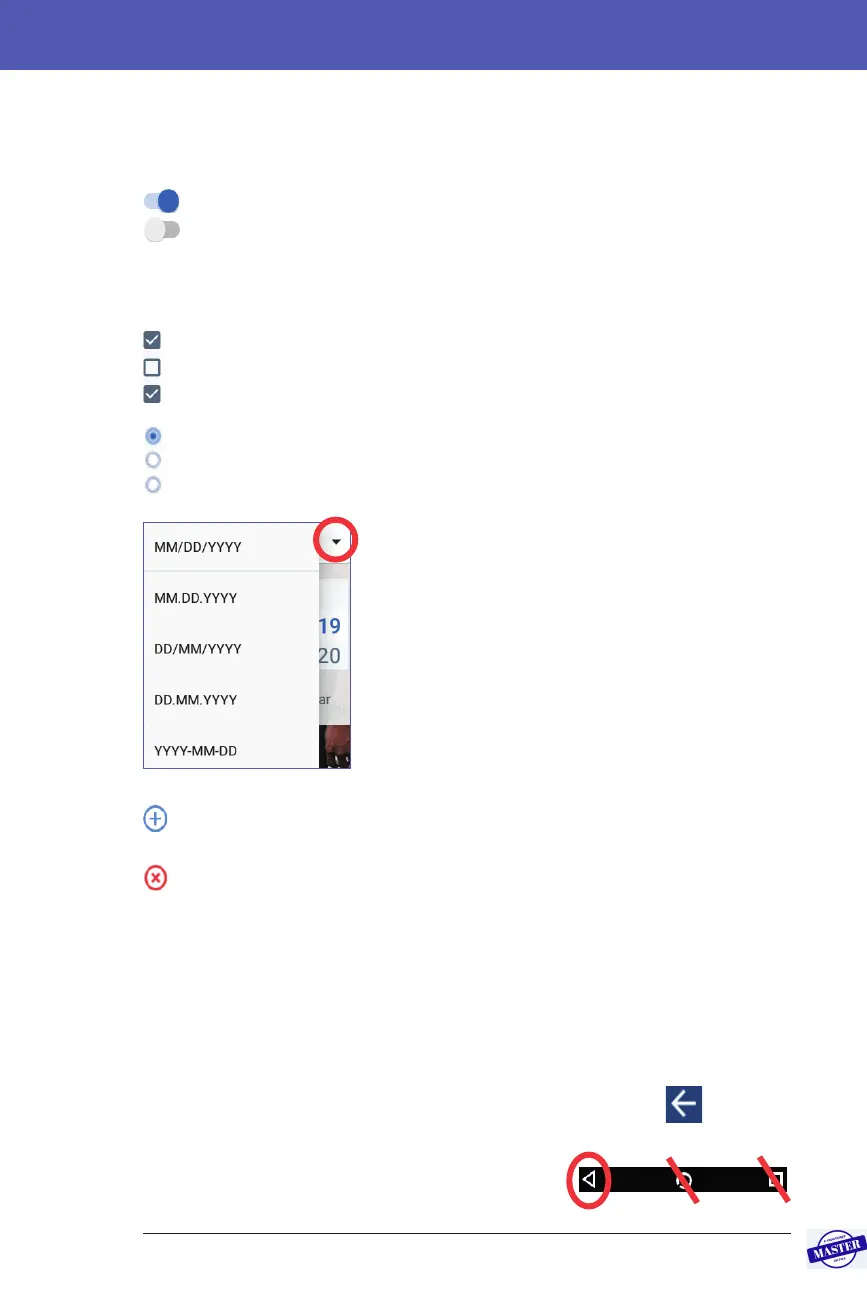
Toggles
Tap a toggle to change the selection from one side to the other.
Toggles allow you to choose between two options or to turn a feature on or
o. e toggle is on the right side and blue when a feature is on, and on the
le and grey when a feature is o.
Checkboxes, radio buttons and drop-down lists
Checkboxes are squares. Tap a checkbox to tick or untick it. You can tick more
than one checkbox in a list.
Radio buttons are circles. Tap a radio button to select it. A dot appears inside
the selected radio button. You can select only one radio button at a time. To
deselect a radio button, tap the radio button next to a dierent option.
Drop-down lists are indicated by a down or up arrow
next to an item. e currently selected setting appears
to the le of the drop-down arrow. To select a dierent
option, tap the down arrow to show the drop-down
list of options. To replace the currently selected option
at the top, tap the desired option from the drop-down
list.
Tap the up arrow to hide the list of options.
A plus symbol in a circle indicates that you can add an item to a list. Tap the
plus symbol to add the item to the list.
A red x in a circle indicates that you can remove an item from a list. To
remove the item, tap the red x.
Navigation Icons and Navigation Shorthand
e PDM has buttons below the screen that can be used for navigation. In
addition, some screen icons can be used for navigation.
Back arrow and back button
Many screens display a “back” arrow icon in the upper le corner.
Tapping the back arrow returns to the previous screen.
Tapping the le-hand button below the PDM screen
generally also returns to the previous screen.
Effective Date: 27SEP2019, ECO-000240



 To Next Page