Omnipod DASH™ Insulin Management System 1
8
1 Omnipod DASH™ Insulin Management System
Note: e middle and right-hand buttons below the PDM screen have no
function.
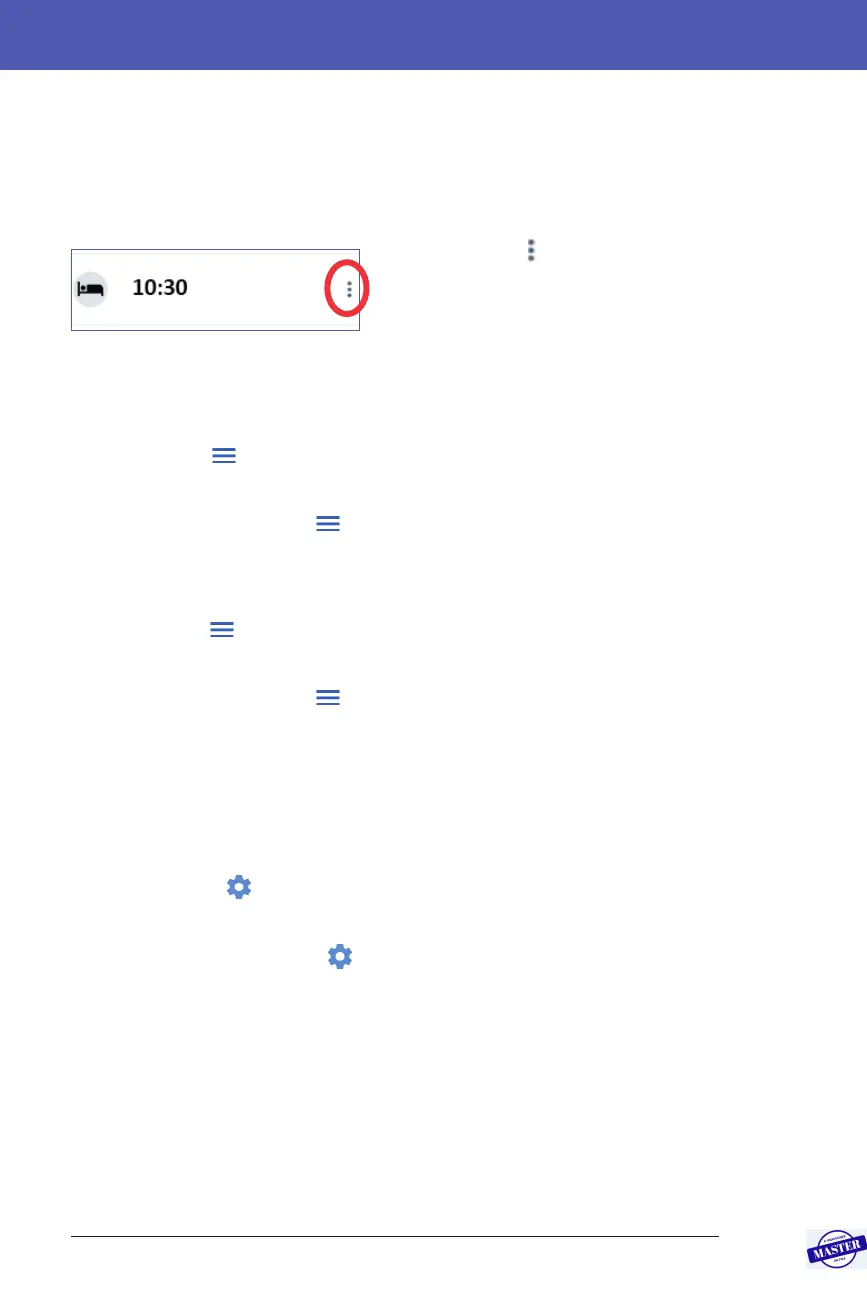
Options icon
e Options icon (
) appears on the right
side of certain lists. Tapping the Options
icon brings up a list of options relevant to
the item on that row.
Navigation shorthand
e User Guide uses the “>” symbol to indicate navigating from one screen to
another. For example, the following notation:
• Menu icon ( ) > Pod > CHANGE POD
tells you to:
1. Tap the Menu icon ( ) in the upper le of the Home screen.
2. Tap Pod to open the Pod screen.
3. Tap CHANGE POD.
• Menu icon ( ) > History: Insulin & BG History
tells you to:
1. Tap the Menu icon ( ) in the upper le of the Home screen.
2. Expand the History entry, if it is collapsed, by tapping anywhere in the
row with the word “History”.
When expanded, selections for the Notications & Alarms history
screen and the Insulin & BG History screen appear.
3. Tap Insulin & BG History.
• Settings icon ( ) > Reminders > Pod Expiry
tells you to:
1. Tap the Settings icon ( ) in the upper right of the Home screen.
2. Tap Reminders.
3. Tap Pod Expiry.
Effective Date: 27SEP2019, ECO-000240



 To Next Page