Browsing Your PDM Records 8
90
8 Browsing Your PDM Records
Tapping a row with a bolus entry brings up additional details about the bolus,
including:
• Whether the bolus was calculated
by the Bolus Calculator or was a
manually calculated bolus.
• e name of the bolus preset, if used.
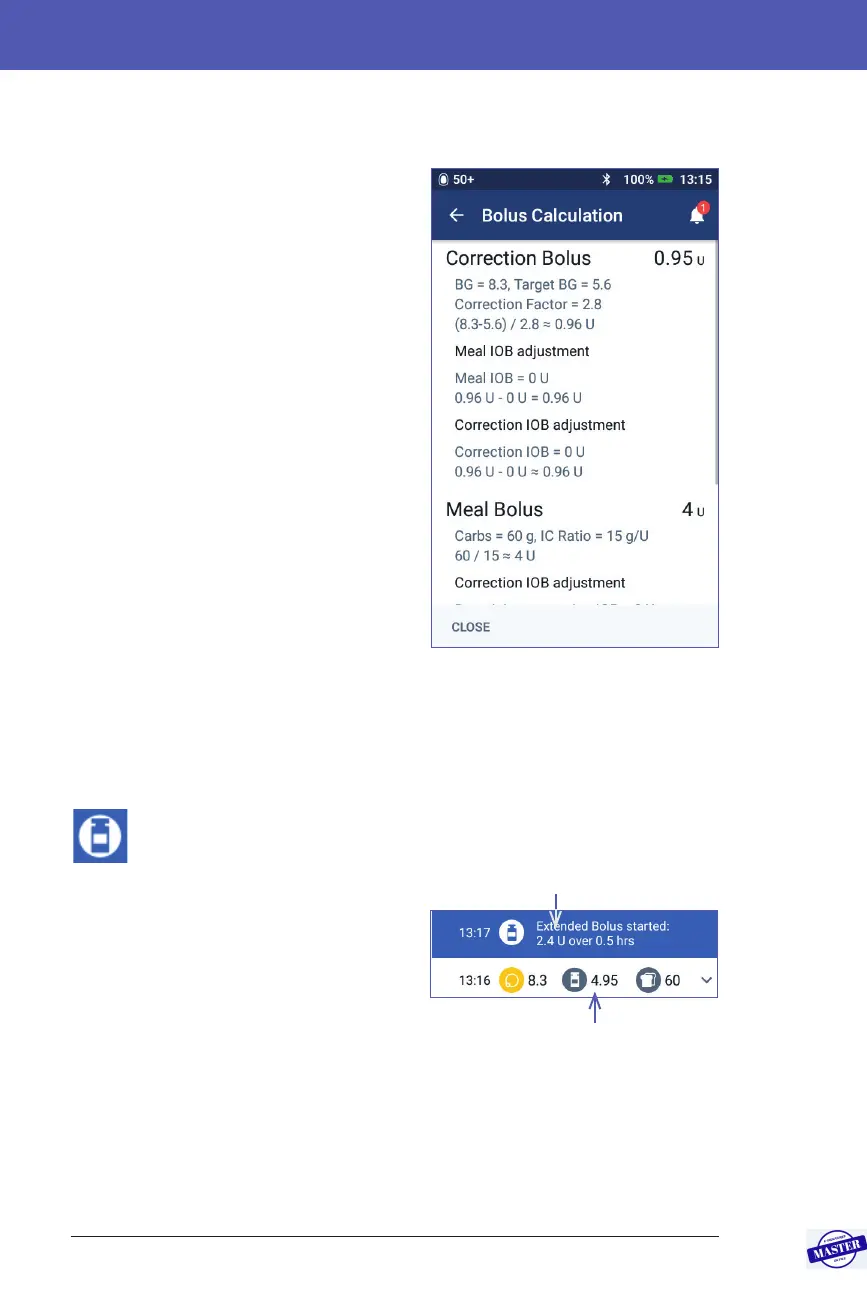
• e VIEW BOLUS CALCULATIONS
button if the Bolus Calculator was
used. Tapping this button brings up
a screen showing calculation details
and whether you made a manual
adjustment to the calculated bolus.
You may need to swipe up or down to
see all of the calculations. Tap CLOSE
when nished (see “Bolus Calculator
equations” on page 149 for details).
• If you cancelled an immediate bolus,
the amount originally scheduled for
delivery.
• For an extended bolus, the amount
delivered now and extended. Also the percentage (%) of the meal bolus
delivered now and extended.
• If a bolus is ongoing, unconrmed or lost, how much of the bolus has been
conrmed.
Extended bolus events
A bolus icon and banner indicate an extended bolus event:
• An Extended Bolus started banner
marks the time when the immediate
bolus has nished and the extended
bolus begins. In addition to the start
time of the bolus, the banner lists the
number of units extended and the
duration of the extension.
• An Extended Bolus completed
banner marks the end of the extended
bolus.
• An Extended Bolus cancelled banner marks the cancellation of an extended
bolus and states the amount of the bolus that was actually delivered.
Immediate and extended amount
Extended amount only
Effective Date: 27SEP2019, ECO-000240



 To Next Page