USER MANUAL
This icon appears when the camera has detected motion.
PIR
This icon indicates that a PIR detection has been made.
S
This icon indicates an intelligent even has been triggered
The icon indicates that the external I/O alarm device is triggered
This icon indicates that the HDD has an error
This icon indicates the HDD is unformatted
This icon indicates the HDD is full.
This icon indicates the HDD is read-only.
Off-line: If Off-line is displayed on a channel it means the camera has lost connection to the NVR.
Try to disconnect and re-connect the camera cable at the rear of the NVR.
Indicates the channel is set to manual mode. Click to open Quick Add menu to add IP camera
Click to edit current IP camera
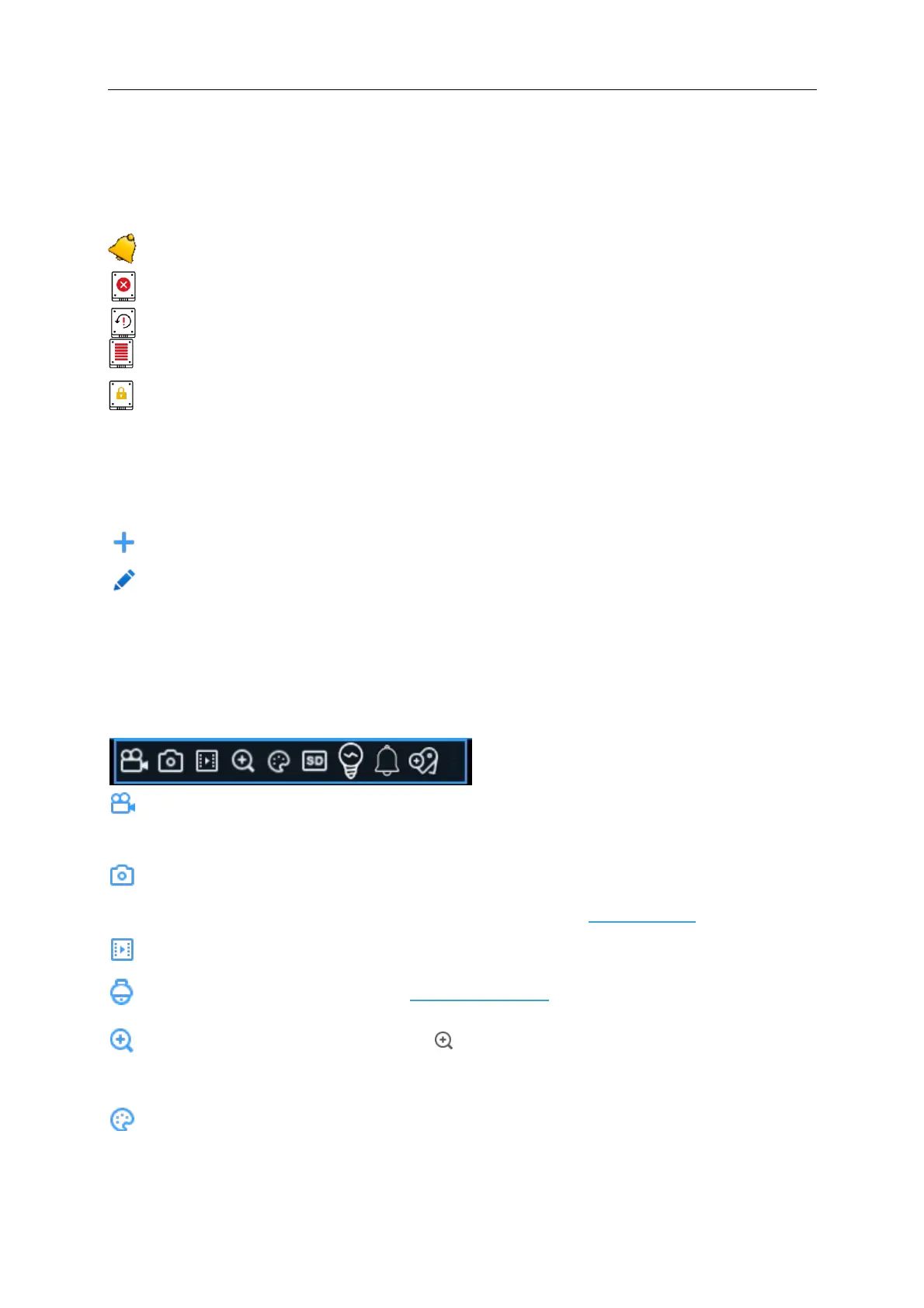
4.3.1 Camera Quick Toolbar
In live viewing, click the left button of your mouse on a connected camera to display the Camera
Quick Toolbar.
Click to manually record the channel immediately. If the manually recording is in process, the
icon will be in red colour. Click one more time to stop manual record.
Click to save a snapshot of the current camera image. Manual Capture must be enabled to
use this feature. For details on enabling Manual Capture, see
5.2.3.1 Capture
.
Click to play the latest
5 minutes recording of this channel
Click to enter PTZ control panel, see
4.2.1.1 PTZ Control
Click to zoom-in the channel. When the icon appears, press and hold the left button of
your mouse to drag the area you want to zoom in.
Click to adjust the image colour of the channel. You can adjust the HUE, BRIGHT,
CONTRAST & SATURATION of the image.



 To Next Page