FMS-2000C
LIT-12013504
49
On the Display screen you can adjust the following:
• 360° Safety Halo
• Viewing mode
• Screen brightness
• Device name
Switching on and adjusting the brightness of the 360° Safety Halo
Once you have set up the 360° Safety Halo, restricted users can adjust the settings from both the user menu and the quick access 360°
Safety Halo icon on the home screen.
1. On the home screen, tap the Settings icon to enter the Settings menu.
2. To view display settings, tap Display.
3. To adjust settings for the Safety Halo, tap the Safety Halo arrow.
4. To turn the 360° Safety Halo on, switch Enabled on and expand it.
5. To adjust the brightness, move the slider to increase or decrease Brightness.
6. To conrm the new settings, tap the Checkmark icon.
Adjusting the 360° Safety Halo nightly auto dim and dimmed period
Enable the nightly auto dim feature to reduce the brightness of the 360° Safety Halo to a specied percentage and determine the time
period in which you want to dim the light of the 360° Safety Halo.
1. On the home screen, tap the Settings icon to enter the Settings menu.
2. To view display settings, tap Display.
3. To view the Nightly Auto Dim feature for the 360° Safety Halo, tap Safety Halo.
4. On the Safety Halo screen, switch Nightly Auto Dim on and expand it.
5. To increase or decrease the Dimmed Level, move the slider.
6. To adjust the period of time in which you want to dim the light of the 360° Safety Halo, tap Dimmed Period and scroll to change the
start and end time.
7. To conrm the new settings, tap the Checkmark icon.
Adjusting the screen brightness
1. On the home screen, tap the Settings icon to enter the Settings menu.
2. To view display settings, tap Display.
3. Expand Screen Brightness and move the slider to increase or decrease the brightness of the screen.
4. To conrm the settings, collapse Screen Brightness.
Changing the device name
1. On the home screen, tap the Settings icon to enter the Settings menu.
2. To view display settings, tap Display.
3. On the Display screen, tap the Device Name arrow.
4. Enter a device name. It can be up to fourteen characters in portrait mode and up to sixteen characters in landscape mode.
5. To conrm the new device name, tap the Checkmark icon.
Home screen viewing modes
The viewing mode setup controls how the home screen looks and what triggers the 360° Safety Halo. You can choose from the following
viewing modes:
• Single view
• Double view
• Triple view
• Quad view
Single view
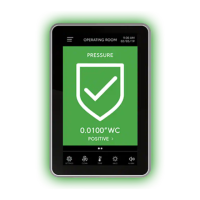
In single view, you can display up to six parameters on two separate screens. The primary parameter displays on the primary
home screen. To view the secondary home screen, swipe left. It shows the status of and the reading for the primary and secondary
parameters. To return to the primary home screen, swipe right.
When a parameter goes out of range, it triggers the audible alarm, if the audible alarm is turned on. The 360° Safety Halo changes color
and the status icon changes. For the primary parameter, the screen changes color, for the secondary parameters the corresponding
eld changes color on the secondary home screen.
Display



 To Next Page
