21
ENGLISH
Searching for a place
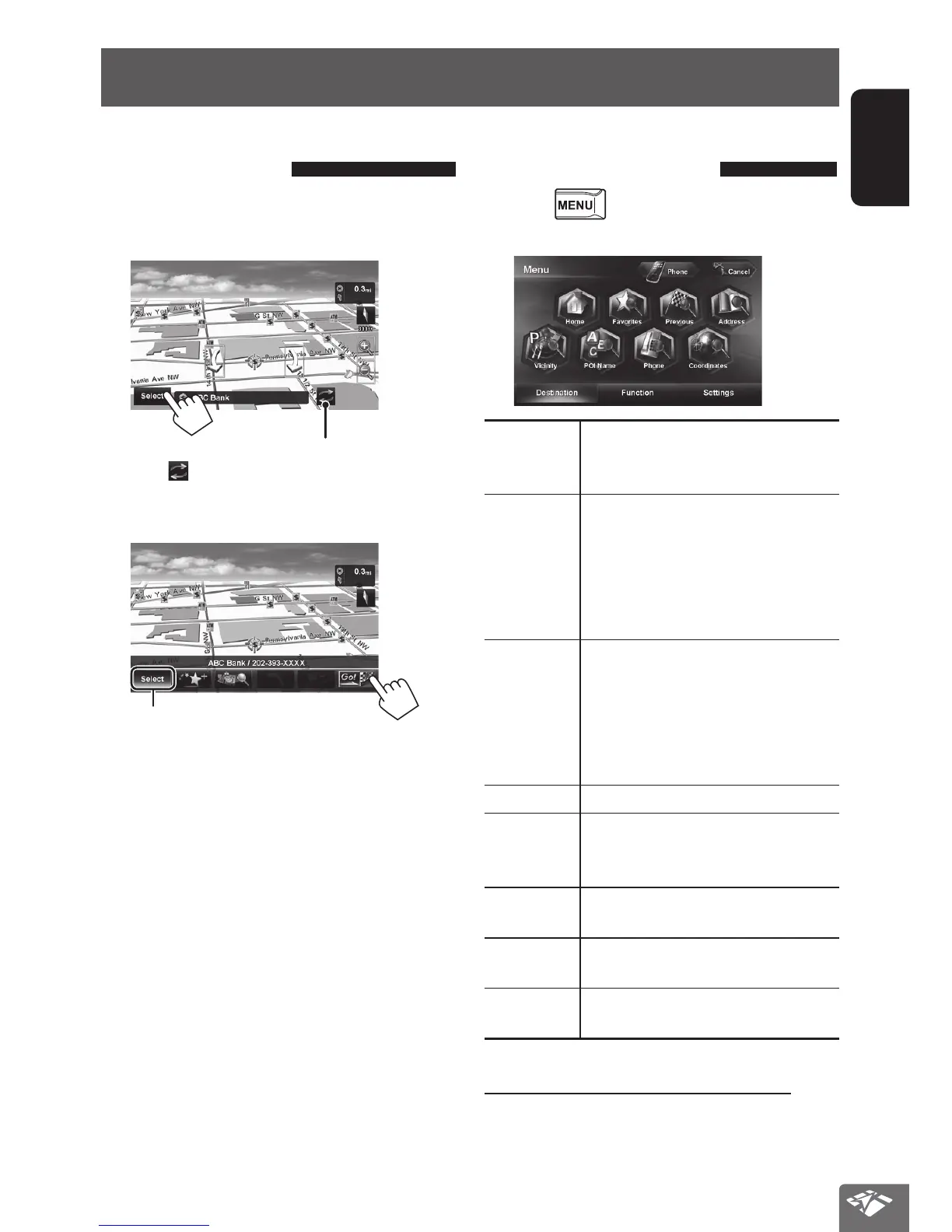
Setting a destination by
scrolling the map
1 Scroll the map to select the position you
want to select as a destination. (☞ page 18)
2
If there are several POIs on the selected position,
press [
] to switch to the next POI.
3 The search result is displayed.
Returns to step 2
• To set the search result as the destination and start
guidance, ☞ page 27.
Setting a destination using the
<Destination> menu
1 Press .
2 Select a method to search for a destination.
Home * Goes to your home.
• To register your home, ☞ page 20.
• To start guidance, ☞ page 27.
Favorites * Searches from your favorite points.
• To register your favorite points,
☞ page 20.
• To edit the information about the
favorite points, ☞ page 34.
• To start guidance, ☞ page 27.
Previous * Searches from the history of previous
destinations and via points.
• You can select a place from the last
50 destinations and via points.
• To delete the history, ☞ page 29.
• To start guidance, ☞ page 27.
Address
Searches by an address. (☞ page 23)
Vicinity
Searches for POIs around your current
position, the destination, or via point(s).
(☞ page 24)
POI Name Searches for POIs by name.
(☞ page 24)
Phone Searches by a telephone number.
(☞ page 25)
Coordinates Searches by coordinates of the
destination. (☞ page 25)
* Selectable only when at least one place is registered.
Setting a destination using application
You can use “NaviBridge” in the iPhone or Android™
application to set a destination. (☞ page 26)
EN_KW-NT510HDT_NT310[J].indb 21 11/8/2012 2:49:22 PM



 To Next Page