27
ENGLISH
How you are guided
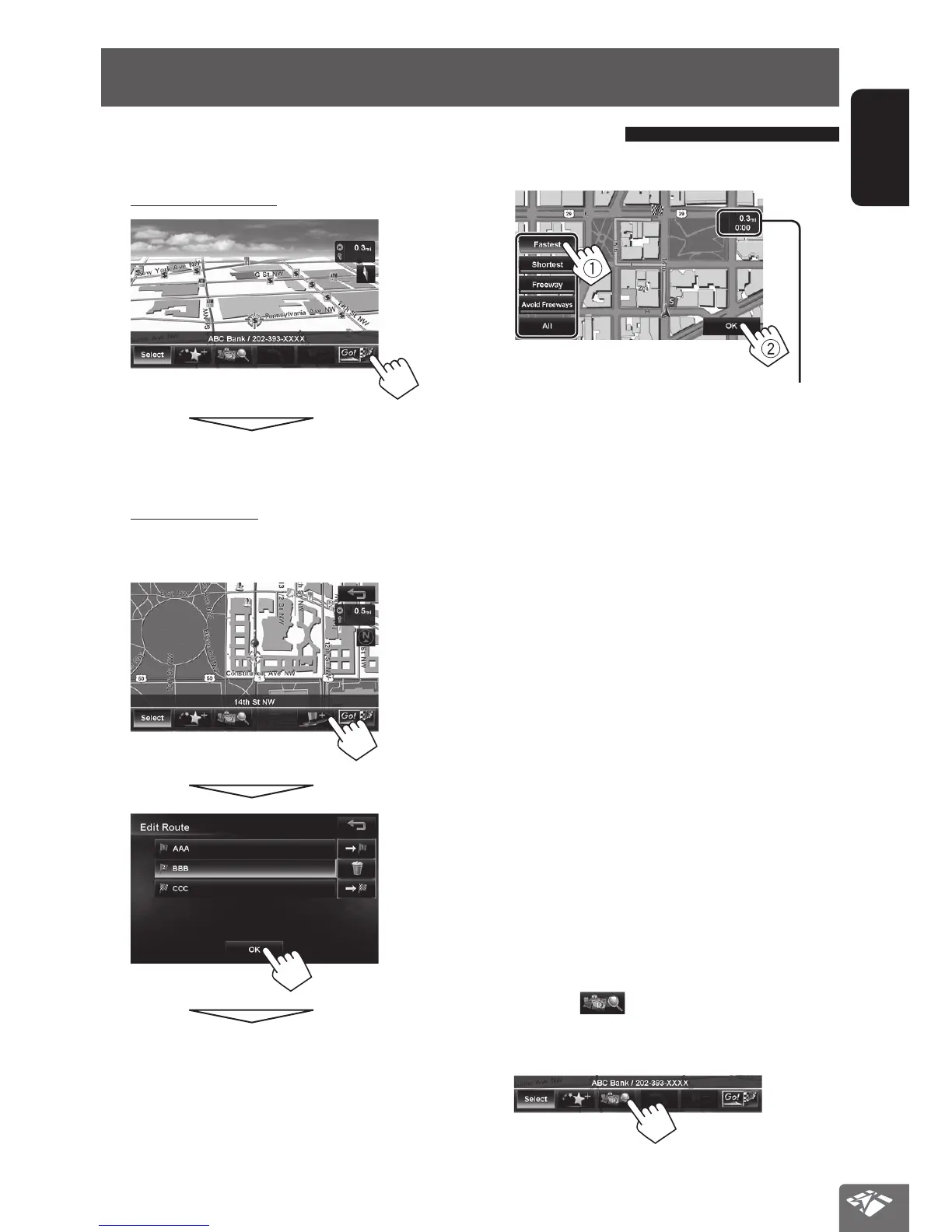
1 Select a destination or via point. (☞ page 21)
2 To set as destination
The System starts calculating.
To set as via point
You can add the via points only after selecting your
destination.
The System starts calculating.
3. Select a route (1), then press [OK](2).
The estimated time and distance to the
destination are displayed.
[Fastest]: The recommended route.
[Shortest]: The shortest route.
[Freeway]: The recommended route by the most
use of freeways.
[Avoid Freeways]:
The recommended route by the least
use of freeways.
[All]:
Displays all above four routes at once.
• Route select screens always displayed using the 2D
North up map view regardless of the current map
view setting. (☞ page 17)
To cancel guidance, ☞ page 29.
• If you press [
] before selecting a destination or
via point, you can search for a POI around where you
searched for by category.
Starting guidance to the destination or via point
EN_KW-NT510HDT_NT310[J].indb 27 11/8/2012 2:49:23 PM



 To Next Page