90
ENGLISH
Setting the Sound
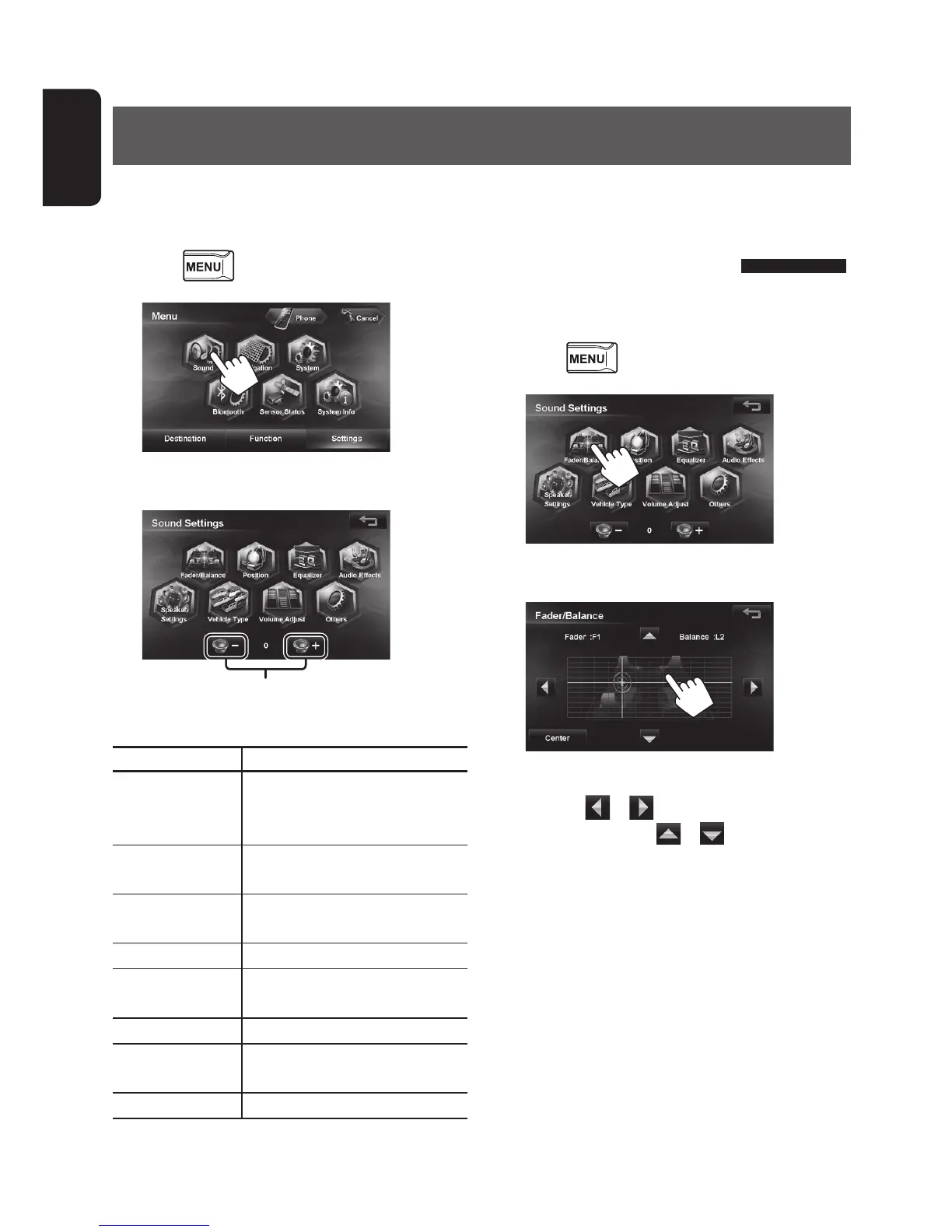
1 Press - <Settings>.
2
3 Set each item.
Sets the subwoofer level
The following items can be set.
Menu items
Description
Fader/Balance Sets the right and left, and
front and rear volume balance.
(☞ right)
Position
Sets the listening position.
(☞ page 93)
Equalizer Sets the sound quality.
(☞ page 95)
Audio Effects
Sets the audio effects. (☞ page 96)
Speaker Settings Sets the speaker configuration.
(☞ page 91)
Vehicle Type
Sets the vehicle type. (☞ page
91
)
Volume Adjust Sets the volume of each AV source
equal. (☞ page 96)
Others
Sets the built-in amp. (☞ page 98)
Sound Settings
You can set the audio effects and sound quality in the vehicle here.
Set the sound when the AV source is selected. This cannot be set when the AV source is turned off (on standby).
Setting Fader/Balance
You can set the right and left, and front and rear
volume balance here.
1 Press - <Settings> - <Sound>.
2
3 Touch the position to be balanced.
You can also adjust the right / left balance by
touching
or , and adjust front / rear
balance by touching
or .
Touching [Center] sets the right and left, and front
and rear balance at the center.
EN_KW-NT510HDT_NT310[J].indb 90 11/8/2012 2:49:32 PM



 To Next Page