EasyManua.ls Logo

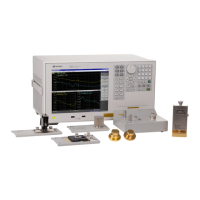
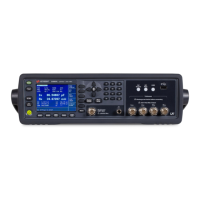
Keysight E4990A - User Manual

Keysight E4990A
669 pages
Print Icon
To Next Page IconTo Next Page
Loading...
E4990A Help

Table of Contents

Other manuals for Keysight E4990A

Questions and Answers

  • K
    Kenneth TranSep 3, 2025
    What to do if Keysight E4990A does not start with standby switch?
    • J
      Jamie McculloughSep 3, 2025
      If turning ON the standby switch does not start up the Keysight Measuring Instruments system, confirm that the power cable is properly plugged in and that the line switch on the rear panel is turned ON.
  • C
    Colleen PierceSep 2, 2025
    Why standby switch is red on Keysight E4990A Measuring Instruments?
    • S
      Sharon AndersonSep 2, 2025
      If the standby switch color is red and does not start up the Keysight Measuring Instruments system, it could be due to trouble with the fan. Turn OFF and ON the line switch once, then turn ON the standby switch.
  • R
    Ryan BrooksSep 1, 2025
    How to unlock the mouse on Keysight E4990A Measuring Instruments?
    • R
      Robert EdwardsSep 1, 2025
      If the mouse becomes inoperable on your Keysight Measuring Instruments, use the front panel keys, press System > Key Lock > Touch Screen & Mouse Lock to turn OFF the lock.
  • R
    Rodney KaneAug 31, 2025
    What to do if touch screen is inoperable on Keysight Measuring Instruments?
    • J
      Jessica SmithAug 31, 2025
      If the touch screen becomes inoperable on your Keysight Measuring Instruments, use the front panel keys, press System > Key Lock > Touch Screen & Mouse Lock OFF to turn OFF the lock. Alternatively, execute the calibration of the touch screen.
  • R
    Robert ThomasAug 30, 2025
    How to unlock front panel and keyboard on Keysight E4990A Measuring Instruments?
    • J
      jeremiah75Aug 31, 2025
      If the front panel key or keyboard becomes inoperable on your Keysight Measuring Instruments, use the mouse to turn System > Key Lock > Front Panel & Keyboard Lock OFF.
  • M
    Mitchell SmithAug 29, 2025
    What to do if all keys, keyboard and mouse are inoperable on Keysight E4990A Measuring Instruments?
    • E
      Erica FloresAug 30, 2025
      If all of the front panel keys, keyboard, and mouse become inoperable on your Keysight Measuring Instruments, confirm that the keyboard or mouse is connected correctly. If they are correctly connected, turn OFF the power and restart the system.
  • G
    Glenda PhillipsAug 29, 2025
    What happens if keyboard and mouse are connected after power-on on Keysight E4990A?
    • M
      Mary SchmidtAug 29, 2025
      If the keyboard and mouse have been connected after power-on of your Keysight Measuring Instruments, turn OFF the power and restart the system. If operability is still not recovered, there is a possibility of a failure.
  • D
    derek39Aug 28, 2025
    Why my Keysight E4990A Measuring Instruments system cannot operate manually?
    • S
      Sharon BoydAug 28, 2025
      If the system cannot operate manually (Front Panel Keys, Keyboard, Touch Screen and Mouse) on your Keysight Measuring Instruments, first, confirm that the keyboard or mouse is connected correctly. If it is connected correctly, turn OFF the power and restart the system.
  • M
    mcdanielsandraAug 27, 2025
    What to do if Keysight E4990A Measuring Instruments system freezes during operation?
    • S
      Sherry GeorgeAug 27, 2025
      If your Keysight Measuring Instruments system freezes during operation, press the standby switch to turn OFF the power and then restart the system.
  • T
    taylor22Aug 27, 2025
    How to fix a frozen screen on Keysight E4990A?
    • J
      johnsonamandaAug 27, 2025
      If the screen freezes and all operations become impossible on your Keysight Measuring Instruments, press the standby switch to turn OFF the power once, and then restart the system.

Summary

Using this Help

Opening E4990 A Help

Describes how to open the E4990A Help system.

Context Sensitive Help

Explains how to get context-sensitive help by pressing the Help key or F1.

Viewing E4990 A Help on your PC

Guides on opening and viewing the E4990A Help file on a PC.

Navigating E4990 A Help

Describes navigation methods within the help system.

Conventions used in E4990 A Help

Details naming conventions used in the help system, like file names and paths.

Precautions

Safety

Outlines general safety precautions for operation, service, and repair of the instrument.

Installing Software

Instructions for updating pre-installed software and installing user application software.

Protecting the E4990 A

Instructions to protect the E4990A, including reading warning labels and handling power cables.

Precaution for input connector and cable

Precautions regarding excessive voltage/current to test ports and bending cables.

Precautions for Electrostatic Discharge (ESD)

Guidelines for preventing ESD damage to electronic components.

Before Contacting us

Troubleshooting steps for startup or operation problems before contacting support.

Quick Start

Front Panel: Names and Functions of Parts

Details the names and functions of the parts on the E4990A front panel.

Rear Panel: Names and Functions of Parts

Details the names and functions of the parts on the E4990A rear panel.

Hardkeys

Describes hardkeys for selecting channels and traces.

LCD Screen

Information about the touch-sensitive LCD screen for displaying traces and settings.

USB Ports

Information on USB ports for connecting peripherals like keyboards and printers.

Measurement

Preparation of Measurement Accessories

Steps for selecting, connecting, and setting up measurement accessories.

Setting Measurement Conditions

Explains how to set up measurement conditions including signal and sweep.

Calibration

Describes various calibration methods for the E4990A Impedance Analyzer.

Setting Up the Display of Measurement Results

How to configure the E4990A to display measurement results effectively.

Analysis and Processing of Result

Guides through analyzing data using markers and performing calculations.

Setting Control Functions

Setting the GPIB

Details on setting talker/listener GPIB addresses for E4990A control.

Remote Control Using HTTP (Web Browser)

Enables control of the E4990A via a web browser using HTTP.

Using Windows

Provides guidance on using Windows features and settings on the E4990A.

Configuring Network

Steps to configure network settings for LAN connectivity.

Windows Firewall

Instructions on how to turn Windows Firewall ON or OFF.

User Account and Password

Information on managing user accounts and passwords for system access.

Product Information

Options for E4990 A

Lists available options for the E4990A, including frequency and time base options.

Documentations for E4990 A

Lists available documentation such as manuals, sales literature, and specifications.

Troubleshooting

Guides on identifying and resolving common operational issues and errors.

Maintenance

Covers procedures for cleaning, part replacement, and system recovery.

Programming

Remote Control

Information on controlling the E4990A remotely via GPIB, LAN, or USB.

Types of Remote Control System

Details the five types of remote control systems based on system controller and interface.

LAN remote control system

Overview of controlling the E4990A using SICL-LAN or telnet server.

USB Remote Control System

Overview of device control via USB, equivalent to GPIB control.

Sending SCPI Command Messages

Information on SCPI commands, their types, structure, and grammar.

Command Reference

Comprehensive reference for all SCPI commands and their syntax.

Index

Keysight E4990A Specifications

General IconGeneral
BrandKeysight
ModelE4990A
CategoryMeasuring Instruments
LanguageEnglish

Related product manuals