Functional buttons:
When highlighting these buttons, the name of the corresponding function will be displayed in
the status information line (the first tag name).
/ Play / Stop button
Full Mode. Displays the camera feed in the full-screen
mode. All menus and buttons will be hidden.
Snap. Allows you to take a snapshot of the camera view.
Setting. Brings up the connectivity setup screen.
* Next Group. Toggling between two available 4-channel
views: 1-4 and 5-8
* Available only for programs supporting 8-camera views.
Exit QQEye
In order to start working with the CCTV feed on your Symbian mobile phone, you will have to
configure the program by entering the preferred network access point, IP address of the DVR,
mobile phone port, username, and password.
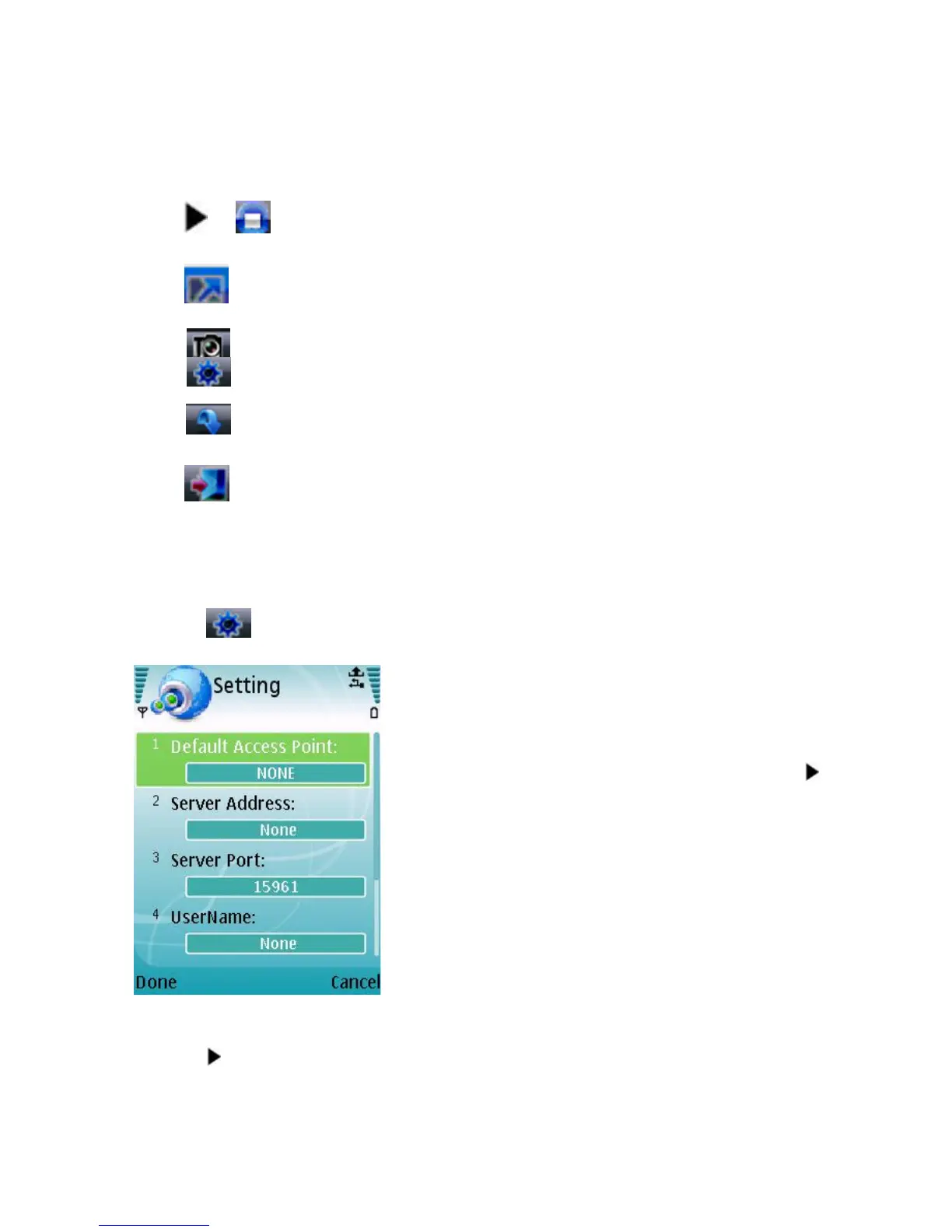
Click the icon to enter the setup window.
In the Setting screen, enter the following data:
Default Access Point: Network through which you connect
to the internet. The options are: “None”, “WAP over
GPRS”, and mobile service providers operating in your
country. If you choose “None”, then after pressing the
button you will be offered a list of available networks to
choose from.
Server Address: DVR IP address
Server Port: 7050
Username: Admin
Password: By default “888888”
Save and return to the main window by pressing Done, press Cancel to discard the changes.
Press the button to connect to the DVR. After your device successfully logs in to the DVR,
you can watch the remote video feed on your Symbian mobile phone.



 To Next Page