© Microhard Systems Inc. 13
2.0 Quick Start
This QUICK START guide will walk you through the setup and process required to access the
WebUI configuration window and to establish a basic wireless connection to your carrier.
Note that the units arrive from the factory with the Local Network setting configured as
‘Static’ (IP Address 192.168.168.1, Subnet Mask 255.255.255.0, and Gateway
192.168.168.1), in DHCP server mode. (This is for the LAN Ethernet Adapter on the back of
the VIP4G unit.
2.1 Installing the SIM Card
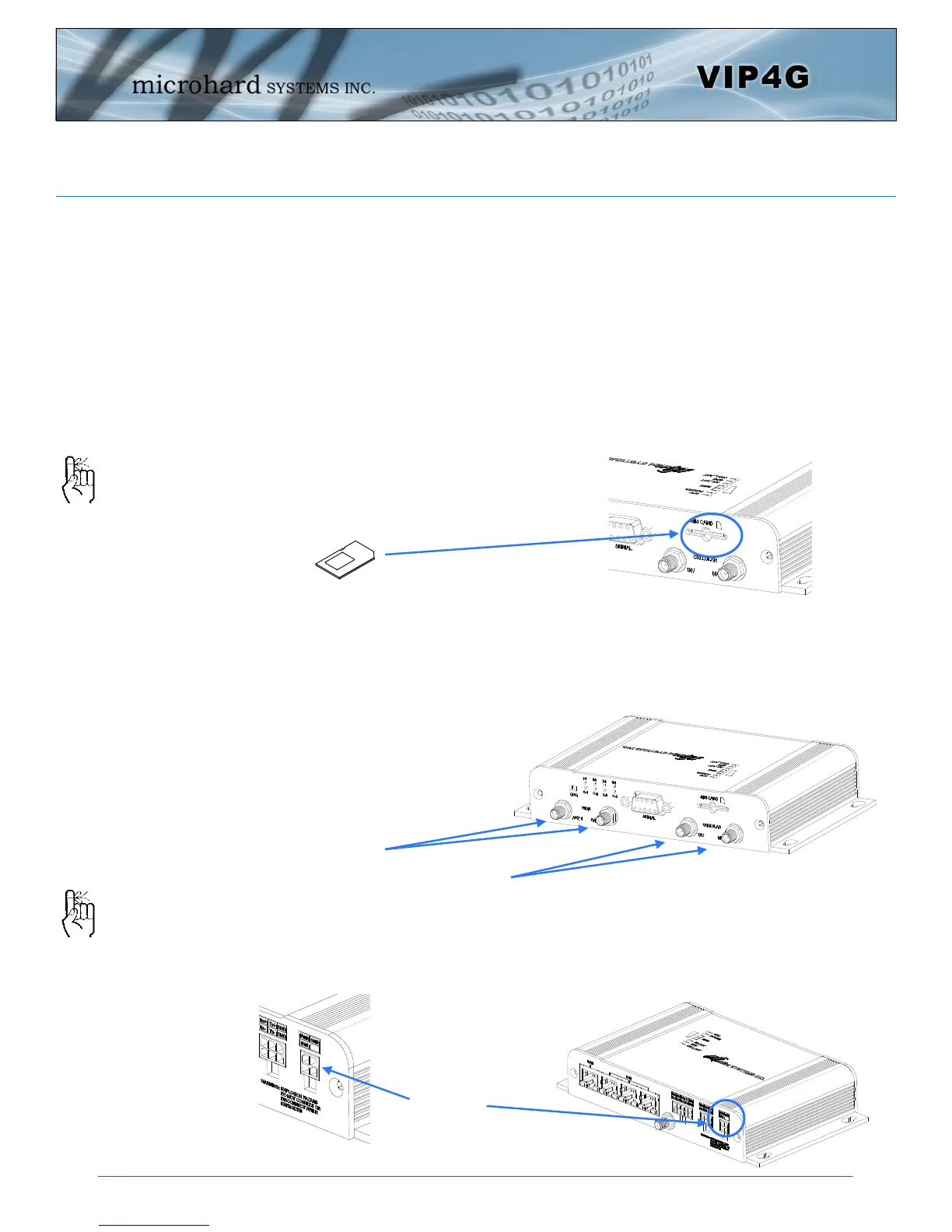
Before the VIP4G can be used on a cellular network a valid SIM Card for your Wireless
Carrier must be installed. Insert the SIM Card into the slot as shown below.
2.2 Getting Started with Cellular
Connect the Antenna’s to the applicable ANTENNA jack’s of the VIP4G.
Connect the power connector to the power adapter and apply power to the unit, once the
blue CPU LED is on solid, proceed to the next step.
SIM Card Slot
To reset to factory
defaults, press and hold
the CFG button for 8
seconds with the VIP4G
powered up. The LED’s
will flash quickly and the
IP4G will reboot with
factory defaults.
Use the MHS-supplied
power adapter or an
equivalent power source.
WiFi Antenna’s
Cellular
Antenna’s
9-30VDC


 To Next Page