9-4 Patient Data Management
⚫ In the scanning or freeze mode, the thumbnails refer to the images stored in the
current exam.
⚫ In the Review screen, the thumbnails refer to the images stored in the same exam.
⚫ In the Review screen, open an image to enter the image analyzing status, all the
thumbnails belong to the exam are displayed.
⚫ When you move the cursor onto a thumbnail, its name and format will be displayed.
9.2.8 Image Review and Analysis
You can review and analyze the stored images (only refer to the images stored in the system
default path).
9.2.8.1 To review images
You can review all images stored in an exam, and send, delete or analyze the stored images.
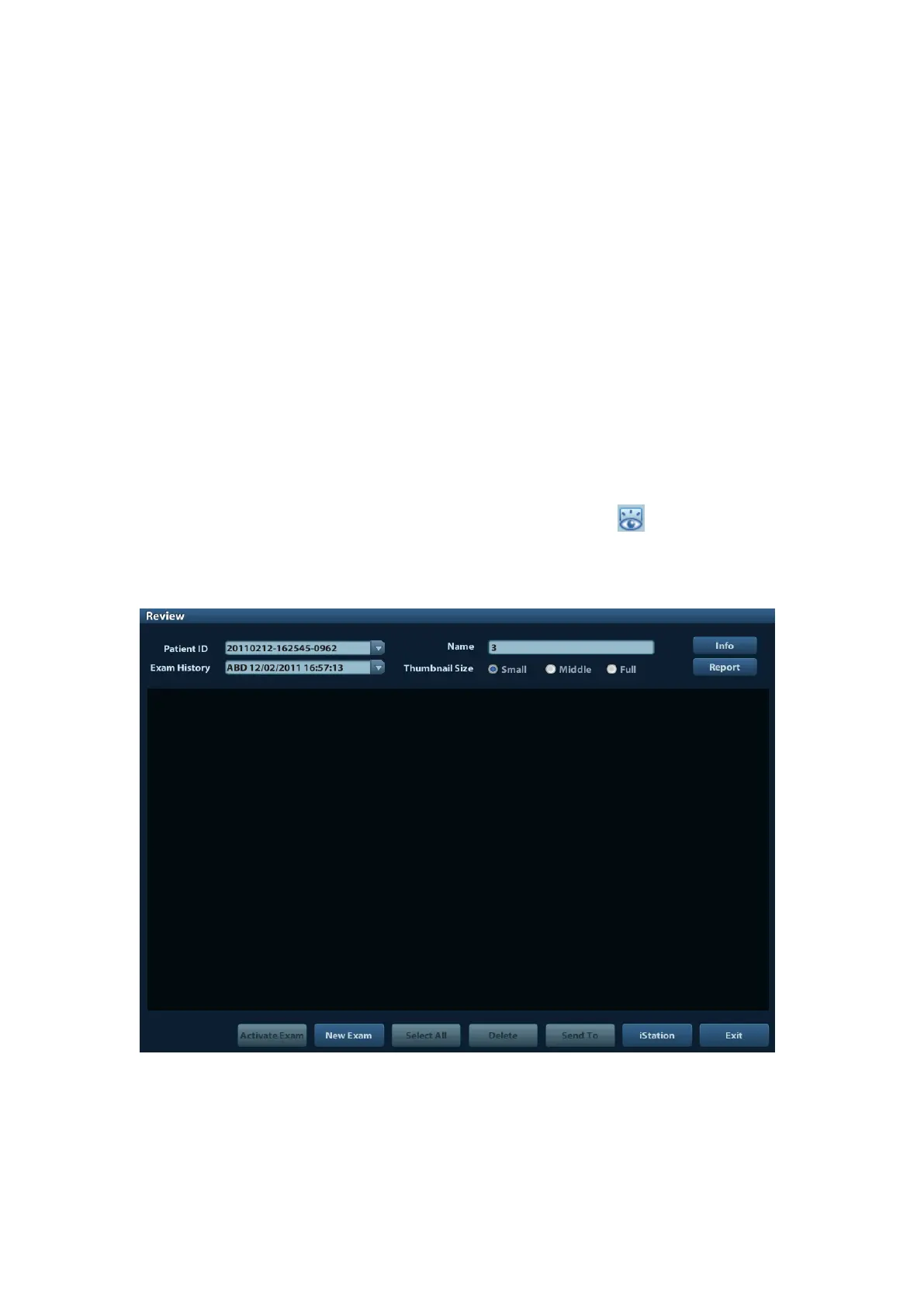
◼ To enter Review:
⚫ Press <Review> to enter Review screen. The system display the images stored in
this exam of the current patient (if there is no current patient information, you can
review the images of the latest exam).
⚫ Select an exam of a patient in the iStation screen, and click to enter the Review
screen to review the images of the patient. You can also select more than one exam,
and the system will display images of the lately exam images in Review status.
The Review screen is shown as follows:
◼ To exit Review:
⚫ Click [Exit] on the Review screen; or,
⚫ Press <ESC> or <Review> again.



 To Next Page