9-10 Patient Data Management
◼ Select All Exams/ Deselect All Exams
Click [Select All Exams] to select all patient data listed. Then the button changes into
[Deselect All Exams], you can cancel all the selections by clicking [Deselect All].
9.4.1 Searching a Patient
(1) Select the data source.
(2) Set search conditions of Name, ID, DOB, Exam Date in the "Item" drop-down list.
(3) Enter the keyword in accordance with the “Item” selected, and the system searches
and displays the results in the patient list.
(4) When you select a patient in the patient list, the images of this patient will be
displayed at the bottom of the screen.
Note:
⚫ When you clear the keyword, enter other keyword or cancel the selection “Find in
results”, the system will refresh the searched results.
⚫ Select “Find in results”, the system will do searching based on the last searched
results.
9.4.2 Patient Data View & Management
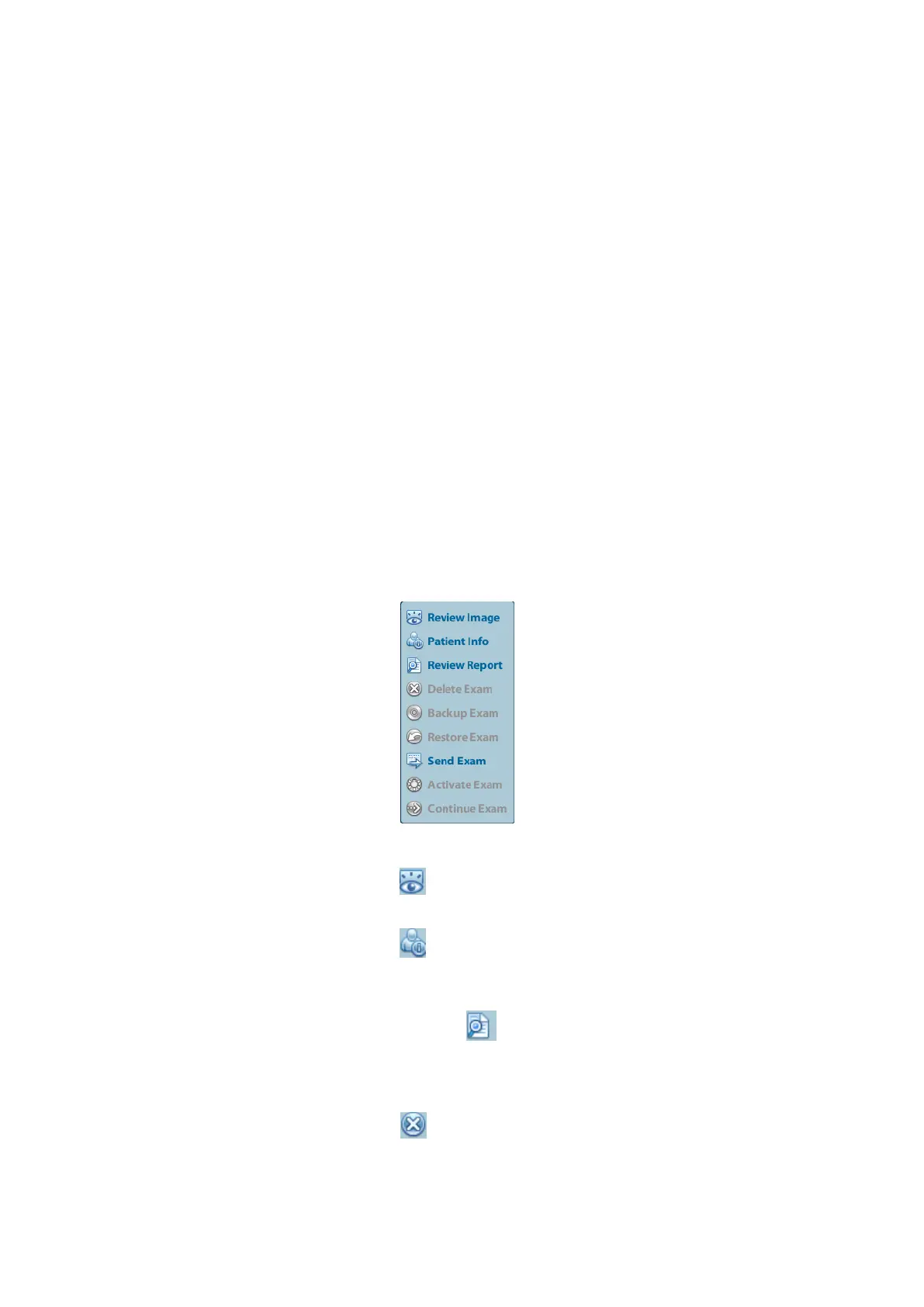
Select the desired patient information in the list. The following menu pops up:
◼ Review
Select an exam of a patient, click to enter Review screen.
◼ Info
Select an exam of a patient, click on the right side to display the patient information
of this exam.
◼ Report
After you select an exam of a patient, click to view the report of this exam for this
patient. If no report is generated in the exam, the system prompts that “There is no
report belongs to the exam”.
◼ Delete
Select an exam or a patient, click to delete. However, you cannot delete patient
data being printed, exported or sent, or delete the current exam.
To delete an image, select the image and click the Delete icon on the right side.



 To Next Page