Patient Data Management 9-17
9.7.4.2 Delete a User
Premise: you must login the system as the system administrator. If not, you will be required
to enter administrator name and password before the setting.
1. Open the “Admin” page through the path: [Setup]→[System Preset]→[Admin].
2. Select the user to be deleted in the User List (Emergency user can’t be deleted), click
[Delete] to delete the selected user.
9.7.5 Modify Password
The system administrator can modify password of all users. The administrator password by
factory is empty, you can set the password for it. The operator can only modify his/her own
password.
To modify the password, the user has to login the system first.
There are two ways to modify password: modify it on “Admin” page or on “Session Manage”
dialogue box.
◼ “Admin” page (administrator can modify the password)
(1) Open the “Admin” page through the path: [Setup]→[System Preset]→[Admin].
(2) Select the user name to be modified (except emergency operator) in User List, click
[Change Password].
(3) Enter new password and confirm password in the dialog, then click [OK].
◼ Session Manage page (general operator and administrator can modify the password).
When the user has logged on the system, you can see at the lower right corner of
the screen.
(1) Click at the lower right corner to pop up the Session Manage dialogue box, on
which you can see the current user’s information.
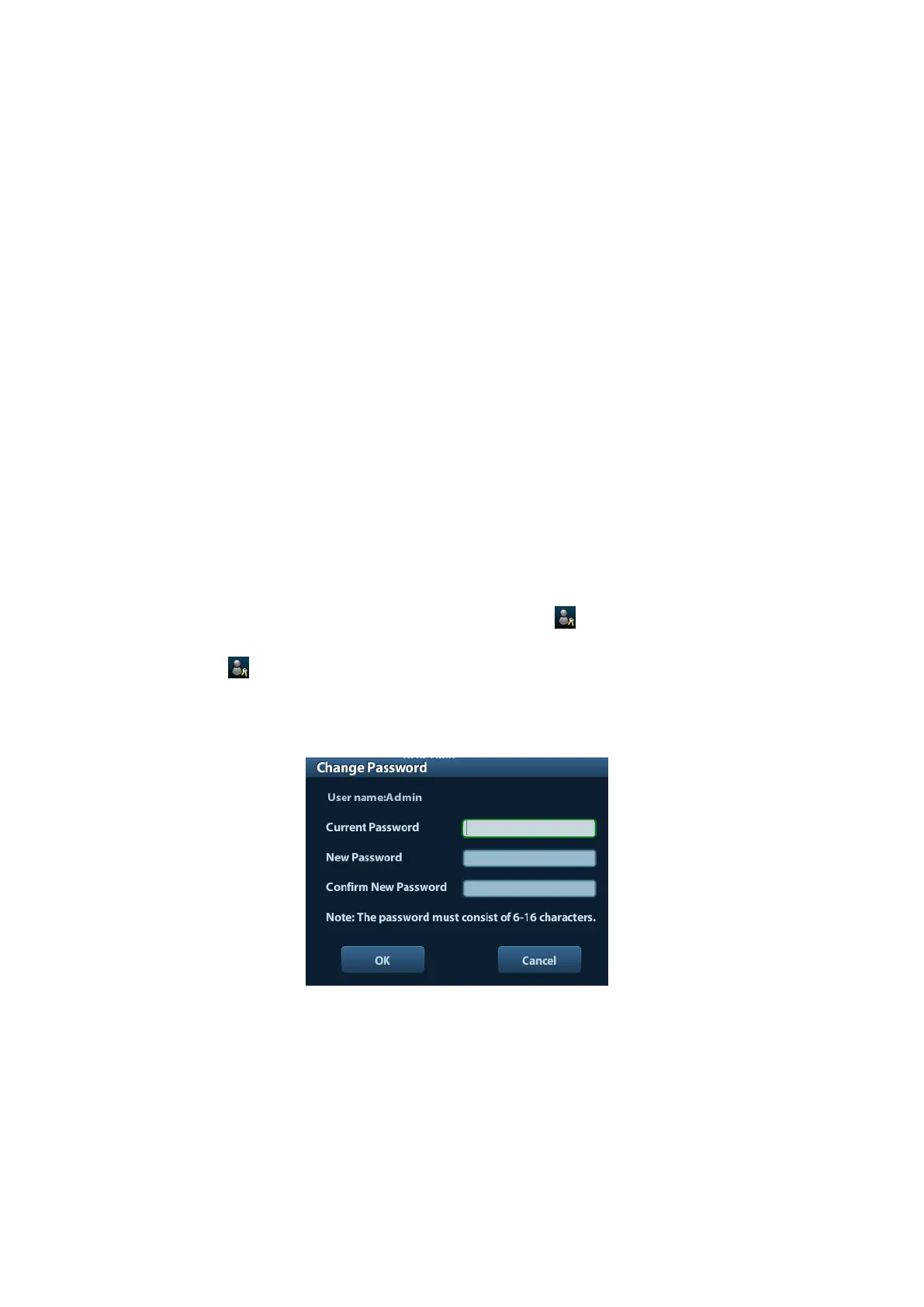
(2) If you want to modify the current password, click [Change Password] to pop up the
Change Password dialogue box.
(3) Enter the previous and the new password in the dialogue box.
(4) Click [OK] to exit.



 To Next Page