3-8 System Preparation
◼ Print Service
You can use a graph/ text printer to print report or images.
⚫ To set the default report printer and its attribute:
In "[Setup]-> [Print Preset]" screen, select the "Print Service", select “Report Print”
column in the service list, set the items in the "Property" box.
⚫ Report print:
Click [Print] in the report dialog box to print a report; or, use the user-defined key to
print, see "11.1.6 Key Config" for details.Please refer to the accompanying manuals
of the printers for more details.
3.8 Digital Video Printer
◼ Install a local printer
1. Put the printer in a proper place.
2. Connect the printer (VIDEO IN port) and the ultrasound system (USB port) with the data
cable.
3. Load a paper roll, and turn on the system and printer.
4. Install the printer driver (steps are the same as of graph/text printer, please refer to “3.7
Graph / Text Printer” for details). And you need not install the driver of the printer listed in
section “2.5.4 Peripherals Supported”.
5. Add a print service:
(1) Open [Setup]-> [Print Preset]->[Print Service].
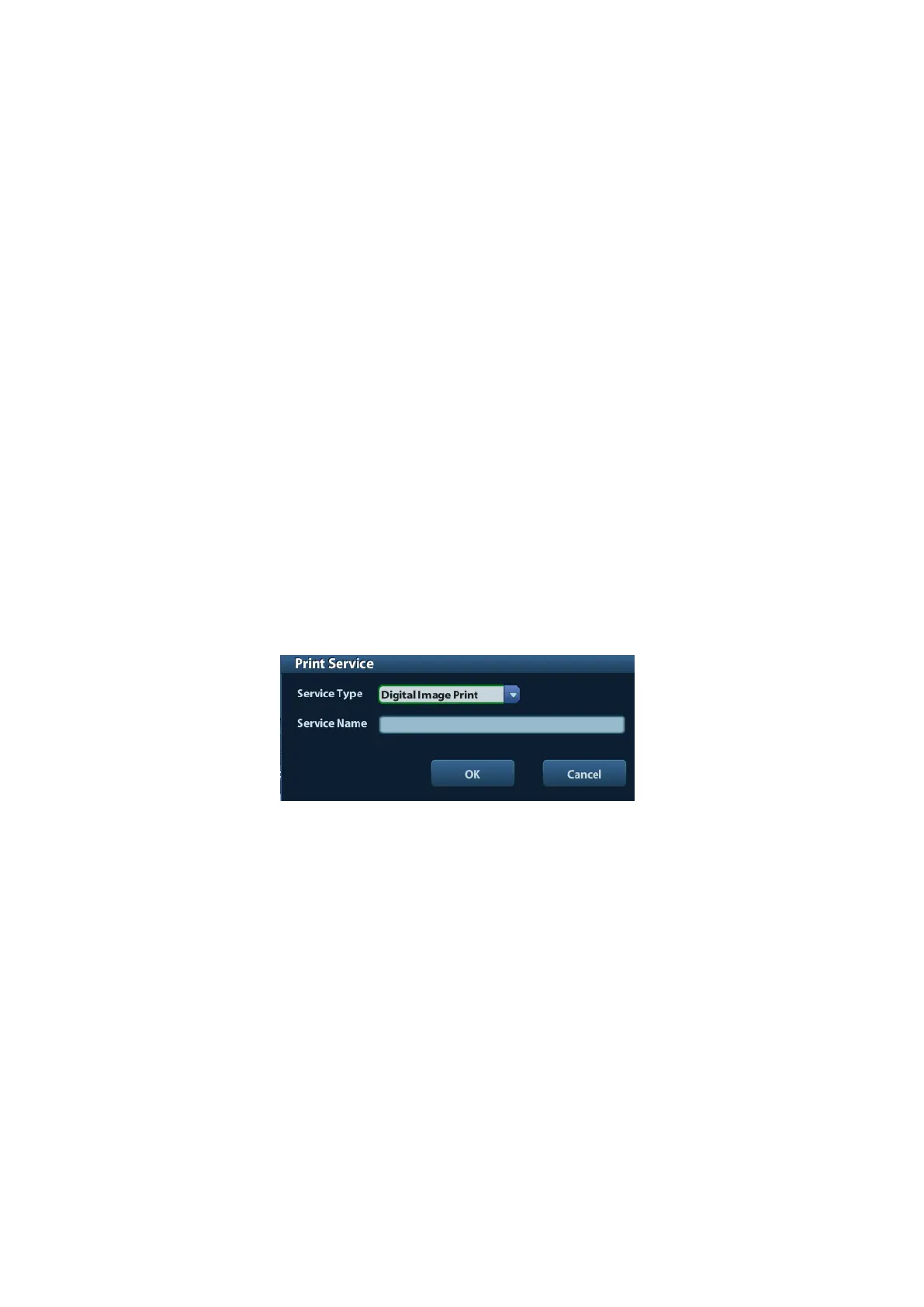
(2) Click [Add Service] to enter the following page.
(3) Select the service type as "Digital Image Print" and enter the service name manually.
(4) Click OK to return to the Printer Service page.
(5) Set the items in the Property box and click [Save] to save the settings.
◼ Image print
For DICOM image printing, refer to “10 DICOM”.
⚫ Modify print service:
a) Select an existed printer service in the list.
b) Select the printer type in the Property box.
c) Set the attribute: paper size, orientation, etc.
d) Click [OK] to confirm.
⚫ Image print
Select the image to be printed on the iStation or Review screen, and click [Send
To] to select the printer to print.
Please refer to the accompanying manuals of the printers for more details.



 To Next Page