System Preparation 3-11
c) Move the cursor to the target position, press [Set] again to anchor the result
window in the target position.
⚫ Comment area
For details, please refer to “8 Comments and Body Marks”.
⚫ Body mark area
For details, please refer to “8 Comments and Body Marks”.
3.11.2 Basic Operations of Screens
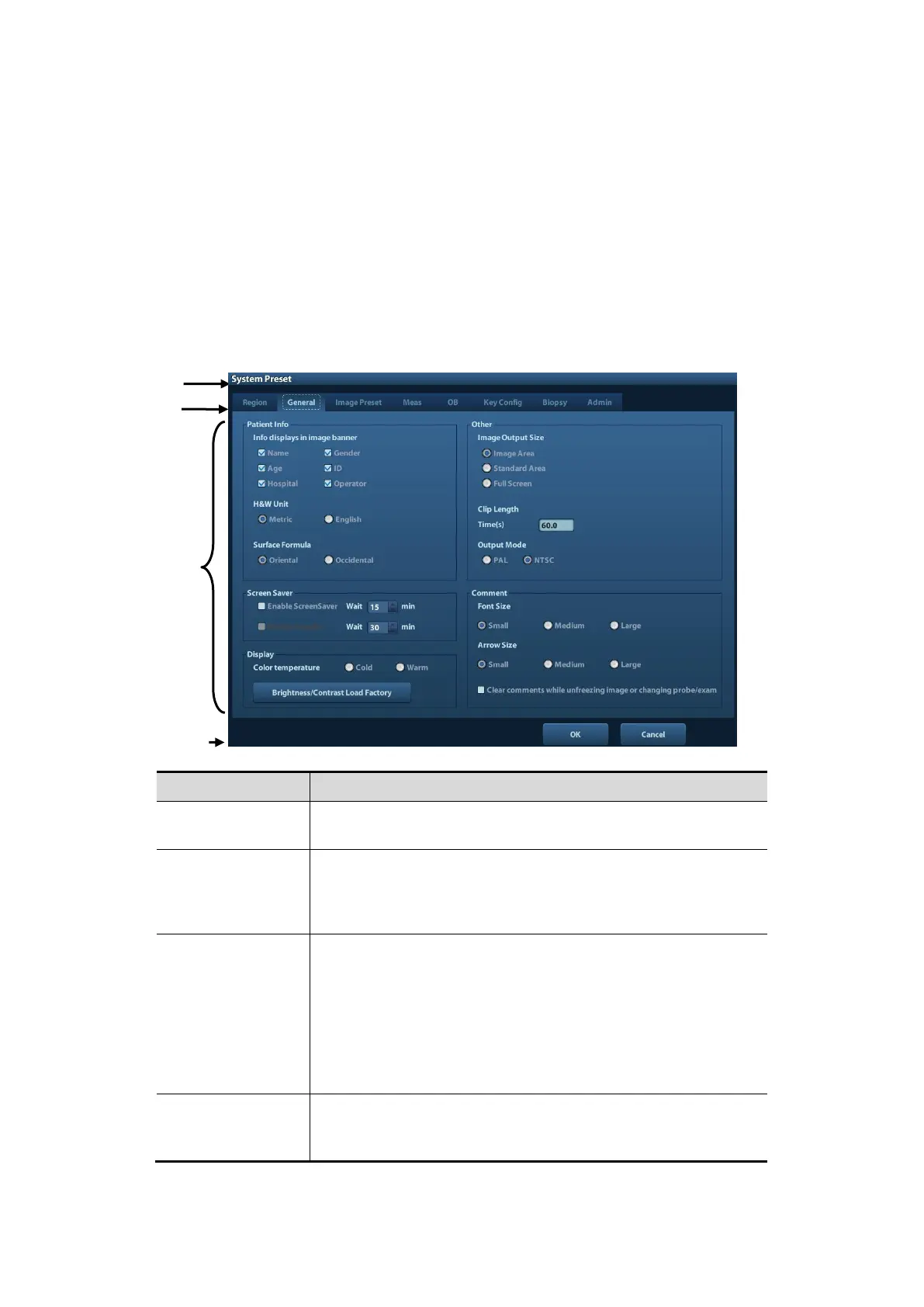
A screen consists of title, page tabs, contents and buttons, as shown in the following figure:
The title bar is used to give a description for the content and
function of the screen.
For some screens, contents are distributed across several
pages. Use the selection pointer and <Set> key to
open/close the available pages. Use the selection pointer
and [Set] key to open / close the available pages.
◼ Radio button: click to select the item.
◼ Check box: click to check or uncheck the item.
◼ Entry box: enter characters manually via the keyboard.
Position the cursor into the box, and then enter the
letters or characters.
◼ Drop-down list box: click [▼] to show the list and select
an item.
When the operation of a screen is complete, press the [OK]
or [Cancel] button to save or cancel the operation, and close
the screen.
To reposition a dialogue box:



 To Next Page