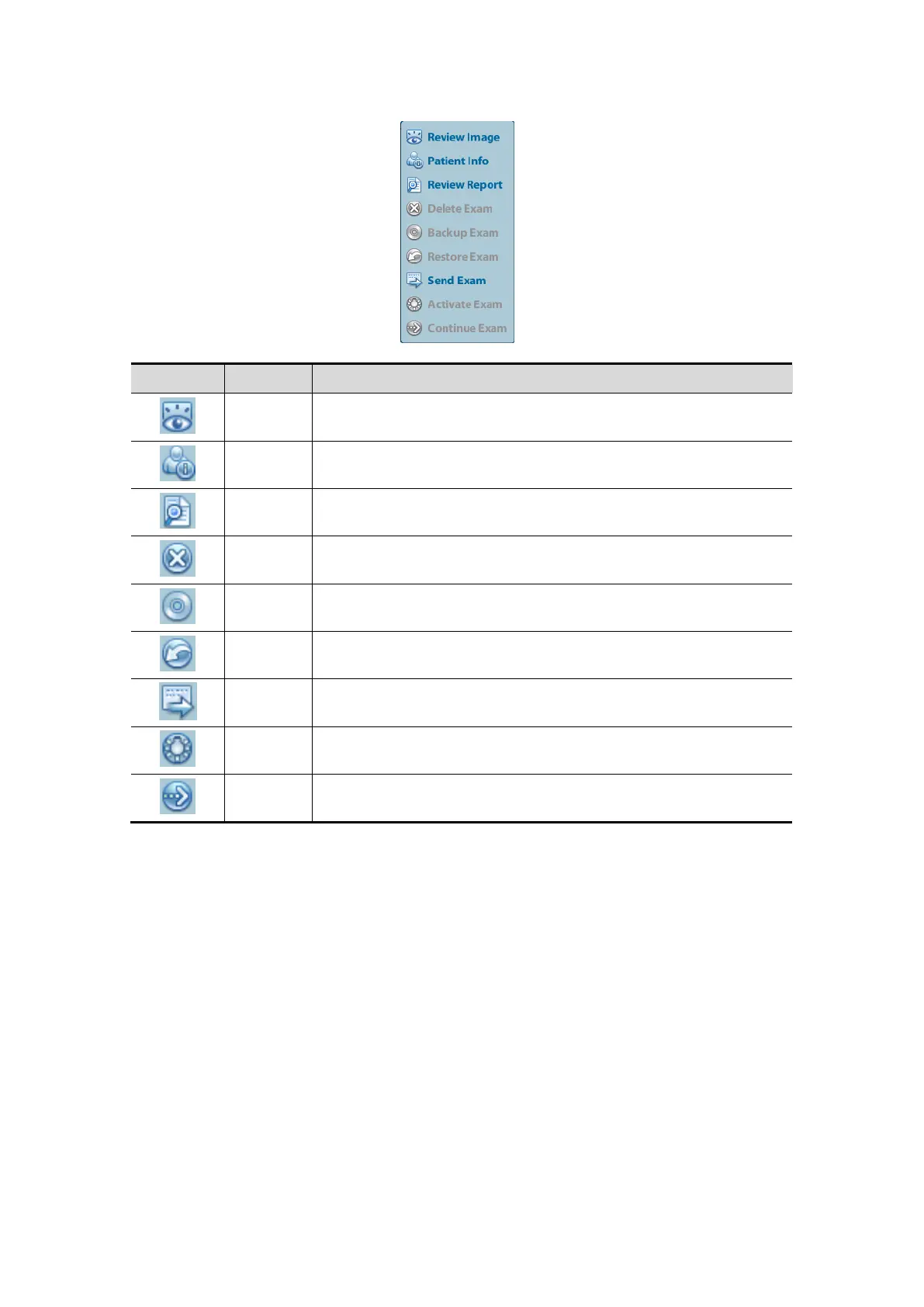
Click to send the selected patient data to external device,
DICOM storage server or DICOM printer.
Other buttons:
⚫ [New Exam]: Click to enter Patient Info screen, meanwhile, the corresponding patient
information is also imported to the new exam. After you edit the patient information in
the Patient Info screen, select [OK] to start a new exam.
⚫ [Select All Exams]: Click to select all records.
⚫ [Exit]: click to exit iStation.
4.2.2.2 DICOM Worklist
When the DICOM basic package is configured and the Worklist server has been set, click
[Worklist] in the "Patient Info" screen to query or import the patient data. (For the setting of
Worklist server, please refer to “10 DICOM”.)
Procedure:
1. Select data source: choose a worklist server in the drop-down list of “Worklist
Server”, and then all the patient exam records in the server are listed out.
2. Input the searching condition:
⚫ Select exam date period, click [Query] to search the patient data in the period.



 To Next Page