PRELIMINARY
miniDSP Ltd, Hong Kong / www.minidsp.com / Features and specifications subject to change without prior notice 50
8.3 CONNECTING TO THE PROCESSOR
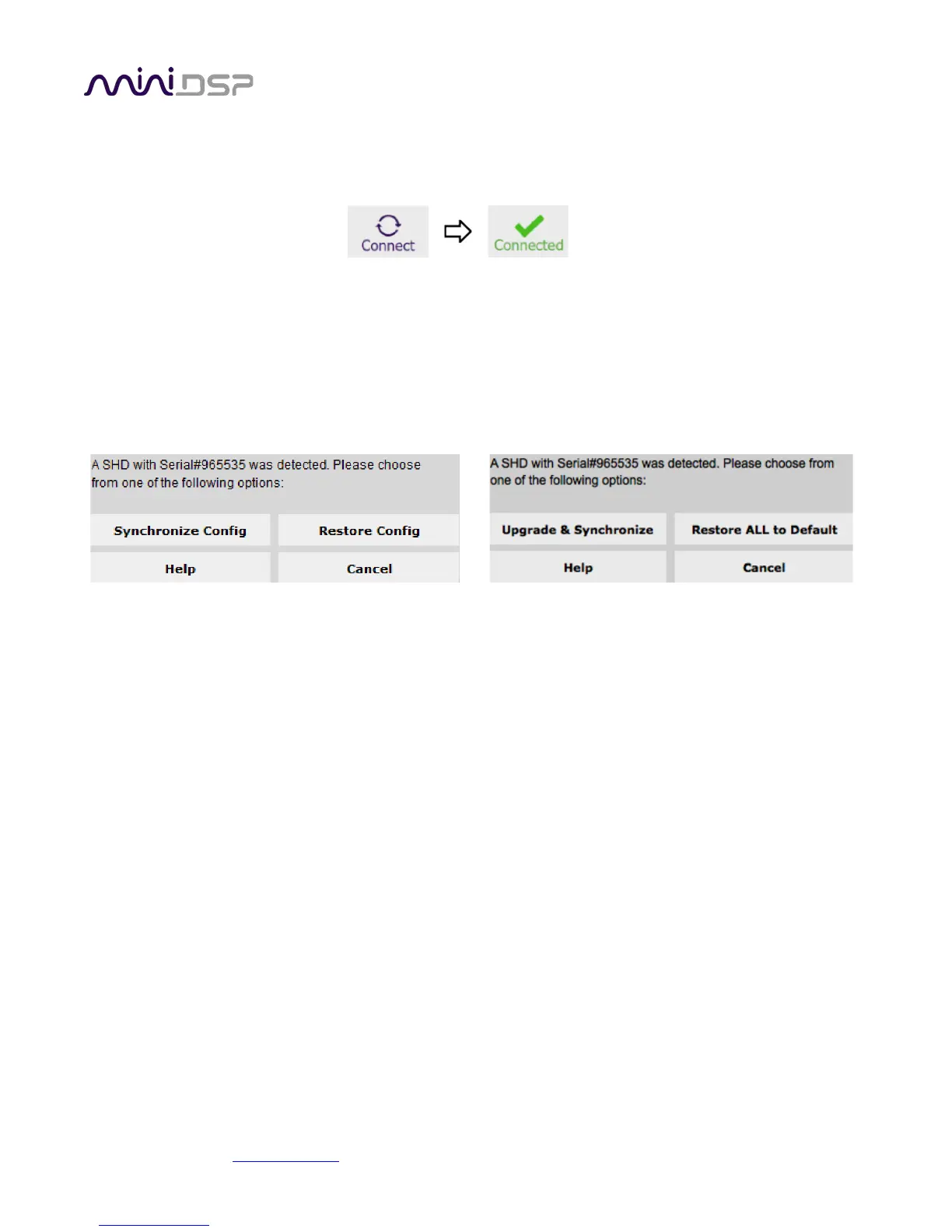
Connect the SHD Series processor to a USB 2.0 port on your computer if it is not already. Then click on the
Connect button:
If successful, the button changes to a green tick as shown above. For the sake of brevity, this state is referred to
as “online” whereas the earlier state with the circular arrows is referred to as “offline.” When the plugin is
online, any changes made in the SHD plugin are immediately transferred to the processor and will be heard in
the audio signal. This is also referred to as “synchronized.”
If you have just upgraded the plugin or made any changes to any parameters in the plugin interface, one of
these dialog boxes will appear:
Synchronize Config
Download the data for the currently selected configuration into the processor. Note that this applies only
to data that can be changed in the SHD plugin — Dirac Live filters are not changed. After downloading the
configuration data, the plugin is online.
Restore Config
Restore the data in the currently selected configuration to the factory defaults. This applies only to data
that can be changed in the SHD plugin — Dirac Live filters are not reset. When using this option, any
connected equipment should be muted or powered off until you have set the configuration to a working
state. Configuration data will be lost, so if needed, ensure that you have saved the configuration to a file
prior to using this option. After restoring, the plugin is online.
Upgrade & Synchronize
This button may appear after upgrading the plugin. It is similar to Synchronize Config, but also upgrades
the processor’s internal DSP data and software.
Restore ALL to default
This button may appear after a plugin upgrade. It upgrades the processor’s internal DSP data and software
and then sets all four configurations to default.
Help
This option brings up a help screen explaining the options.


 To Next Page