Chapter Five: Ethernet Interface
Setup and Configuration
Step 1: Install the Java™ Plug-in
(for single IP address)
44
Chapter Five: Ethernet Interface
Setup and Configuration
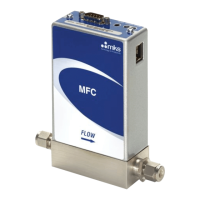
The Ethernet interface is a supplemental interface that can be used for MFC setup, configuration, and
diagnostics purposes. It is not used to control the MFC during normal operation. To access the diagnostic
features of the MFC via the Ethernet port, follow Steps 1 and 2.
Step 1: Install the Java™ Plug-in
(for single IP address)
The MFC interface software uses a web-based Internet Explorer interface that requires a Java Technology
plug-in to display real-time data plots.
If you are installing the MFC on a network that has web access AND you are setting up multiple IP addresses,
then go to “Option 3: For Multiple IP Address Setup” on page 49 and skip the steps below. The “Multiple IP
Address Setup” procedure enables you to access the web for download at completion.
OTHERWISE perform the following steps:
1. Download the (2) files listed below from the MKS website (www.mksinst.com/MDsw.html) by clicking
on the link “MFC java plugin file for web access.” The MKS download includes an installation script to
properly load the plug-in.
o Java installer: jinstaller.exe
o Installation script: InstallPlot.bat
2. Copy the installer and script file to your hard drive, then double-click on the InstallPlot.bat file.
This file connects to the Sun Microsystems download site according to the following command:
o jinstall.exe http://java.sun.com/update/1.4.2/1.4.2-b28.xm
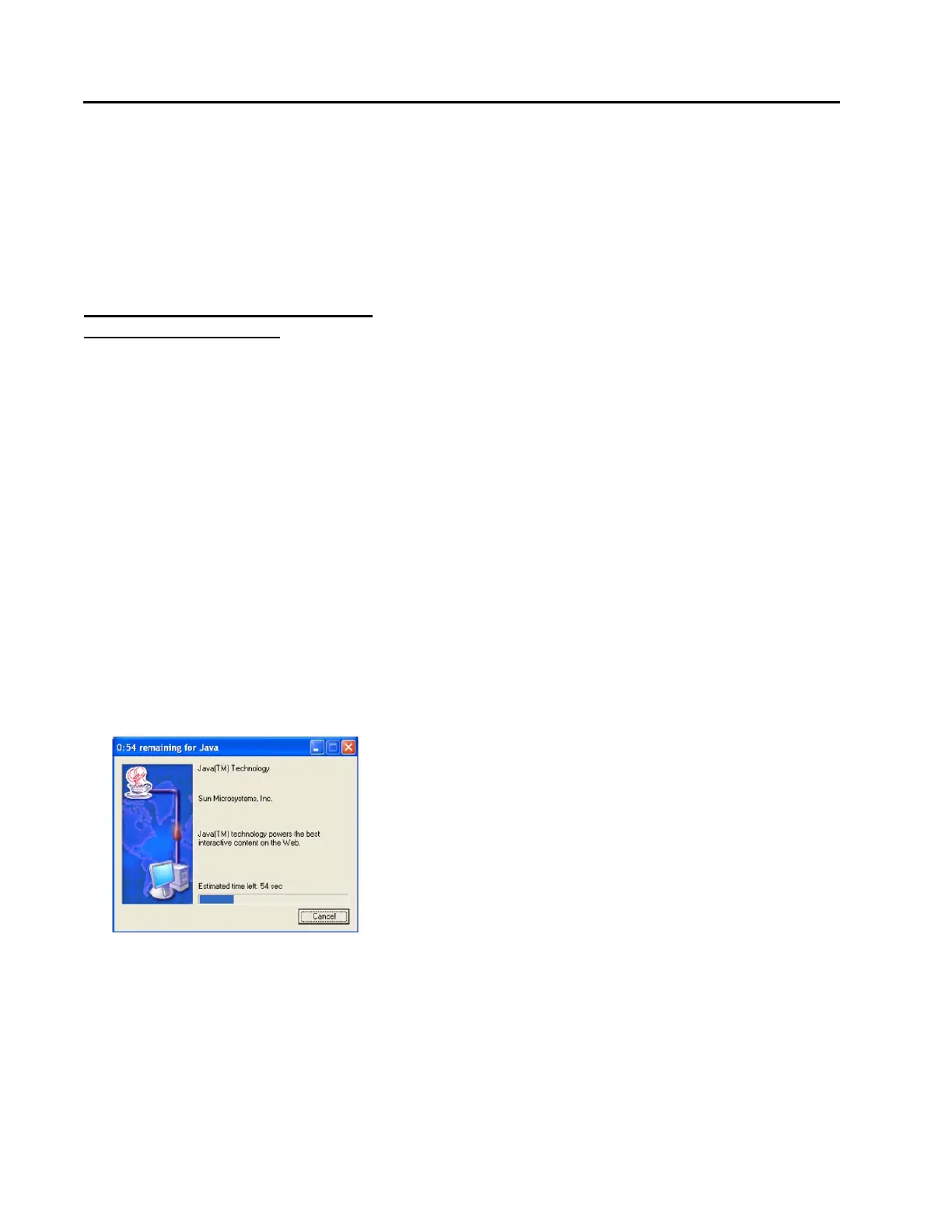
3. Follow the onscreen prompts to install the Java application.



 To Next Page