Setup Mode Chapter Six: Embedded Web-Based GUI and Diagnostics
61
4. This process typically takes under two minutes to complete. When the process is completed, the browser
will display a green banner across the top of the Device Page that says, “Gas Selection Update
SUCCEEDED.”
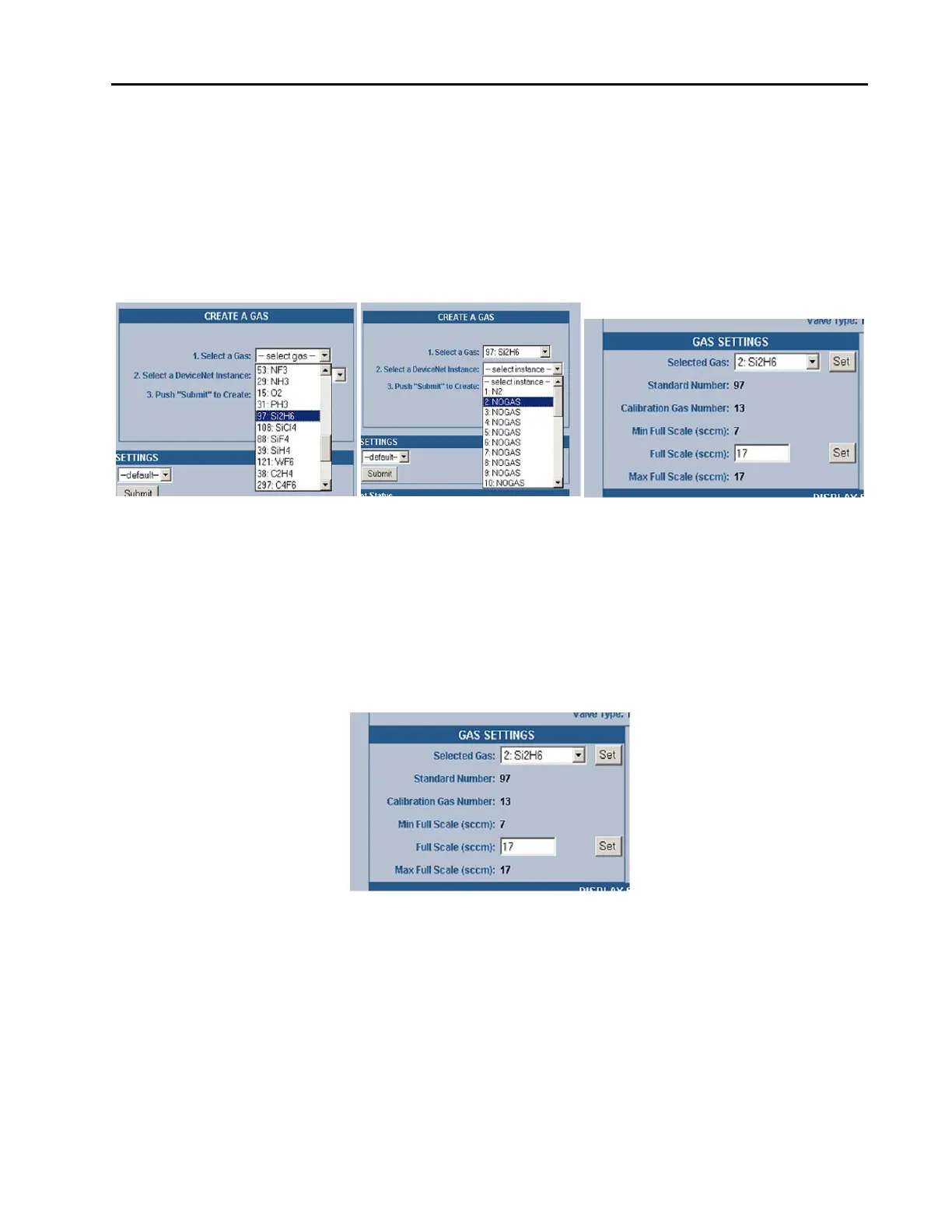
5. You should now see the newly created gas and its attributes now listed in the “Gas Settings” section of
the Device Page. At this point, if you want to change the full scale, then go ahead to the next section on
page 61. Otherwise you need to cycle the power to the MFC. Once you cycle the power, click on the
refresh button of the browser. Once the MFC powers up, the browser will reload and start on the
Device Page in Monitor Mode.
Figure 15: Embedded GUI, Creating A New Gas Instance
Changing the Full Scale Flow Range
In the “Gas Settings” section of the Device Page the user is able to change the full scale gas flow range to any
number between the “Min Full Scale (sccm)” and the “Max Full Scale (sccm)” values.
To do this, enter in the desired full scale range in the “Full Scale (sccm):” field and then press the “Set”
button. This operation typically takes less than one minute. Once completed, cycle the power to the MFC.
Once you cycle the power, click on the refresh button of the browser. Once the MFC powers up, the
browser will reload and start on the Device Page in Monitor Mode.
Figure 16: Changing the Full Scale Flow Range
Changing the Active Gas Instance
In the “Gas Settings” section of the Device Page the user is able to change the active gas instance.
To change the “Selected Gas”, click on the drop-down menu’s arrow and select one of the gases that have
been created. Please note that you are able to select the Factory calibration gas instance (32) but you cannot
change anything. Instance (1) is an exact replica of that instance if it has not been overwritten by the user on
previous modifications to the gas tables.
Once you’ve selected the instance you want press the “Set” button. The gas will change within (10) seconds.
You’ll notice that the “Standard Number” and the minimum and maximum full-scale ranges will change also.



 To Next Page