Step 2: Setup Network for Communication
through Ethernet
Chapter Five: Ethernet Interface
Setup and Configuration
53
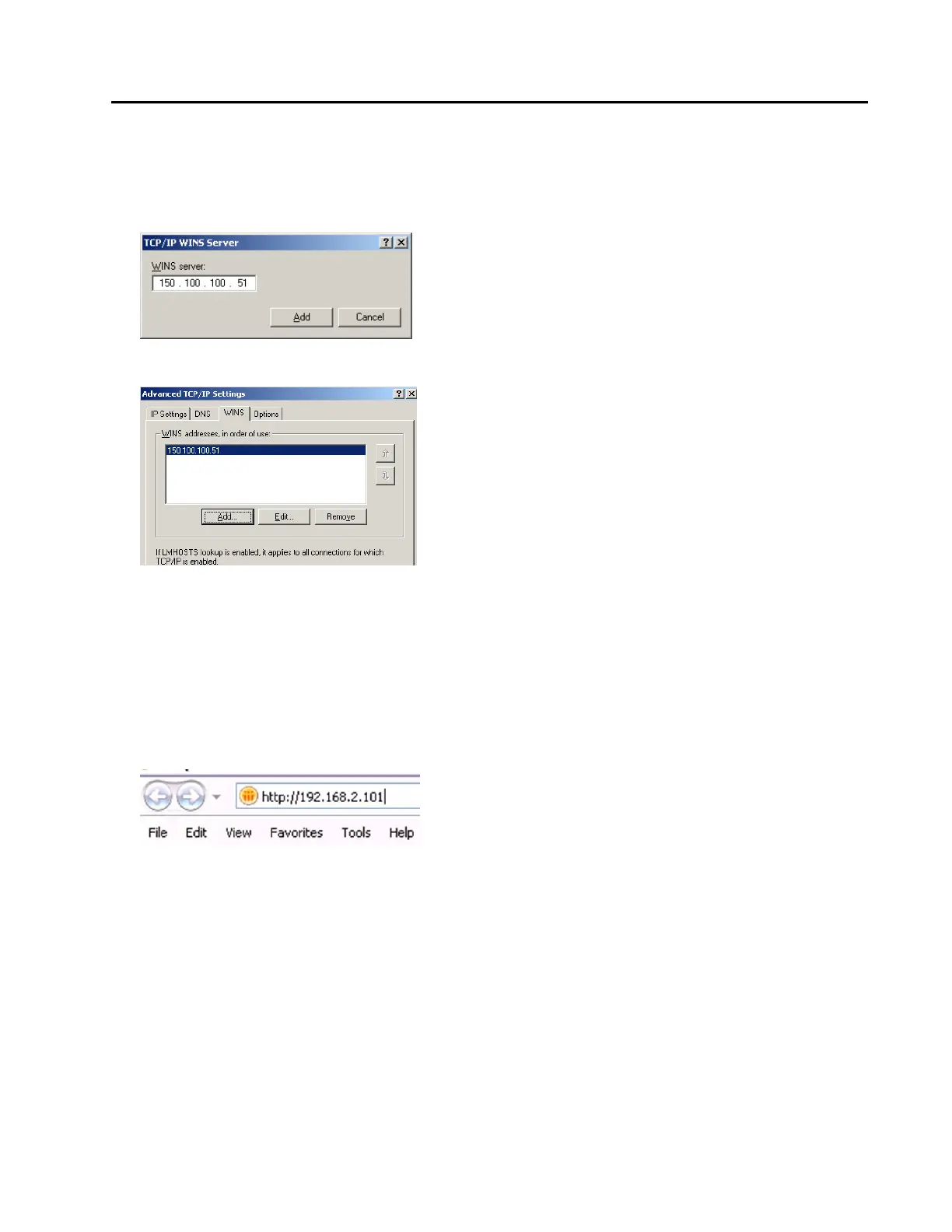
14. In the “WINS addresses, in order of use” section, click “Add…” Enter in the Primary WINS server
address that was returned from the “ipconfig /all” query in the DOS command window, and click “Add.”
If there were any alternate WINS servers listed in the DOS window, now enter them. If not, go ahead to
the next step.
Example is shown below:
15. Close out all dialog boxes by selecting O.K., Close, etc. as required.
16. You are ready to connect to multiple IP addresses from your computer. You can connect both to the
Internet and to your MFC local network.
17. Launch Internet Explorer (or a similar program) and enter “http://xx.xx.xx.xx” in the address field, where
xx.xx.xx.xx stands for the IP address of the MFC you wish to connect to, and click “Go.” Internet
Explorer will open and display the device Monitor screen which displays the device’s gas settings, model
code, valve type and Digital I/O connection status (if applicable). The Serial Number can always be
found in the bottom left-hand corner of the browser window.
For the plot web page to work in the MFC, a java plug-in has to be installed on your computer.
With the multiple IP addresses setup, if the Java plug-in has NOT already been installed, the IE browser
will automatically connect to the correct web site for the downloading the first time someone connects to
a MFC and clicks on the “Plot” page. If, for some reason, this does not work please follow the Step 1
instructions (see page 44).
For more information on the web-based program, go to Chapter 6 on page 54.



 To Next Page