Displaying the Printing Preferences screen of printer driver 15
Displaying the Printing Preferences screen of printer driver
[1]
Windows 10
Click [Start], [All Apps], [Windows System], then [Control Panel].
In the screen that appears, click [Devices and Printers].
Windows 8 / Windows 8.1
Display the charm bar on Desktop, and click [Settings]. Click [Control Panel] - [View devices and printers].
Windows 7
Click [Start] - [Devices and Printers].
[2]
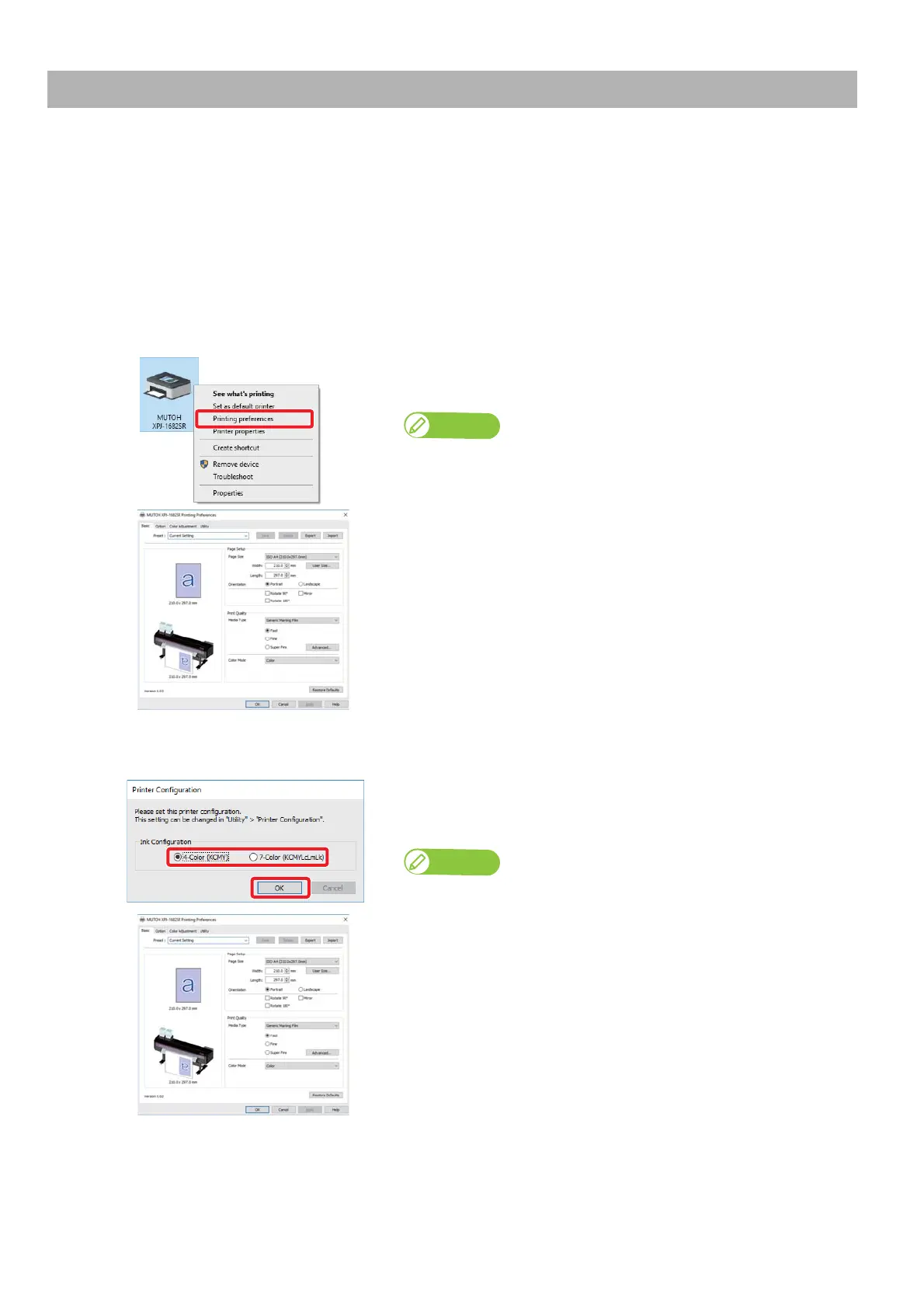
Right click on the icon of your printer and click [Printing preferences].
• The Printing Preferences dialog of the printer driver will appear.
Note
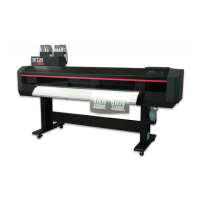
(XPJ-1682SR only) When you click on [Printing preferences] for the first time,
the Printer Configuration dialog will appear. Move to the Step 3.
[3]
(first startup on XPJ-1682SR only) Select the ink configuration settings
and click [OK].
• After clicking, the Printing Preferences screen of printer driver opens.
Note
• If you use the Windows printer driver, make sure to select the ink type and the
ink configuration settings of your printer.
• If you selected the wrong ink configuration, go to [Utility] > [Printer
Configuration] and select the correct one.
Printing Preferences screen of printer driver
Printing Preferences screen of printer driver


 To Next Page