78 Setup 5: Media Width
When the “Output Mode” is set to “Take Up”
Setup 5: Media Width
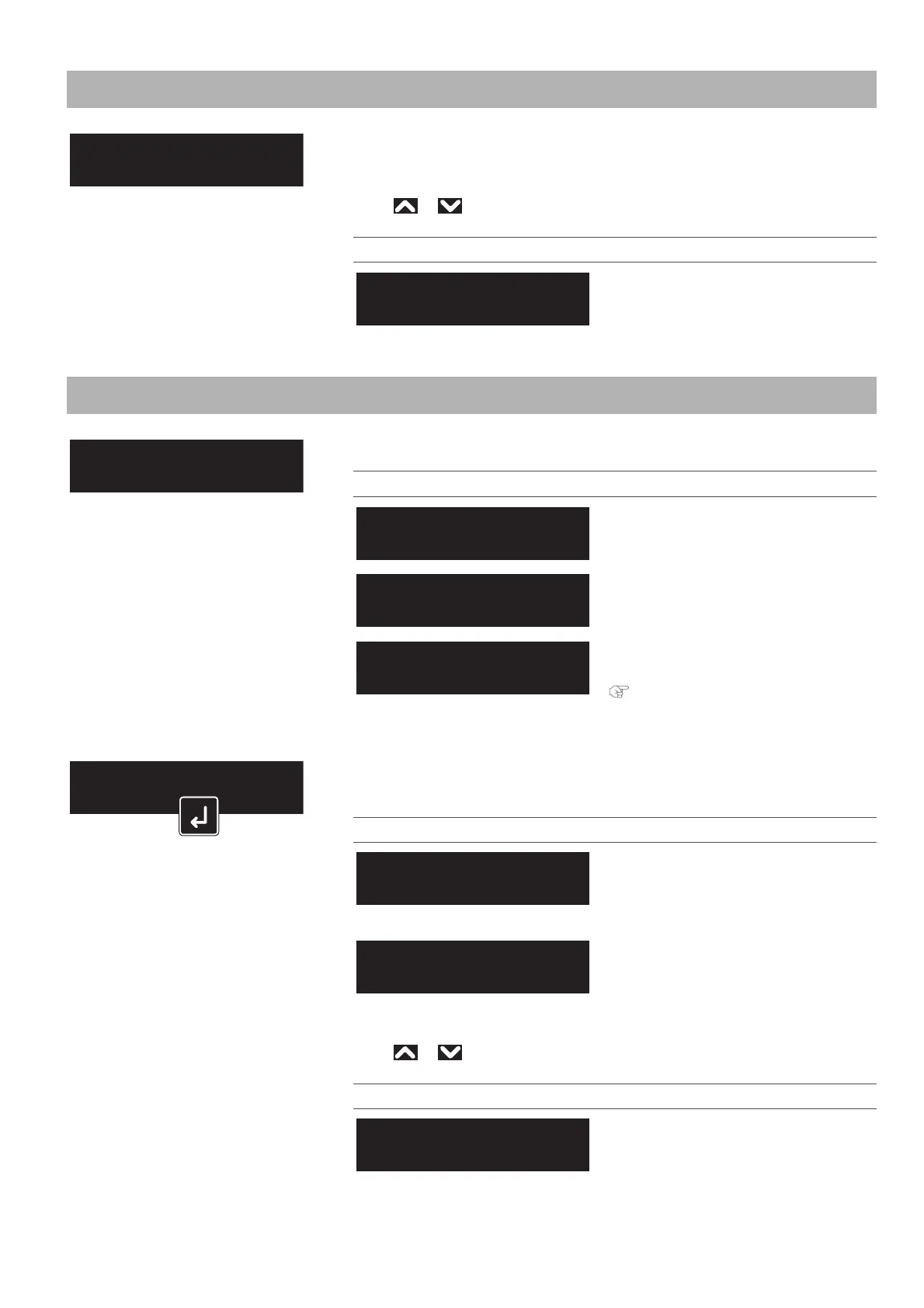
Sets the width of the current media when the “Media Initial menu” is set to “Off”.
When the “Media Initial menu” is set to “Width”, the detected media width will be
displayed.
Use or to enter the value, and tap [Enter].
Setting values
210 mm to <1,000 mm> to 1,625 mm
<> indicates the initial value.
Setup 6: Output Mode
Sets how the media is handled after printing.
Setting values
The Take-up Unit will not be used.
This is the initially set value.
Set when using the Take-up Unit.
Set when cutting the media
automatically.
"Setup 7: Method of Cut" P. 79
When the “Output Mode” is set to “Take up”, the menu is shifted to “Page Gap”.
In the “Page Gap menu”, you can change the margin setting between images.
Setting values
The default margin setting between
images will be applied.
This is the initially set value.
The margin setting between images is
smaller than Normal.
After setting the Page Gap, sets the Ink drying time.
Use or to enter the value, and tap [Enter].
Setting values
<0 sec> to 60 min
<> indicates the initial value.
Media Width:
(210 - 1625) 1000 mm
InkDryTimer:
(0 sec - 60 min) 0 sec


 To Next Page