Menu3: Cleaning 99
4 Menu 3: Cleaning
Menu3: Cl eaning
(XPJ-1682SR)
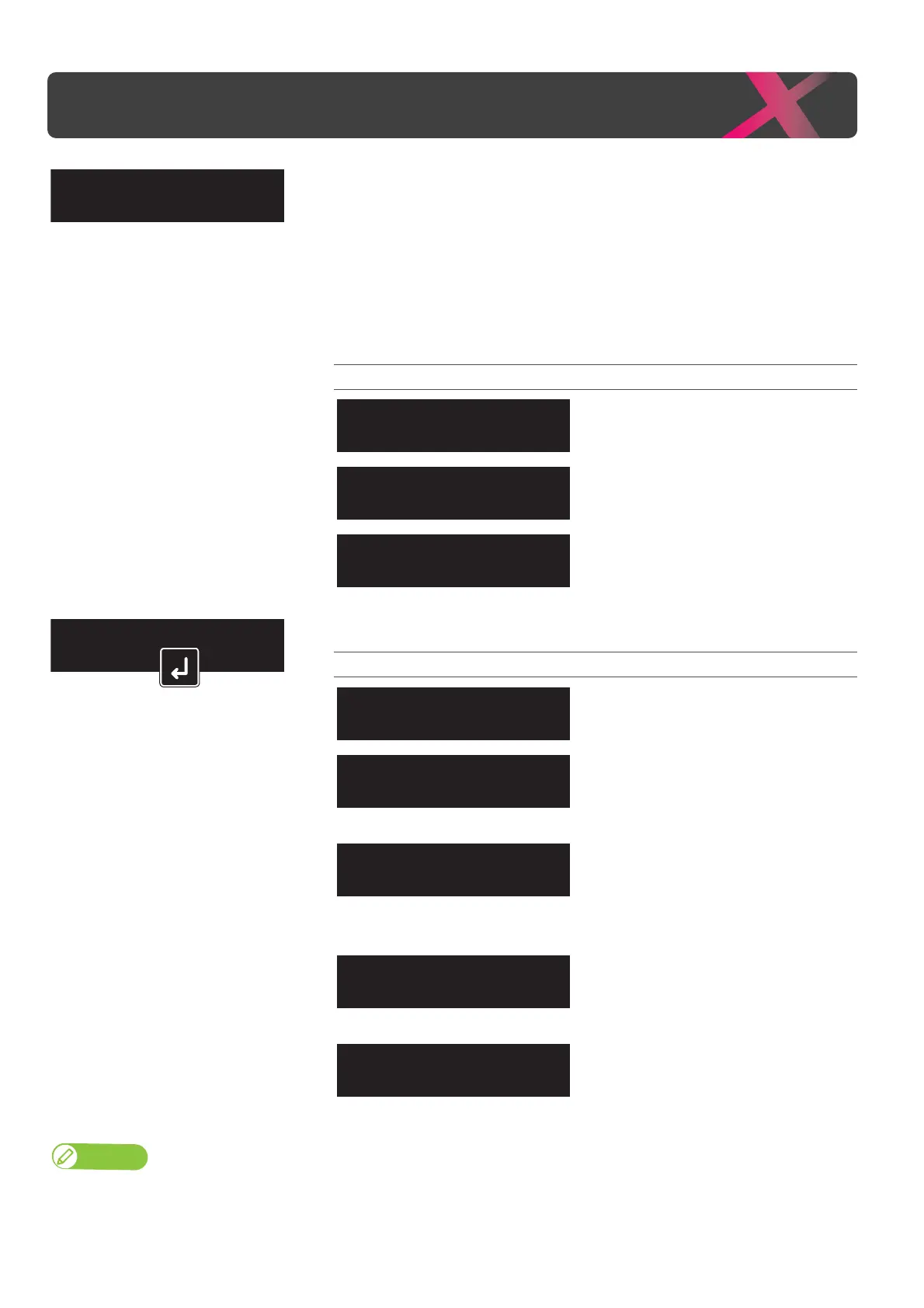
Tap [Enter] to select the print heads you wish to clean.
If nozzle missing is occurred in specific print head, select the print head that you
want to perform cleaning. In this way, you can reduce ink waste.
(XPJ-1641SR)
Tap [Enter] to select the cleaning mode. The menu "Select Print Head" will not be
displayed.
Setting values
Select this setting to clean all the print
heads. (XPJ-1682SR only)
Select this setting to clean only print
head 1. (XPJ-1682SR only)
Select this setting to clean only print
head 2. (XPJ-1682SR only)
Select the cleaning type.
Setting values
Consumes less ink than Normal cleaning.
Conduct nozzle check before and after
printing, and use when nozzle missing is
found.
Consumes more ink than Normal
cleaning. When nozzle missing still occurs
after Normal cleaning, conduct Long
cleaning.
Though much better cleaning results can
be expected than Long cleaning, it
consumes a large amount of ink.
Gives a rather higher cleaning effect than
“LittleCharge”, but also consumes rather
more ink.
Note
“InitialCharge” is available only when the Select Print Head menu is set to “ALL”.
Cleaning Type4
Little Charge
Cleaning Type5
Initial Charge


 To Next Page