ACCESS GATEWAY
136 System Administration
“properly configured” subscribers. If you enable SMTP redirection, you must provide the IP
address of the SMTP server.
4.
In the SMTP Server IP/DNS field, enter the address of the SMTP server you want to use.
5.
For SMTP servers which support login authentication, enter a valid username in the SMTP Server
Account Username field.
6.
For SMTP servers which support login authentication, enter a valid password in the SMTP Server
Account Password
field.
7.
Click on the Save button to save your changes, or click on the Restore button if you want
to reset all the
values to their previous state.
Managing the SNMP Communities {SNMP}
You can address the Access Gateway using an SNMP client manager (for example, HP OpenView). SNMP is
the standard protocol that regulates network management over the Internet. To do this, you must set up the
SNMP communities and identifiers. For more information about SNMP, see Using an SNMP Manager on
page 65.
If you want to use SNMP, you must manually turn on SNMP.
1.
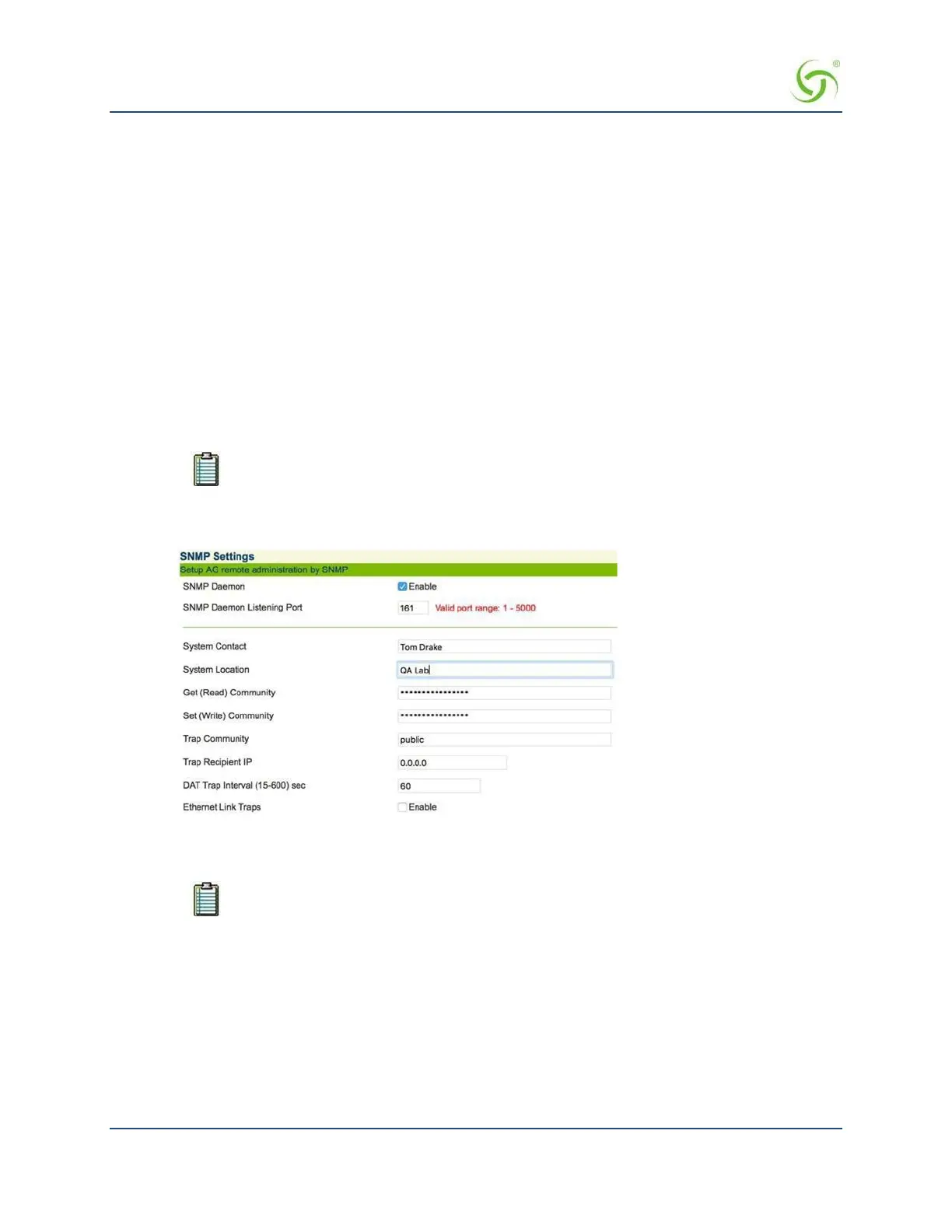
From the Web Management Interface, click on Configuration, then SNMP. The SNMP Settings screen
appears:
2.
Click on the check box for SNMP Daemon to enable this functionality.
3.
If desired, you can change the SNMP Daemon Listening Port. This is set by default to port 161.
If you change the SNMP Daemon Listening Port, any external services or applications that
communicate with the NSE via SNMP will be affected.
4.
Enter the SNMP parameters (communities and identifiers), including:
System Contact
System Location
Get (Read) Community
Set (Write) Community
Trap Community
Trap Recipient IP



 To Next Page