ACCESS GATEWAY
166 System Administration
To view the list of Currently Allocated DHCP Leases, go to the Web Management Interface, click on
Subscriber Administration, then click on DHCP Leases.
To use this feature, your Access Gateway must be set to act as its own DHCP Server. The
DHCP function cannot be set to DHCP Relay. Refer to Managing the DHCP service
options {DHCP} on page 88.
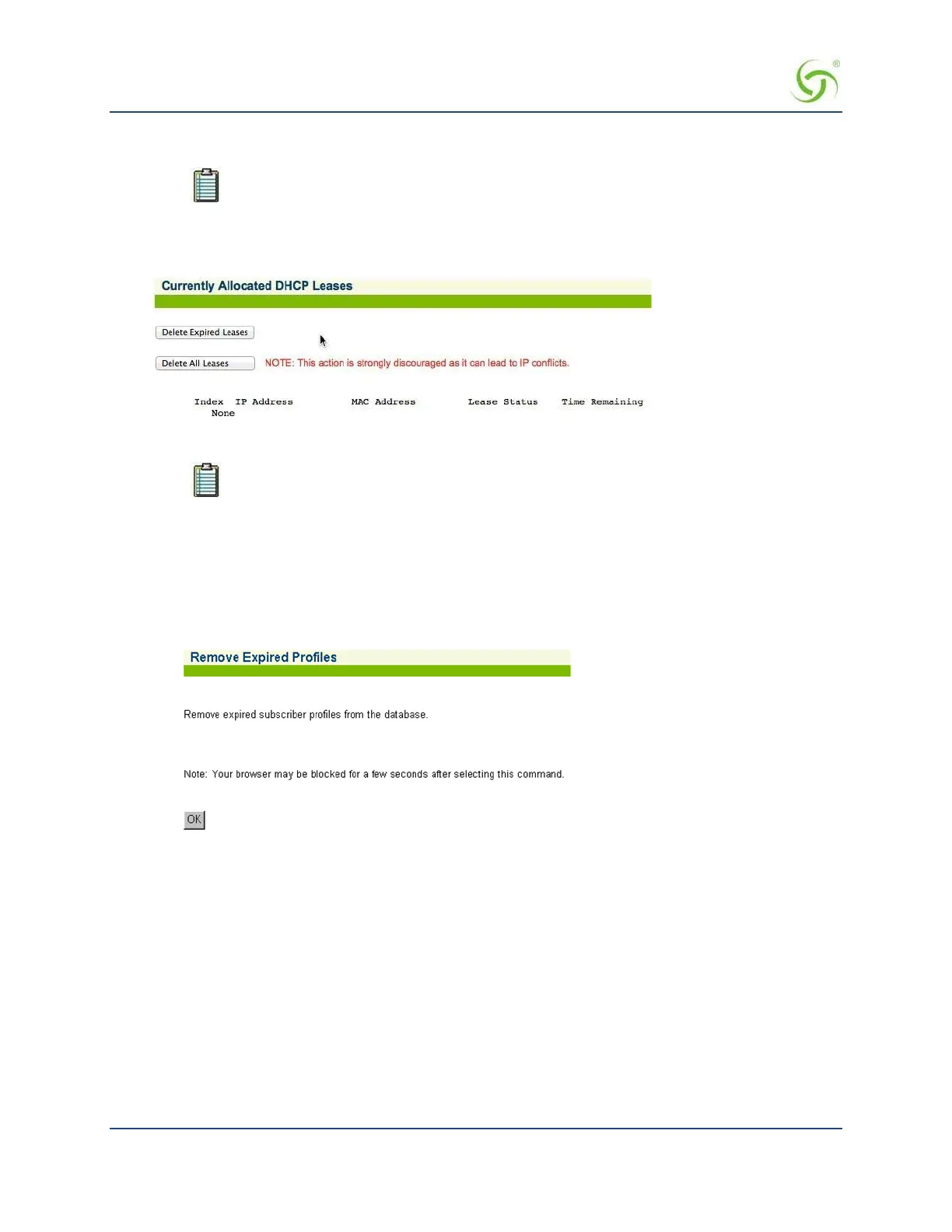
The Currently Allocated DHCP Leases screen appears:
You can Delete Expired Leases or Delete All Leases.
Deleting an active DHCP lease may cause IP conflicts.
Deleting All Expired Subscriber Profiles {Expired}
This procedure shows you how to delete all expired subscriber profiles from the Access Gateway’s database
of authorized subscribers. Use this procedure when you want to “clean up” the subscriber database.
1.
From the Web Management Interface, click on Subscriber Administration, then Expired. The Remove
Expired Profiles screen appears:
2.
Click on the OK button to remove all expired profiles.
Finding Subscriber Profiles by MAC Address {Find by MAC}
This procedure shows you how to find a subscriber profile from the Access Gateway’s database of authorized
subscribers, based on the profile’s MAC address. Use this procedure when you want to see the statistics
corresponding to the MAC address. Statistics include user name and password (if any) and the access time
remaining for this subscriber.
1.
From the Web Management Interface, click on Subscriber Administration, then Find by MAC. The
Find a Subscriber Profile screen appears:



 To Next Page