ACCESS GATEWAY
188 System Administration
Authen Type
Start Time
Stop Time
Byte Sent
Byte Received
Go To
The partner image (splash screen) is not the same screen that is defined by the Image File
Name (IWS screen) field.
6.
Click on the Save button to save your changes. Alternatively, you can click on the Clear Changes button
to reset all values to their previous state, or click on the Restore button to revert all values to their default
state.
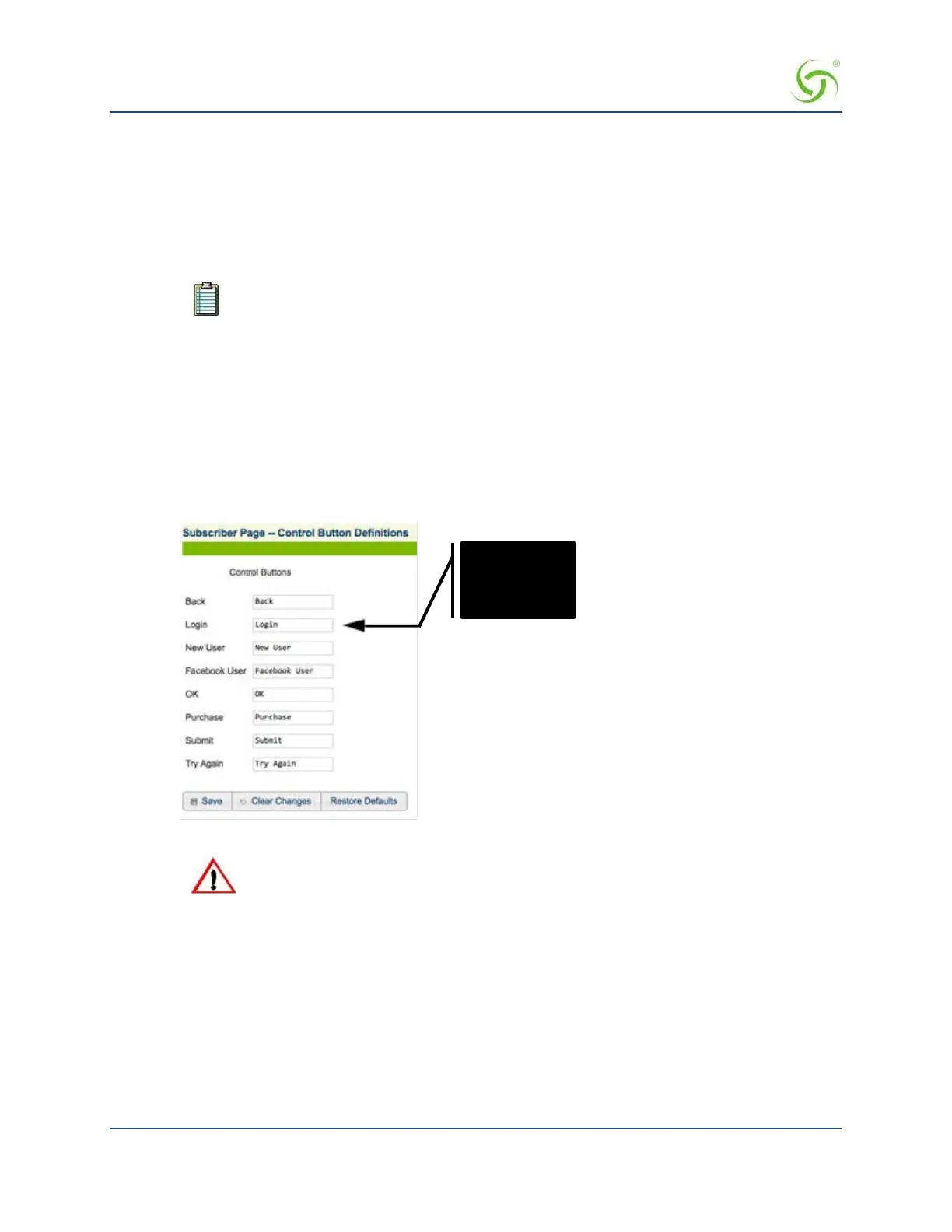
Defining Subscriber UI Buttons {Subscriber Buttons}
This procedure allows you to define how each of the control buttons are displayed to subscribers.
1.
From the Web Management Interface, click on Subscriber Interface, then Subscriber Buttons. The
Subscriber Page -- Control Button Definitions screen appears:
2.
Enter the definitions you want for each control button in the corresponding fields.
Only the Login button should be named “Login.” Do not assign this name to any
other button.
3.
Click on the Save button to save your changes, or click on the Clear Changes button if you want to reset
all the values to their previous state.
If you want to reset all field values to their default state, click on the Restore Defaults button.
Defining Subscriber UI Labels {Subscriber Labels}
This procedure allows you to define how the user interface (UI) field labels are displayed to subscribers.
1.
From the Web Management Interface, click on Subscriber Interface, then Subscriber Labels. The
Subscriber Page -- Field Label Definitions screen appears:
See Caution



 To Next Page