ACCESS GATEWAY
System Administration 203
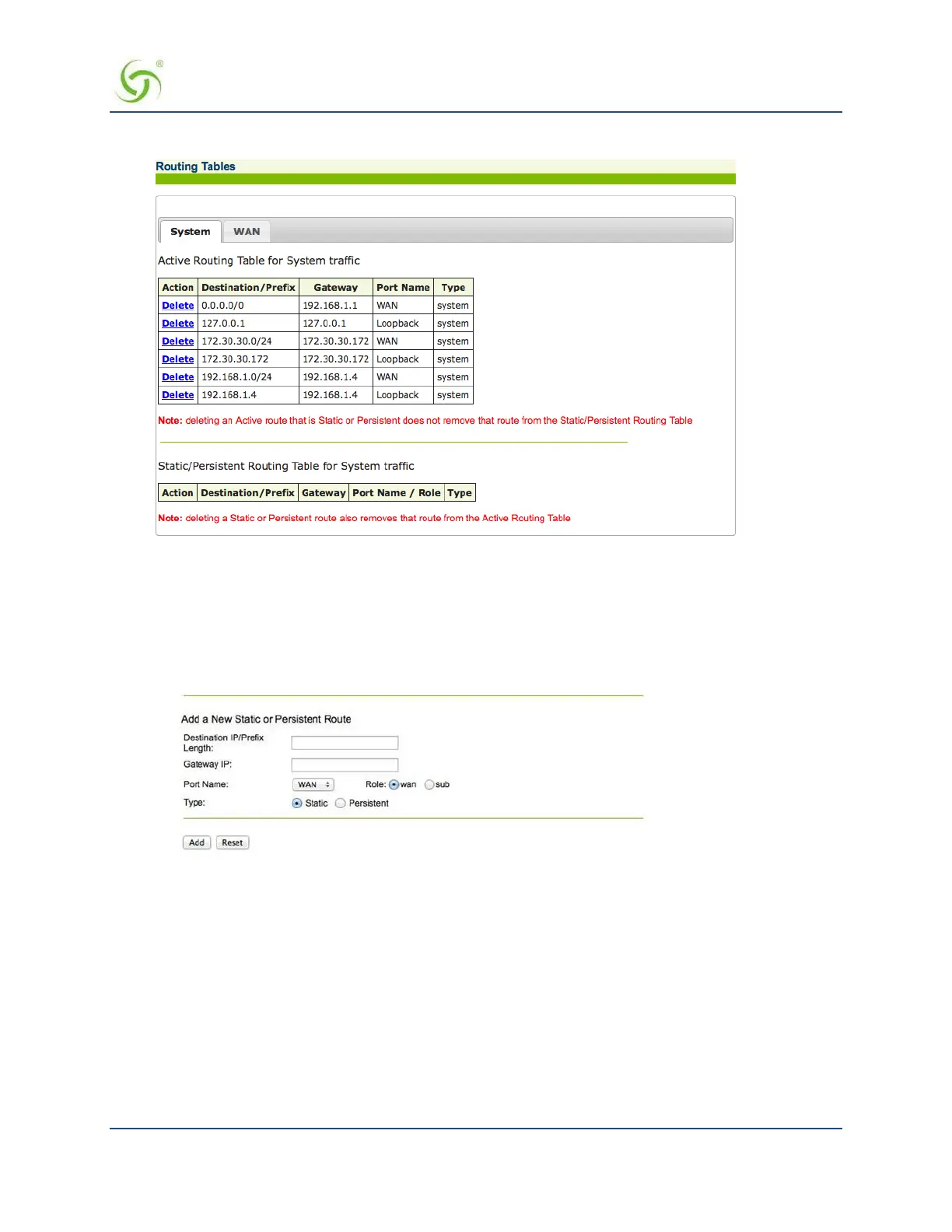
To view the routing tables, choose System > Routing. The Routing Tables screen appears.
You can view the routes associated with each physical NSE port by clicking on the tab for the port. In the
screen shot above, only the WAN port is in use.
Adding a Route
Use the following steps to add a route:
1. On the Routing Tables screen, scroll to
Add a New Static or Persistent Route.
2.
Enter the
Destination IP/Prefix Length address of the route you want to add to the routing
table. This is
the Destination IP or Subnet that the Route is trying to reach, with the prefix length to determine how
large the subnet might be.
3. Enter the
Gateway IP address for the Route being added so that the NSE knows what to use to try to
reach the destination IP/Subnet.
4.
Choose the
Port Name, the physical NSE Port to which the route is attached.
5.
Choose the
Role based on what the route is designed for. This will normally be wan.
6.
Choose the
Type, Static or Persistent.
7. Click Add to add this route to the routing table, or click Restore if you want to reset all the values to their
previous state.


 To Next Page