EasyManua.ls Logo

Oberheim Matrix-12 - Page 178

Oberheim Matrix-12
194 pages
Print Icon
To Next Page IconTo Next Page
To Previous Page IconTo Previous Page
Loading...
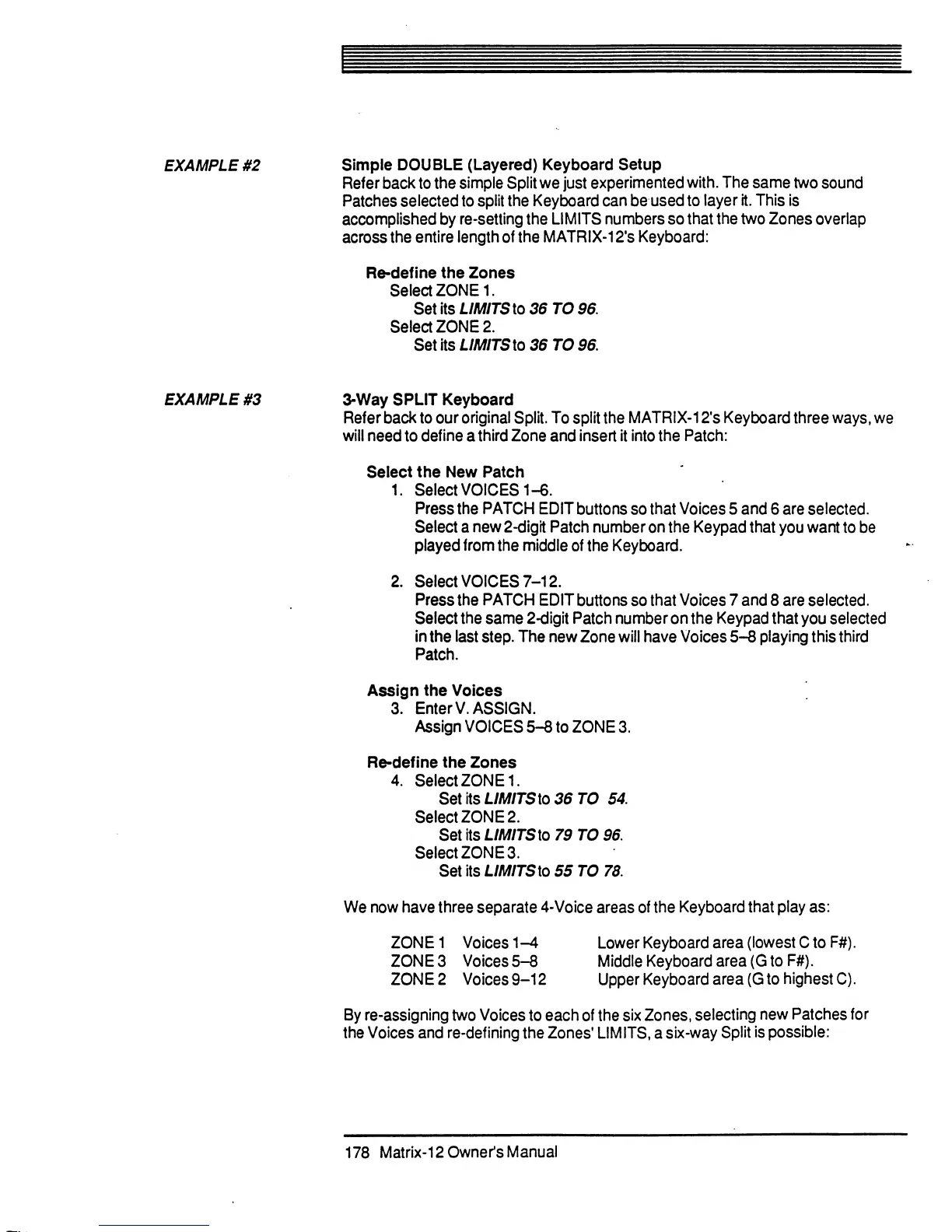
EXAMPLE
#2
Simple
DOUBLE
(Layered)
Keyboard
Setup
Refer
back
to
the
simple
Split
we
just
experimented
with.
The
same
two
sound
Patches
selected
to
split
the
Keyboard
can
be
used
to
layer
it.
This
is
accomplished
by
re-setting
the
LIMITS
numbers
so
that
the
two
Zones
overlap
across
the
entire
length
of
the
MATRIX-12's
Keyboard:
Re-define
the
Zones
Select
ZONE
1.
Set
its
LIMITSlo
36
TO
96.
Select
ZONE
2.
Se\i\sLIMITS\o36T096.
EXAMPLE
#3
3-Way
SPLIT
Keyboard
Refer
back
to
our
original
Split.
To
split
the
MATRIX-12's
Keyboard
three
ways,
we
will
need
to
define
a
third
Zone
and
insert
it
into
the
Patch:
Select
the
New
Patch
1.
Select
VOICES
1-6.
Press
the
PATCH
EDIT
buttons
so
that
Voices
5
and
6
are
selected.
Select
a
new
2-digit
Patch
number
on
the
Keypad
that
you
want
to
be
played
from
the
middle
of
the
Keyboard.
2.
Select
VOICES
7-12.
Press
the
PATCH
EDIT
buttons
so
that
Voices
7
and
8
are
selected.
Select
the
same
2-digit
Patch
number
on
the
Keypad
that
you
selected
in
the
last
step.
The
new
Zone
will
have
Voices
5-8
playing
this
third
Patch.
Assign
the
Voices
3.
EnterV.
ASSIGN.
Assign
VOICES
5-8
to
ZONE
3.
Re-define
the
Zones
4.
Select
ZONE
1.
Set
its
LIMITSlo
36
TO
54.
Select
ZONE
2.
SetitsZ./M/rSto79TO96.
Select
ZONE
3.
Set
its
LIMITS
to
55
TO
78.
We
now
have
three
separate
4-Voice
areas
of
the
Keyboard
that
play
as:
ZONE
1
Voices
1-4
Lower
Keyboard
area
(lowest
C
to
F#).
ZONE
3
Voices
5-8
Middle
Keyboard
area
(G
to
F#).
ZONE
2
Voices
9-12
Upper
Keyboard
area
(G
to
highest
C).
By
re-assigning
two
Voices
to
each
of
the
six
Zones,
selecting
new
Patches
for
the
Voices
and
re-defining
the
Zones'
LIMITS,
a
six-way
Split
is
possible:
178
Matrix-Downer's
Manual

Table of Contents

Related product manuals