EasyManua.ls Logo

Oberheim Matrix-12 - Page 183

Oberheim Matrix-12
194 pages
Print Icon
To Next Page IconTo Next Page
To Previous Page IconTo Previous Page
Loading...
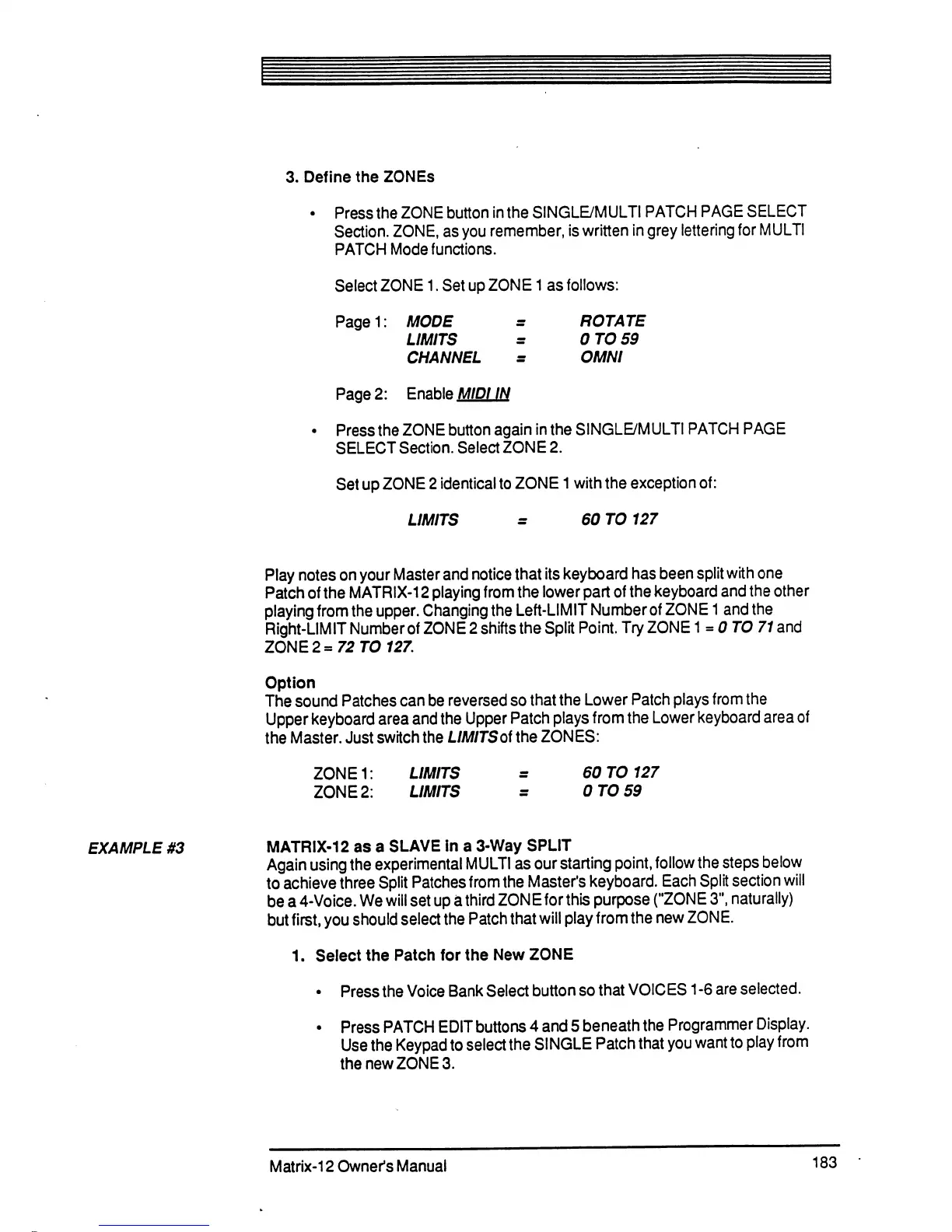
3.
Define
the
ZONEs
Press
the
ZONE
button
in
the
SINGLE/MULTI
PATCH
PAGE
SELECT
Section.
ZONE,
as
you
remember,
is
written
in
grey
lettering
for
MULTI
PATCH
Mode
functions.
Select
ZONE
1.
Set
up
ZONE
1
as
follows:
Pagei:
MODE
=
ROTATE
LIMITS
=
0TO59
CHANNEL
=
OMNI
Page
2:
Enable
MIDI
IN
Press
the
ZONE
button
again
in
the
SINGLBMULTI
PATCH
PAGE
SELECT
Section.
Select
ZONE
2.
Set
up
ZONE
2
identical
to
ZONE
1
with
the exception
of:
LIMITS
s
60
T0127
Play
notes
on
your
Master
and
notice
that
its
keyboard
has
been
split
with
one
Patch
of
the
MATRIX-12
playing
from
the
lower
part
of
the
keyboard
and
the
other
playing
from
the
upper.
Changing
the
Left-LIMIT
Number
of
ZONE
1
and
the
Right-LIMIT
Number
of
ZONE
2
shifts
the
Split
Point.
Try
ZONE
1
=
0
TO
71
and
ZONE
2=
72
TO
127.
Option
The
sound
Patches
can
be
reversed
so
that
the
Lower
Patch
plays
from
the
Upper
keyboard
area
and
the
Upper
Patch
plays
from
the
Lower
keyboard
area
of
the
Master.
Just
switch
the
LIMITSot
the
ZONES:
ZONE1:
LIMITS
=
60
T0127
ZONE
2:
LIMITS
-
0TO59
EXAMPLE
#3
MATRIX-12
as a
SLAVE
in
a
3-Way
SPLIT
Again
using
the
experimental
MULTI
as
our
starting
point,
follow
the
steps
below
to
achieve
three
Split
Patches
from
the
Master's
keyboard.
Each
Split
section
will
be
a
4-Voice.
We
will
set
up a
third
ZONE
for
this
purpose
("ZONE
3",
naturally)
but
first,
you
should
select
the
Patch
that
will
play
from
the
new
ZONE.
1.
Select
the
Patch
for
the
New
ZONE
Press
the
Voice
Bank
Select
button
so
that
VOICES
1
-6
are
selected.
Press
PATCH
EDIT
buttons
4
and
5
beneath
the
Programmer
Display.
Use
the
Keypad
to
select
the
SINGLE
Patch
that
you
want
to
play
from
the
new
ZONE
3.
Matrix-12
Owner's
Manual
183

Table of Contents

Related product manuals