Basic Operation
3-28 OPERATION GUIDE
4
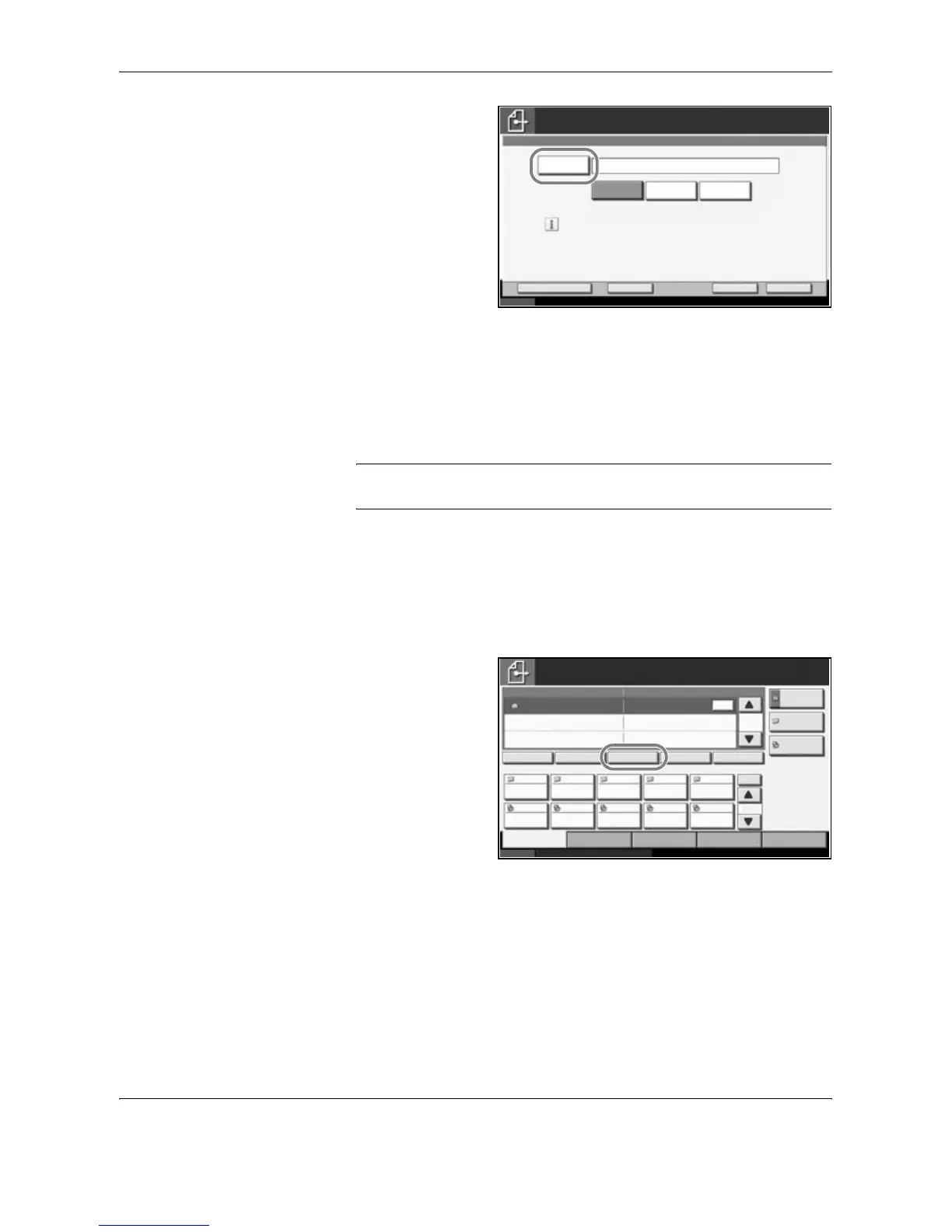
Enter destination E-
mail address and
press [OK].
5
Press [To:], [Cc:] or [Bcc:] to change the recipient status as necessary.
To specify another destination, go to the step 6. To specify only one
destination, go to step 7.
6
Press [Next Dest.] and repeat steps 4 and 5 to specify the destination. Up
to 100 E-mail addresses can be specified.
NOTE: When [Add to Addr Book] is displayed, the destinations are
registered in the Address Book.
7
Press [OK]. The destinations are registered in the destination list.
8
Check the destination list.
Select a destination and press [Detail/Edit] to check and edit it. Refer to
steps 4 and 5 to edit the destination as necessary.
Select a destination
and press [Delete] to
remove the
destination from the
list.
9
Change the original size, scan resolution, etc. if necessary.
E-mail Address Entry
E-mail
Address
Add a new E-mail destination.
Press [E-mail Address], then enter
the address using the keyboard screen.
To:/Cc:/Bcc: can also be set.
Status 10/10/2007 10:10
Place original.
Ready to send.
Destination
Cancel OKNext Dest.Add to Addr Book
0
Cc:
Bcc:To:
E-mail Address Entry
Status 10/10/2007 10:10
Place original.
Ready to send.
Destination
Type of Original/
Transmission
Quick SetupDestination Color/Image Advanced
Setup
Destination Detail
ABC
abc@defg.com
Address
Book
Folder Path
Entry
E-mail
Addr Entry
No.
1/10
To:
1
AAA BBB CCC DDD EEE
FFF GGG HHH III JJJ
004003 005001 002
006 007 008 009 010
Chain Detail/Edit Delete RecallOn Hook









 To Next Page