Basic Operation
3-62 OPERATION GUIDE
NOTE: If the current print job is already specified as Priority Override, the
new urgent job will be executed after completion of the current job.
1
Press the Status/Job Cancel key.
2
Press [Printing Jobs].
3
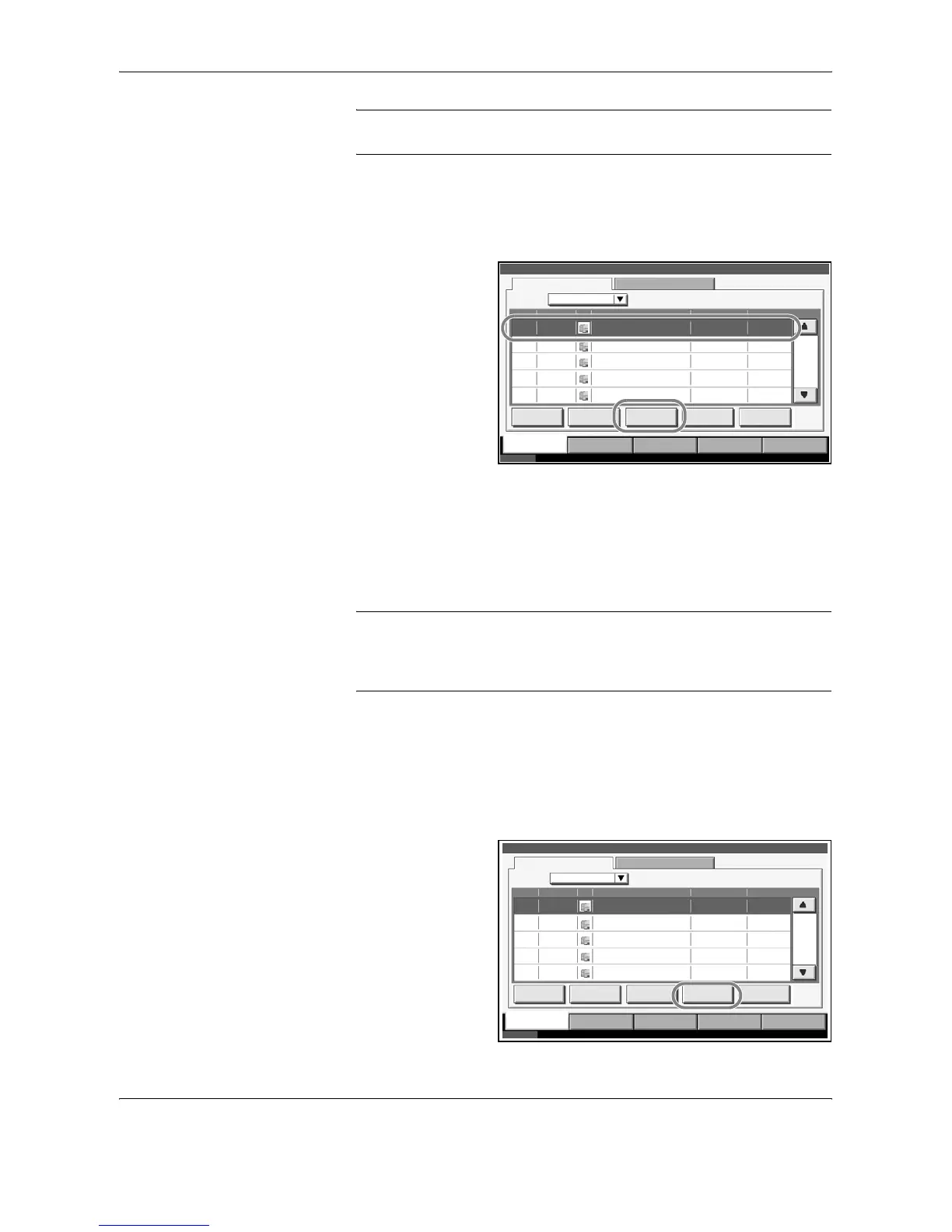
Select the job you
wish to give priority
to and press [Priority
Override]. The print
job currently under
way will be
suspended to start
the priority print job.
4
The suspended print job will resume after completion of the Priority
Override job.
Reordering Print Jobs
This function allows you to select a queued print job and raise its priority.
NOTE: You cannot assign a higher priority than the job currently being
printed or jobs that have been queued due to an interruption. Nor can you
assign a priority higher than a job being processed.
You cannot lower a job’s priority.
The procedure for reordering print jobs is explained below.
1
Press the Status/Cancel key.
2
Select the job to be assigned higher priority and press [Move Up].The
priority of the selected job is increased by 1.
To further raise the
job’s priority, press
[Move Up] again.
Each time you press
[Move Up], the
priority increases by
1.
Status
Status Log
All
Job No. Accepted Time Type
438
Job Name User Name Status
14:44 doc20070225144435 Waiting
001/002
Pause All
Print Jobs
Cancel Priority
Override
Detail
Printing Jobs Sending Jobs Storing Jobs Device/
Communication
Paper /Supplies
Status 10/10/2007 10:10
Move Up
439 14:45 doc20070225144511 Waiting
440 14:45 doc20070225144527 Waiting
441 14:46 doc20070225144633 Waiting
442 14:46 doc20070225144644 Waiting
Job Type
Status
Status Log
All
Job No. Accepted Time Type
438
Job Name User Name Status
14:44 doc20070225144435 Waiting
001/002
Pause All
Print Jobs
Cancel Priority
Override
Detail
Printing Jobs Sending Jobs Storing Jobs Device/
Communication
Paper /Supplies
Status 10/10/2007 10:10
Move Up
439 14:45 doc20070225144511 Waiting
440 14:45 doc20070225144527 Waiting
441 14:46 doc20070225144633 Waiting
442 14:46 doc20070225144644 Waiting
Job Type









 To Next Page