Basic Operation
OPERATION GUIDE 3-31
3
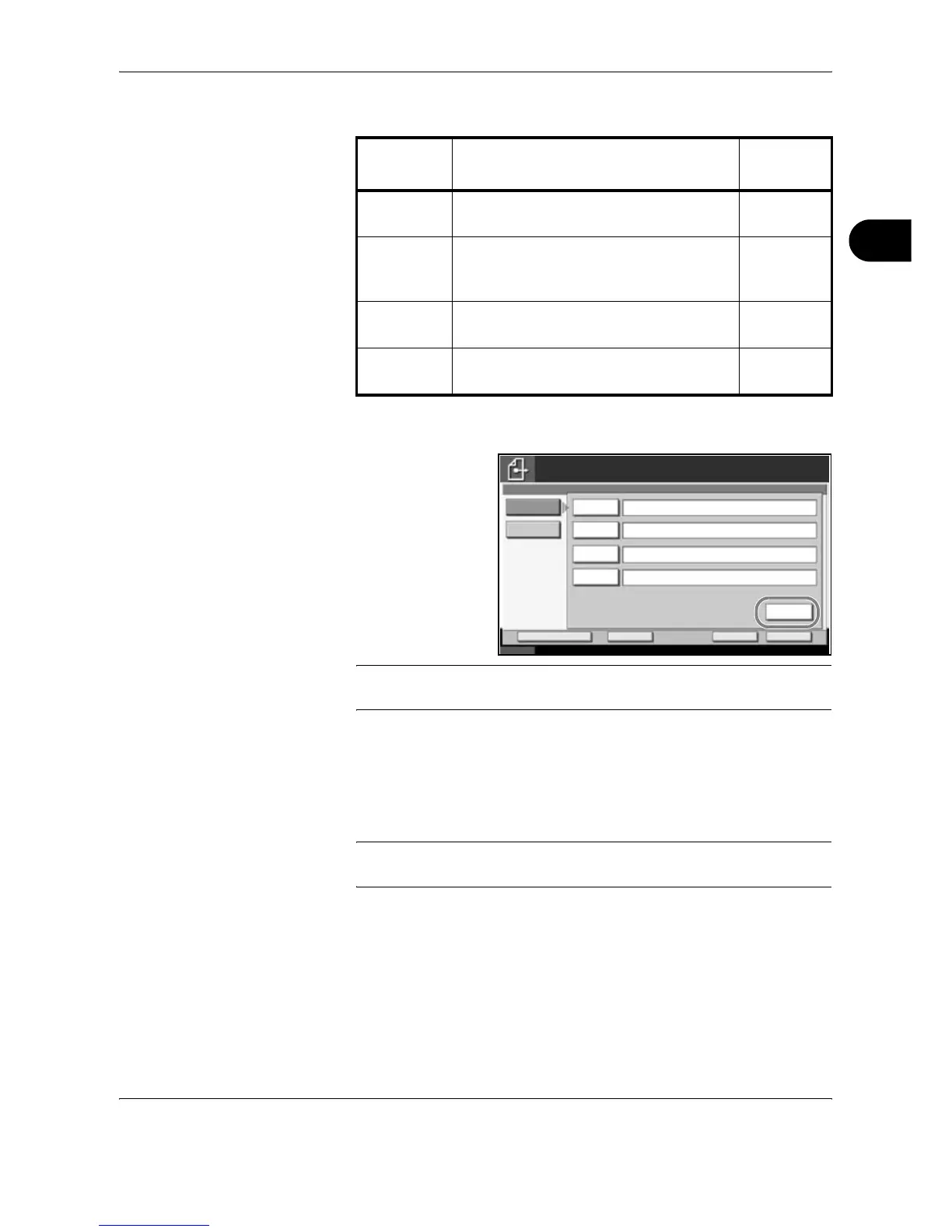
Data to be entered are as follows.
6
Upon completion of
all entries, press
[Connection Test] to
check the
connection.
NOTE: Connected appears when connection to the destination is
correctly established. If Cannot connect appears, review the entry.
To specify another destination, go to the step 7. To specify only one
destination, go to step 8.
7
Press [Next Dest.] and repeat steps 4 to 6 to specify the destination. You
can specify a combined total of up to 10 FTP and SMB destination folders.
NOTE: When [Add to Addr Book] is displayed, the entry is registered in
the Address Book.
8
Press [OK] to register the entry in the destination list.
9
Check the destination list.
Select a destination and press [Detail/Edit] to check and edit it. Edit it, if
necessary, referring to steps 4 to 6.
Item Data to be entered
Max.
characters
Host
Name*
* To specify a port number different from the default (139), enter using
the format “host name : port number” (e.g., SMBhostname:140).
Host name or IP address of the PC to
receive the data.
Up to 62
characters
Path Path to the receiving folder such as
follows.
For example, \User\ScanData.
Up to 126
characters
Login User
Name
User name to access the PC
For example, abcdnet\james.smith
Up to 62
characters
Login
Password
Password to access the PC Up to 62
characters
Status 10/10/2007 10:10
Place original.
Ready to send.
Destination
Cancel OKNext Dest.Add to Addr Book
1
Connection
Test
Host Name
Path
Login
User Name
Login
Password
SMB
FTP
Folder Path Entry




 To Next Page