•
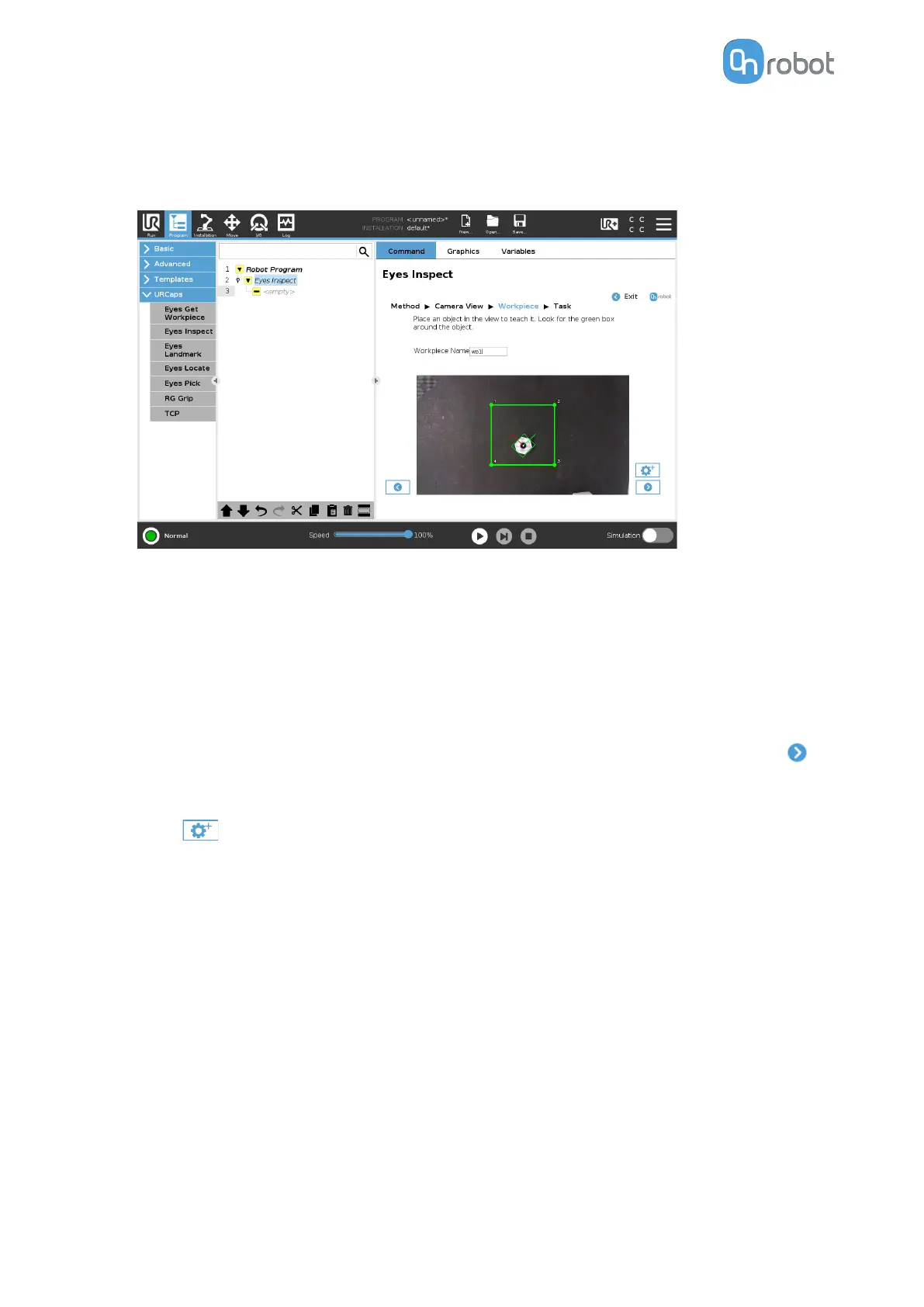
Enter a name for the workpiece to the Workpiece Name field.
Place the object inside the region of interest.
The current camera image is shown on the page.
When the camera recognizes the object, a green bounding box will appear on the image.
Red boxes can appear due to extra objects present on the image. In this case, remove the
extra objects until the camera sees only one object.
If more than one object is still detected, adjust the region of interest, which is marked by a
yellow rectangle in the image. To change the region of interest, adjust the corners by
clicking and dragging each of the points to its new position. The green region moves
first,
then the yellow follows, indicating that you successfully changed the region of interest.
If the object is recognized properly (the moving pattern covers the entire object), press
to save the workpiece.
Otherwise the detection can be adjusted by using advanced parameters.
•
Press to go to the advanced settings.
•
Adjust the detection by setting the Detection height min, Detection height max,
Background sensitivity, and Symmetry parameters if the camera does not recognize the
object properly (the moving pattern does not cover the entire object).
OPERATION
74


 To Next Page