USING VOICE RECOGNITION
1
30 - General information
Note:
– this function is only available on
vehicles equipped with the navigation
system;
– this function is not available with the
Reno Assistant, which can only be
operated by stating the "Hey Reno"
voice command.
.
"Google Assistant" activation
There are several ways to activate the
voice recognition system:
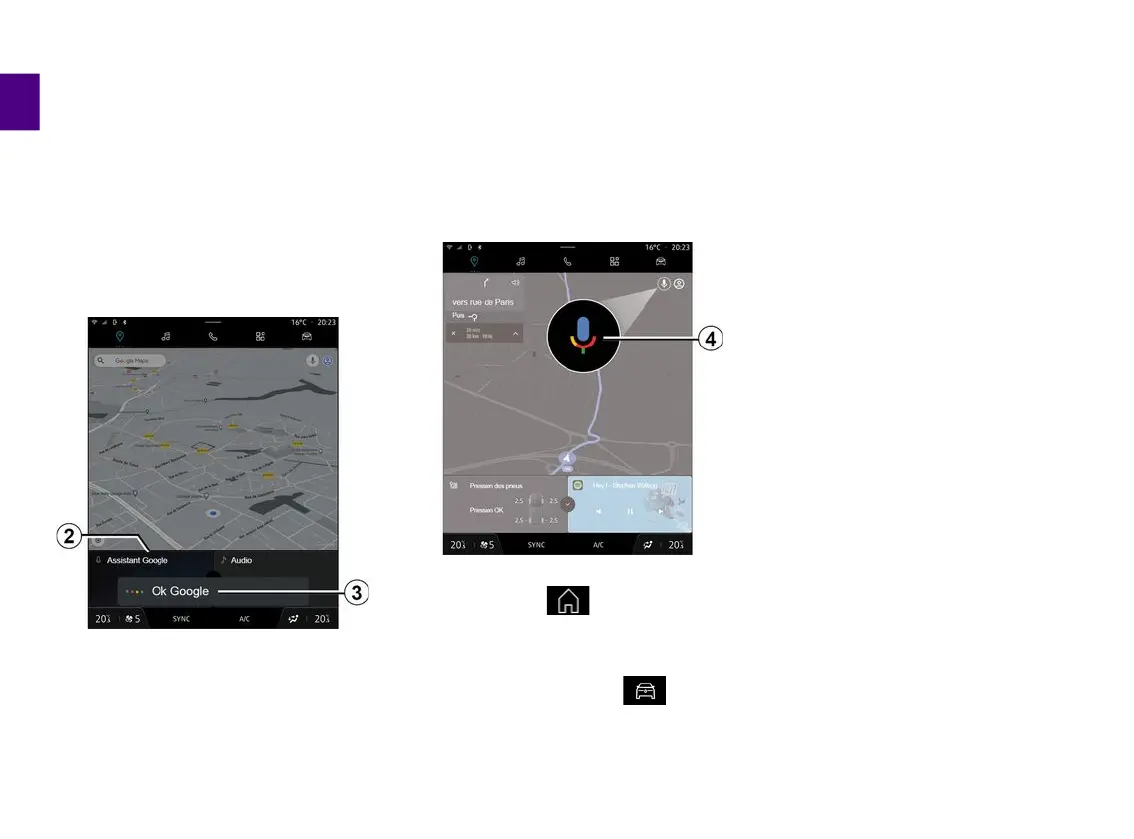
– after stating the "Ok Google" or "Hey
Google" voice command and receiving
audible feedback and visual feedback
on the screen
3
, state your request
(e.g. "Go home");
or
– by briefly pressing the voice
recognition button
1
in your vehicle;
or
– by pressing the widget "Google
Assistant"
2
;
or
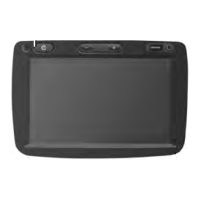
– by pressing the
4
icon available in
the "Navigation" World.
"Voice recognition" menu
From the "Vehicle" World, ,
"Settings", "Google®", then "Google
Assistant", you can:
– select the assistant's "Language";
– activate/deactivate the "Say Ok
Google" voice command;
– authorise custom results;
– proactively display custom results;
– receive notifications from the
"Google Assistant".
"Navigation" control with voice
recognition
There are several methods available to
enter a destination using the voice
control included with your multimedia
system.
Note: to benefit from all of the
features, you must activate your
Google® account and have saved
addresses. For further information,
please refer to the section on ''User
settings".
To start a voice command linked to
navigation, activate the voice
command then, after the beep, state
your command in relation to one of the
following topics:
– "Points of interest";
– "Destination";
– "Home";
– "Work";
– "Route information";
– "Guidance";
– ...
"Points of interest"


 To Next Page