MAP
2
Navigation - 37
Map
For safety reasons, carry
out any adjustments
while the vehicle is
stationary.
Displaying the map
Press the "Navigation" World
1
to access the map.
You can also access the map from the
"Applications" World , then
"Maps".
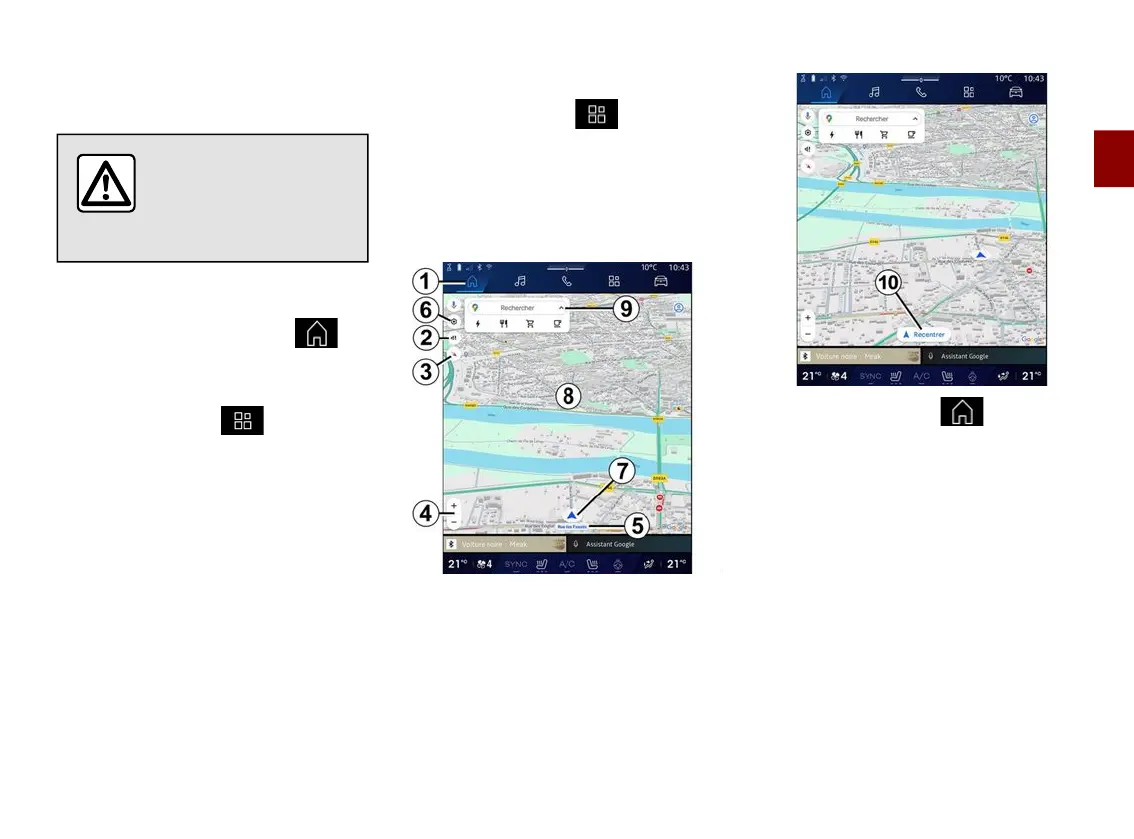
The map tells you your current position
and various information that you
configured (display POI, points of
interest, traffic information etc.).
To move around the navigation map,
drag the desired direction on the
screen.
Press "Recentre" to return to your
current position.
Note:
– "Maps" is the default navigation app.
Other applications may be available to
download from "Play Store™" in the
"Applications" World ;
– the map is updated automatically
without any need for action on your
part.
"Map" screen without a route in
progress
1.
"Navigation" World .
2.
Guidance voice settings.
3.
View mode to display as "North at
the top" (2D/North), "User view" (2,5D)
or "Overview".
4.
Zoom on the map: press the "+"/"˗"
button to zoom in/zoom out on the
map.
Note: you can also zoom in or out by
widening or narrowing the gap
between your two fingers on the
screen.
5.
Name of the street which you are
on. Press to access additional
features.
6.
Navigation settings.


 To Next Page