12
Note: Moving the joystick in the GPS MAP
screen will take you into PLANNING mode.
To avoid this, lock your keypad (section 3.02).
A successful satellite lock (a ‘x’) is indicated
at the top left of the screen by the red cross
changing to a green signal icon. The number
of green crescents denotes the signal
strength. A weak lock is indicated by a single
crescent plus a ‘2D’ caption.
The unit is EGNOS/WAAS enabled. This
means users in Europe and North America
are able to benet from ‘differential’ GPS
when one of the EGNOS/WAAS satellites is
in view (section 24.00). When this service is
available, the green signal crescents turn blue
and accuracy is enhanced.
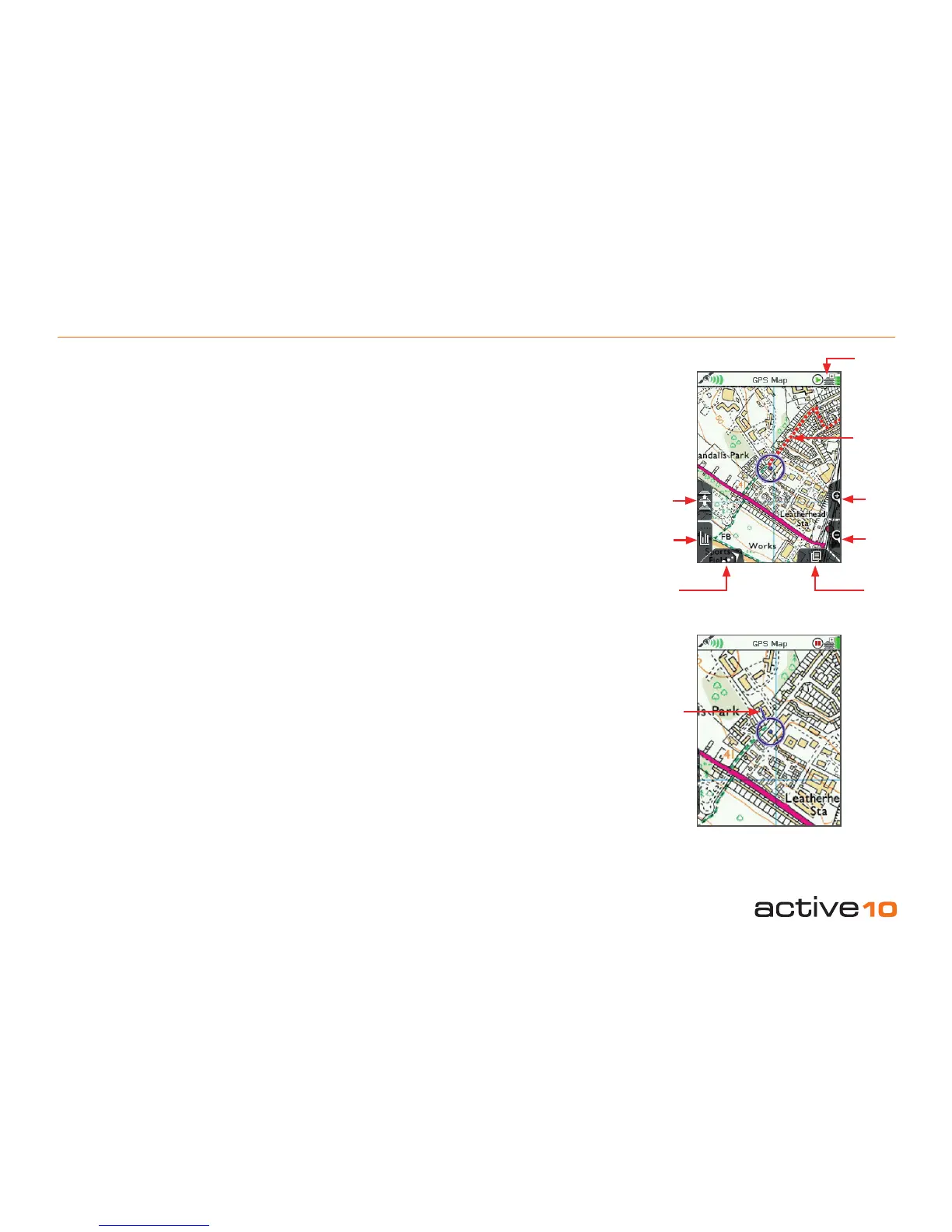
Your position is shown as a blue dot in the
center of the screen. Once moving, a pointer
appears on the blue circle, indicating the
current direction of travel. As you move, a
snail trail of red dots is laid down, indicating
the path you have taken, as long as you have
started the trip log (section 6.03). To change
the red dot size, see section 10.00.
The Active 10 logs your position once every
second. The rate at which red dots are
displayed depends on the map scale and
the speed of travel. Dots are laid down so an
appropriate distance is rendered between
them to create a clear track. A power saving
option (in Advanced Power Control, section
7.02), allows screen data to be set to update
once every 4 seconds.
5.00 GPS MAP Screen
For best results in achieving a satellite lock;
• The Active 10 should be pointed at clear
sky. The unit can also acquire a lock through
glass, i.e. windows/car windshield.
• Remove the map card for a faster lock.
• Set the screen to GPS STATUS (section
6.07) using the Primary Screens button.
Center press the joystick to access POSITION
INFO (section 10.00). If there is an Object
Of Interest (OOI) or a route in your current
location, you will have to select ‘POSITION
INFO’ from the 'Choose Information Type'
(section 11.00) window that appears.
Buttons:
Toggle maps
(Icon is three layers of stacked mapping)
Toggle between maps at the same zoom level
(section 5.01)
Data boxes
Toggle between none, 2 or 4 data boxes on-
screen (sections 7.04 – 7.08)
North Up/Trail Up
Map display cycles through North Up, Trail Up
(Center), and Trail Up (Low) (section 5.02)
Zoom In/Out
Map scale is continuously displayed during
zooming
Primary Screens
Scroll through primary screens (section 4.00)
5.00 Primary Screens: GPS MAP Screen
Figure 5.00
Blue pointer appears once you start
moving to indicate direction of travel.
Toggle
maps
Blue
pointer
Zoom
In
Snail Trail
North Up/
Trail Up
Data box
Primary
Screens
Zoom
Out
Toggle
icon



 To Next Page