66
16.00 OOI Menu: LOIs (Lines of Interest)
16.00 LOIs (Lines of Interest)
LOIs are Lines of Interest allowing you to
plot a line consisting of multiple waypoints
joined together, instead of a single POI (Point
of Interest).
LOIs are drawn in a similar way to a route, but
cannot be followed or activated like a route, or
have comments for individual points. They are
used to represent boundaries or alternative
routes. The description screen shows the
length of the line and the line color can be
edited.
Note: Use SatSYNC to add graphics or more
detailed information to an LOI. (See the
SatSYNC 1.5 User Guide).
16.01 Add LOI Screen
(GPS MAP → MAIN MENU → OOI Menu →
Add LOI by Map)
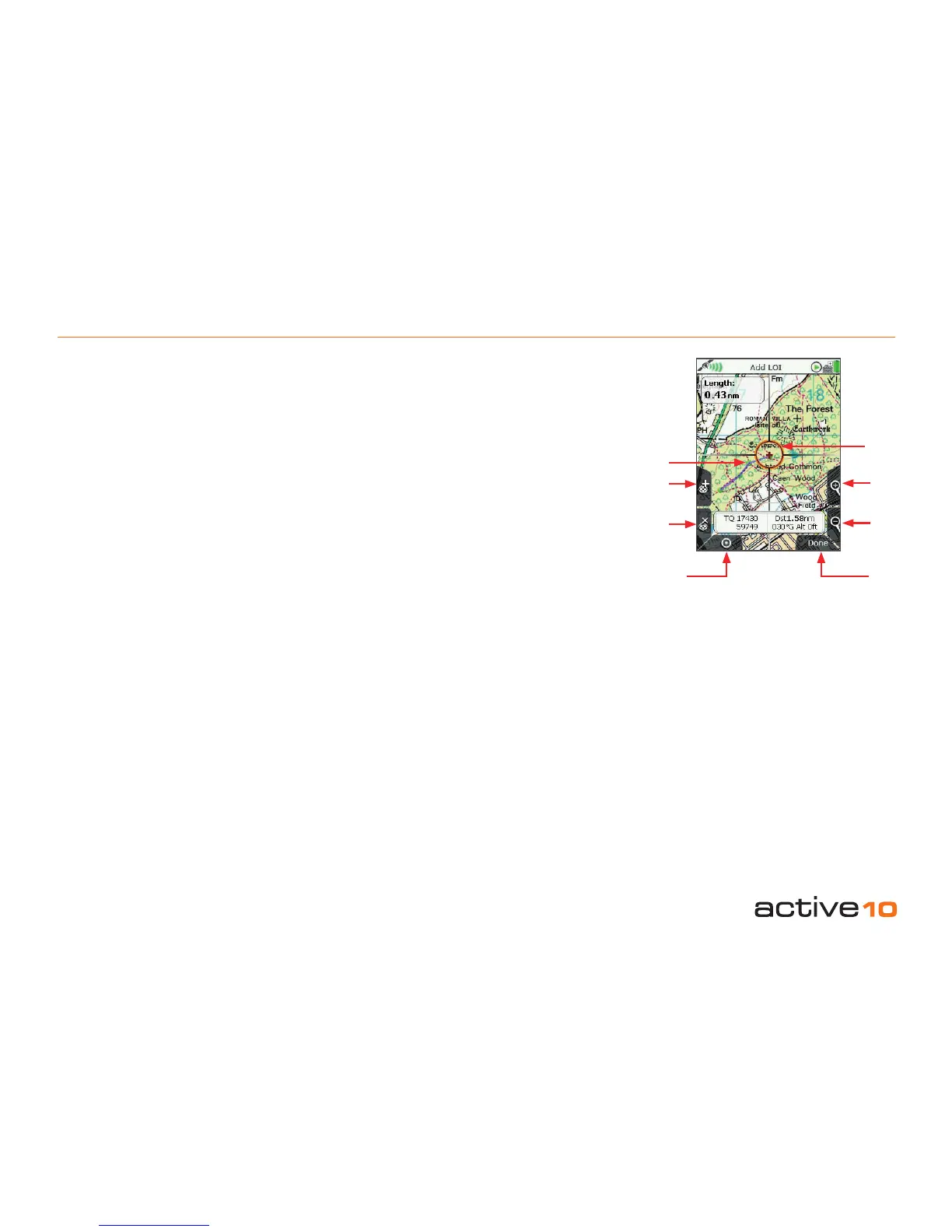
To create an LOI, select Add LOI by Map
from the OOI Menu and press Select or
center press the joystick. This will take you to
the Add LOI screen where you will be able to
lay down points (green dots) to form a 'line'.
The orange locator circle has a red cross in
the center to indicate you are in edit mode
and on the Add LOI screen. You can plot
points by either pressing the top left '+' button
or by center pressing the joystick. Use the
lower left 'x' button to remove points.
The line and its length are shown as you
create the LOI. The name of the LOI appears
in the designated area and you will be able to
change the color of the LOI (section 16.04e).
Buttons:
Add LOI point (+)
Lay down LOI points on the map
Remove LOI point (x)
Remove LOI points from the map
GPS Map
Return to GPS MAP screen
Zoom
Zoom in/out
Done/(Back)
Go to keypad to name LOI and then to OOI
Folders. (Back cancels the operation and
takes you back to the OOI Menu).
16.02 Add LOI in a Specic Folder
(MAIN MENU → OOI Menu → OOI Folders
→ specic folder → nal subfolder → Back →
Add LOI by Map)
This will add the LOI to the last visited folder.
Note: Folders are created using SatSYNC
and must contain at least one OOI or route
to be visible on the unit. (See SatSYNC User
Guide for more information).
LOI point
Remove
LOI point
GPS Map
Add
LOI point
Zoom
In
Locator
circle with
red cross
to indicate
edit mode
Zoom
Out
Done/
Back
Figure 16.01



 To Next Page