59
14.06a OOI Menu: Edit POIs (Points of Interest)
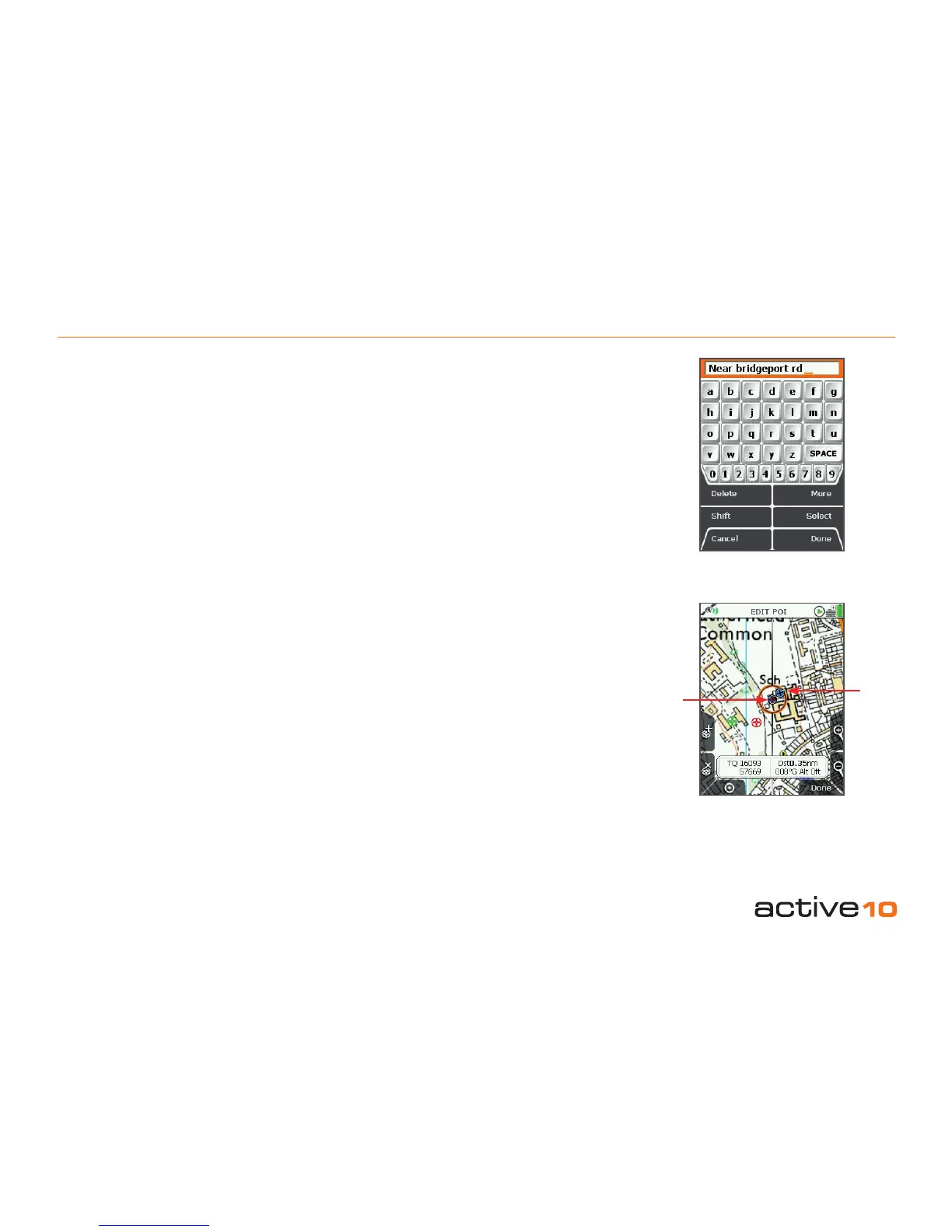
14.06a Rename POI
(GPS MAP → MAIN MENU → OOI Menu
→ OOI Folders → Select POI → Edit →
Rename)
When a POI is created it is called 'POI 1' by
default (or similar, depending on the number
of existing OOIs).To rename it, highlight the
POI in the OOI Folders, press Edit, then
Rename. The keypad appears. Use the
joystick to rename the POI (section 9.00).
14.06b Edit Description
(GPS MAP → MAIN MENU → OOI Menu →
OOI Folders → Select POI → Edit → Edit
Description)
Highlight Edit Description, then either press
the Edit button or center press the joystick to
access the keypad (section 9.00).
Operate the keypad to input comments
describing the POI and press Done when
nished. The screen will return to the EDIT
POI menu.
The description can be viewed on the POI
details screen (section 14.05).
Note: The 'Edit Description' option is only
available if the existing description has 128
characters or less (e.g. externally imported
descriptions from geocaches etc. with more
than 128 characters cannot be edited).
14.06c Edit Location by Map
(GPS MAP → MAIN MENU → OOI Menu →
OOI Folders → Select POI → Edit → Edit
Location by Map)
You are in edit mode when a red cross
appears inside the orange locator circle. A
copy of the POI icon appears just inside the
locator circle. Drag the POI to a new location
and center press the joystick to conrm the
placement.
Note: This mode only allows you to edit the
specic POI selected. Nothing else on the
map is editable, (i.e. the remove POI button
'x' does not have a function on this screen).
Press the GPS Map button to return to the
last map screen.
14.06d Edit Location by Grid
(GPS MAP → MAIN MENU → OOI Menu →
OOI Folders → Select POI → Edit → Edit
Location by Map)
Highlight Edit Location by Grid in the EDIT
POI menu if you want to edit the POI by
changing the grid reference values. This
will take you to the SETTING screen where
you can use the joystick to move left/right to
toggle between boxes. Move the joystick up/
down to change the box entries. Pressing
Next will move between rows (except with
OSGB). Select Done when complete to go
back to the EDIT POI menu.
Figure 14.06b
Figure 14.06c
POI
Locator
circle
displays
a copy of
the POI
icon being
edited



 To Next Page